Prismical meeting notes for Google Meet
A browser call and a durable research note. Keep Google Meet in your browser while Prismical captures the conversation in the desktop app.
The supported path described here is Google Meet in a browser plus Prismical desktop on macOS 14.2 or later. Installing a browser extension or connecting your Google account is not a step in this workflow. Calendar features are separate.
From joining the call to checking the note.
The audio test is part of the workflow. Check your exact setup before a meeting you cannot afford to miss.
Separate the call from the note
Open Meet in your browser and a new note in Prismical desktop. Set your research question before the interview. The customer interview template keeps participant evidence separate from your interpretation.
Open the related resource ↗Test the actual browser and audio device
Join a test Meet using the browser profile, microphone, and headphones you plan to use. Confirm the browser can use your mic and that Prismical has Mac microphone and system-audio permissions. Check for words from both speakers in the resulting transcript.
Record with a clear participant agreement
Explain how you will capture and use the conversation before recording. Start from Prismical’s note dock; do not assume a Meet recording indicator represents Prismical’s recording state. Keep your note open until you stop.
Preserve quotes and uncertainty
After transcription, use the interview Skill to organize context, evidence, hypotheses, and follow-ups. Check exact quotes in the transcript. A single interview is evidence about that participant, not proof that a whole market behaves the same way.
Open the related resource ↗The workspace behind the workflow.
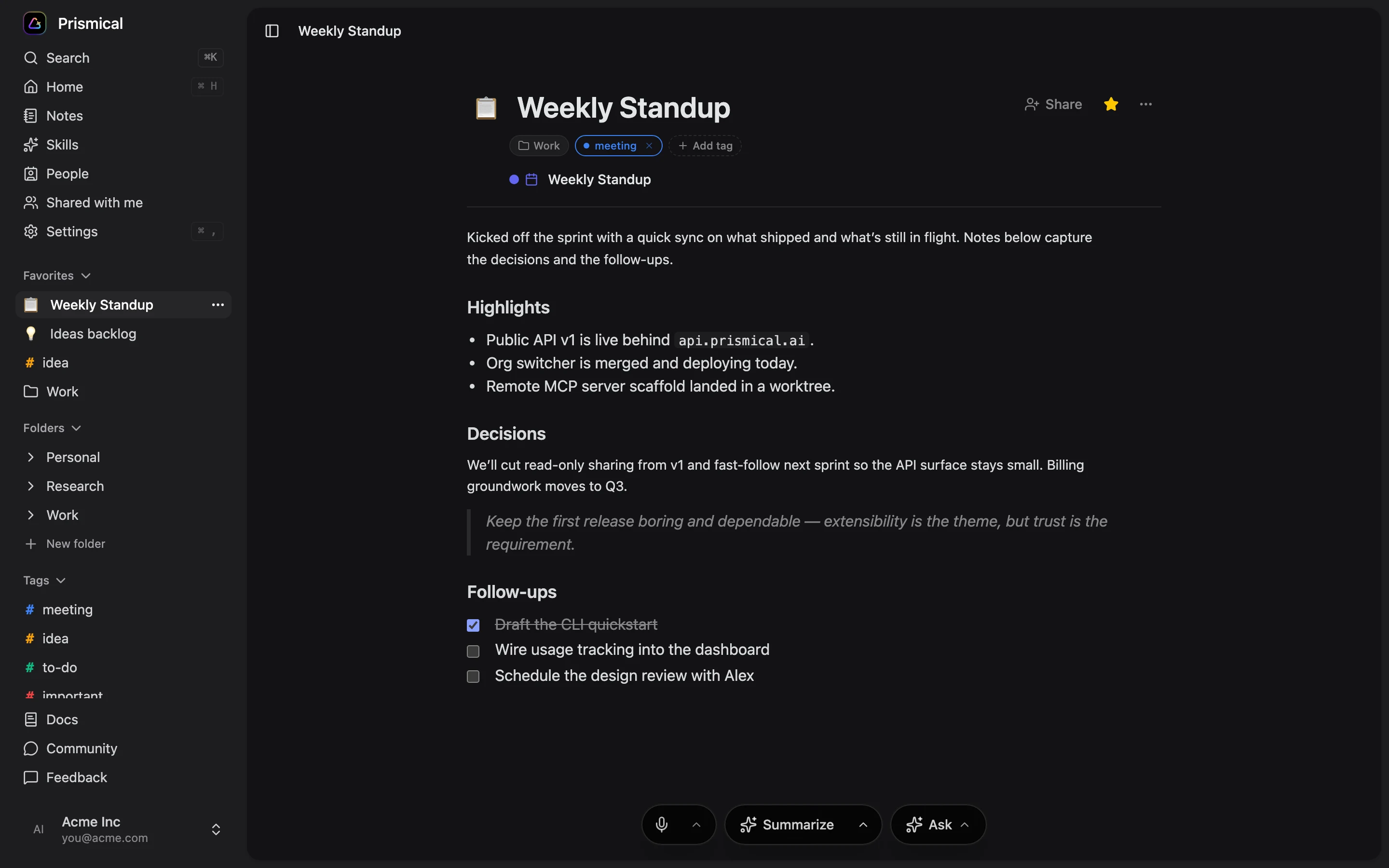
Your notes and meeting context belong close together. Product screenshot with demonstration content; interface details can vary by version.
Check the details
that matter.
- Meet running in Chrome does not mean Prismical’s web app captures the call’s system audio. This walkthrough uses Prismical desktop.
- A browser microphone permission and a Mac system-audio permission are different checks; verify both.
- Screen sharing is not required by this note-taking workflow. Do not share confidential notes accidentally when presenting a browser window.
- This page does not promise Meet transcript import, a Google Workspace integration, or a Windows capture result.
A few useful answers.
Practical details before you use this resource.
Do I need a Google Meet extension?
No extension is required for the desktop audio workflow described here. Meet runs in your browser and Prismical runs as a separate desktop app with the appropriate operating-system permissions.
Do I need to connect my Google account?
Not for this manual capture workflow. Calendar connection and event features are separate choices; opening a note and recording computer audio does not require this page to access your Google account.
Why test the browser profile?
Browser permissions and selected devices can differ between profiles or setups. Test the profile and headphones you will actually use, then inspect whether both sides of the call reached the transcript.
Setup references.
Documentation reviewed August 30, 2026. Follow your installed app’s permissions and verify the workflow on your device.
Keep the work moving.
Useful next steps for the conversation you are preparing for.
Customer interview notes template
A free customer interview notes template with research questions, exact quotes, evidence, and next steps. Copy the format or download a Prismical Skill.
Explore resource TemplatesDesign review meeting notes template
Capture design intent, feedback tied to evidence, decisions, and unresolved tests. Free design review template with a filled example and Prismical Skill.
Explore resource WorkflowsAI meeting notes for product managers
Connect customer interviews, design reviews, and sprint decisions with Prismical. Practical product-management note workflows and reusable templates.
Explore resource Meeting guidesPrismical meeting notes for Zoom
A practical Zoom note-taking workflow with Prismical on macOS 14.2+, an audio test, a sample client recap, and a reusable meeting template.
Explore resourceBring your next conversation
into Prismical.
Capture the conversation, keep the transcript beside your notes, and reuse a Skill for the output you need. Review the result before you share it.