Prismical meeting notes for Zoom
Keep your attention on the call. Use Prismical beside Zoom to capture the conversation and turn it into a note you can check, reuse, and share.
This walkthrough uses the Prismical desktop app on macOS 14.2 or later with microphone and system-audio access. It is a desktop audio workflow, not a Zoom Marketplace integration. No Prismical meeting bot needs to join the call.
From joining the call to checking the note.
The audio test is part of the workflow. Check your exact setup before a meeting you cannot afford to miss.
Prepare the note before joining
Create a note in Prismical and add the call purpose, participants, and a short agenda. For a recurring client call, start with the client check-in template so decisions and scope changes have a place to land.
Open the related resource ↗Check Zoom audio and Mac permissions
Use your intended microphone and headphones in Zoom. Give Prismical the microphone and system-audio permissions requested by macOS. Make a short test in which you and another participant both speak; inspect the transcript before relying on the setup.
Start and stop in Prismical
Tell participants you intend to capture the conversation and follow the applicable consent and workplace rules. Start recording from the note dock. Keep the note open during the call and stop recording when the conversation ends.
Review a client-ready recap
Run a relevant Skill against the transcript, then check decisions, dates, and client commitments. Copy the reviewed note or prepare a separate follow-up email. Sharing a Prismical note does not change who can access a Zoom recording.
Open the related resource ↗The workspace behind the workflow.
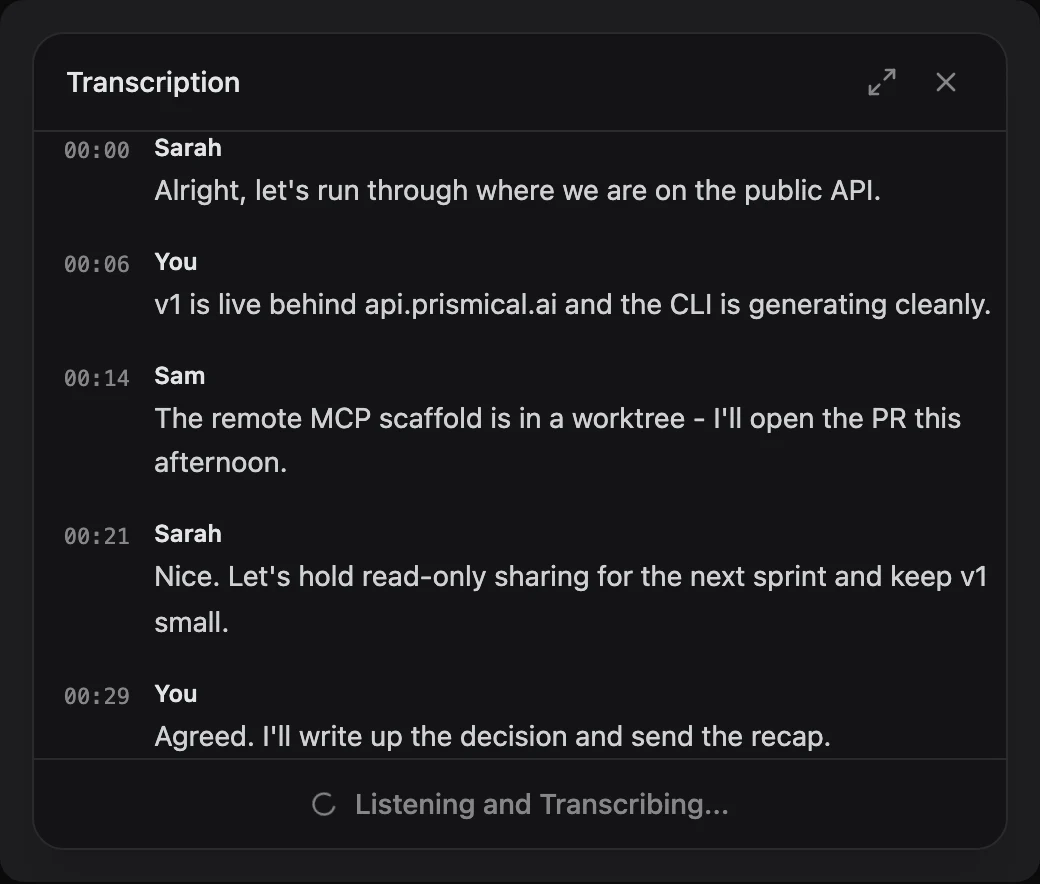
Your notes and meeting context belong close together. Product screenshot with demonstration content; interface details can vary by version.
Check the details
that matter.
- This guide covers macOS 14.2+ desktop capture; the web app’s microphone capture is not a substitute for system audio.
- A Zoom recording permission or subscription is separate from operating-system capture permissions. Follow your organization’s recording policies.
- If your test captures only your own voice, fix the audio setup before the real meeting. Do not assume headphones guarantee both sides are captured.
- Windows capture behavior must be checked on the installed build. This guide does not make a Windows system-audio guarantee.
A few useful answers.
Practical details before you use this resource.
Does a Prismical bot appear in Zoom?
Not in this desktop workflow. Prismical captures audio on the computer rather than joining as a Zoom participant. That does not remove the need to inform participants and follow applicable recording requirements.
Does this import a Zoom cloud recording?
No. This guide records into Prismical during the conversation. It does not connect to Zoom cloud recordings or promise audio-file import.
Can I use the web app for the same capture?
The documented web workflow uses microphone input. Use the supported desktop system-audio workflow and verify both sides of the call in a short test when recording a remote meeting.
Setup references.
Documentation reviewed August 30, 2026. Follow your installed app’s permissions and verify the workflow on your device.
Keep the work moving.
Useful next steps for the conversation you are preparing for.
Client check-in meeting notes template
Keep client check-ins focused on progress, feedback, scope changes, and mutual next steps. Free meeting template with an example and downloadable Skill.
Explore resource TemplatesSales discovery call notes template
Capture buyer problems, impact, decision process, objections, and a confirmed next step. Free sales discovery template, filled example, and Prismical Skill.
Explore resource Free toolsFree meeting follow-up email generator
Create a follow-up email draft from pasted meeting notes, with source-based discussion points and next steps to confirm. Free, browser-only, and editable.
Explore resource Meeting guidesPrismical meeting notes for Google Meet
Take Google Meet notes with the Prismical desktop app. A macOS capture checklist, research-note example, and transcript review workflow without a meeting bot.
Explore resourceBring your next conversation
into Prismical.
Capture the conversation, keep the transcript beside your notes, and reuse a Skill for the output you need. Review the result before you share it.