
AI Skills
Build reusable AI prompts that clean up, enhance, append to, or rewrite a note — and review every change as a diff.
A skill is a prompt you save and run on a note. Write the instruction once — "pull out every commitment I made and who I made it to" — and run it on any note from then on.
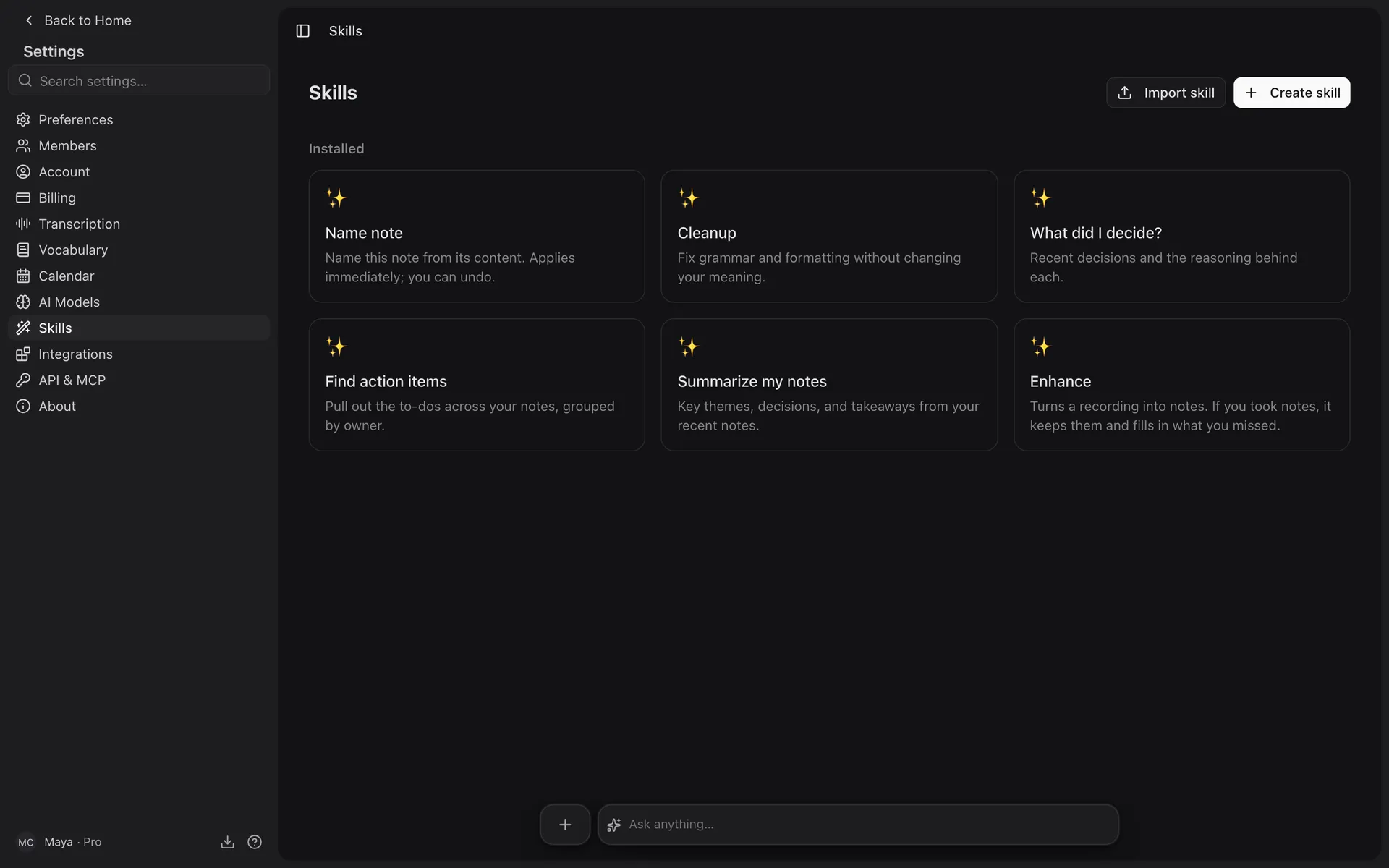
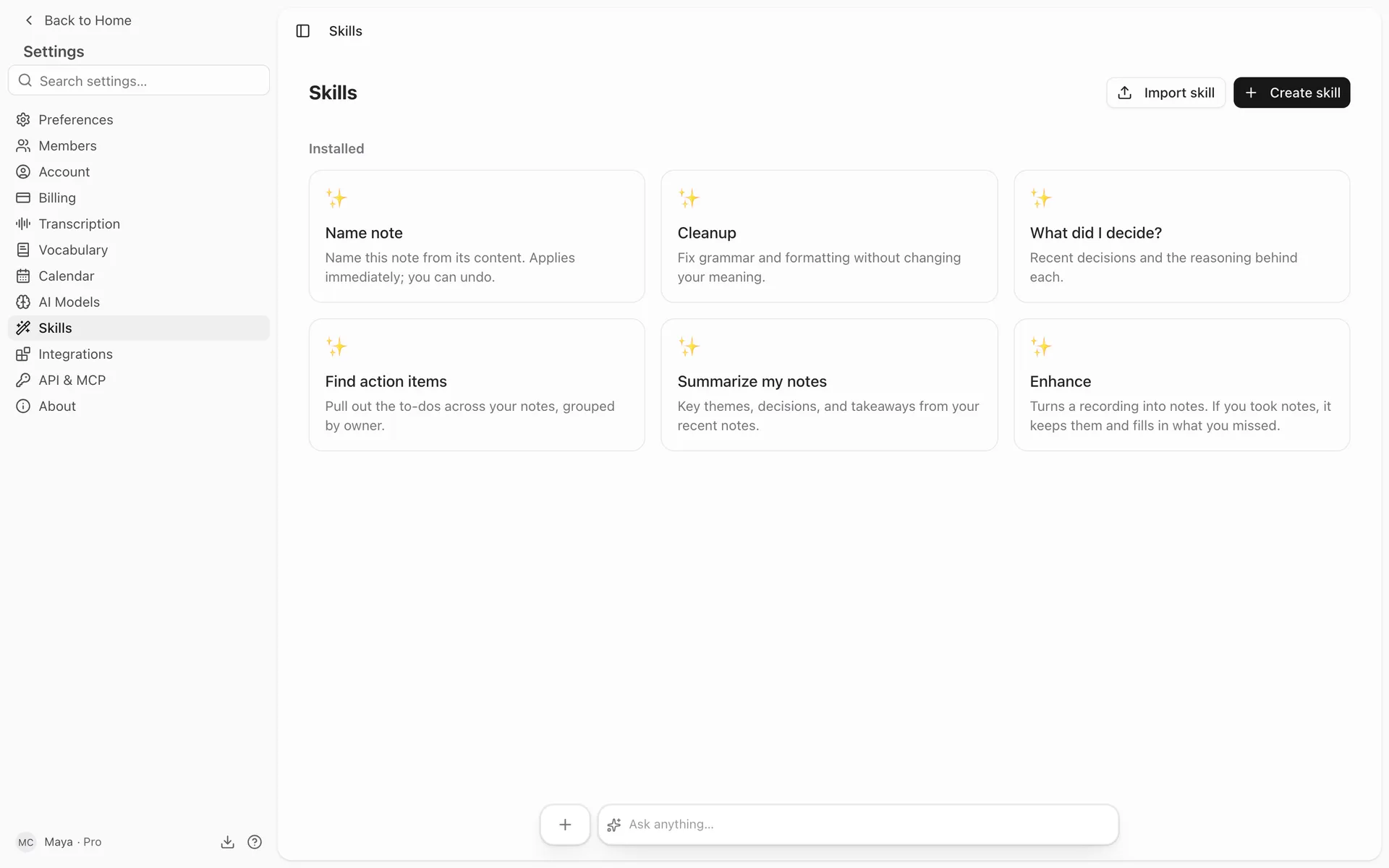
Prismical ships a few skills to start with, and you can write your own.
What Comes Built In
Two skills run on a note from the dock:
| Skill | What it does |
|---|---|
| Cleanup | Fix grammar and formatting without changing your meaning. |
| Enhance | Turn the recording and your rough notes into a clean, structured summary. |
Enhance is the main recording-to-note action and has a page of its own.
Three more appear as suggestions in Ask AI rather than running on a single note: Summarize my notes, Find action items, and What did I decide?
Built-in skills are read-only. To adapt one, open it and choose Clone skill — you'll get an editable copy.
Running a Skill
There are three ways, and which ones a skill offers is set on the skill itself.
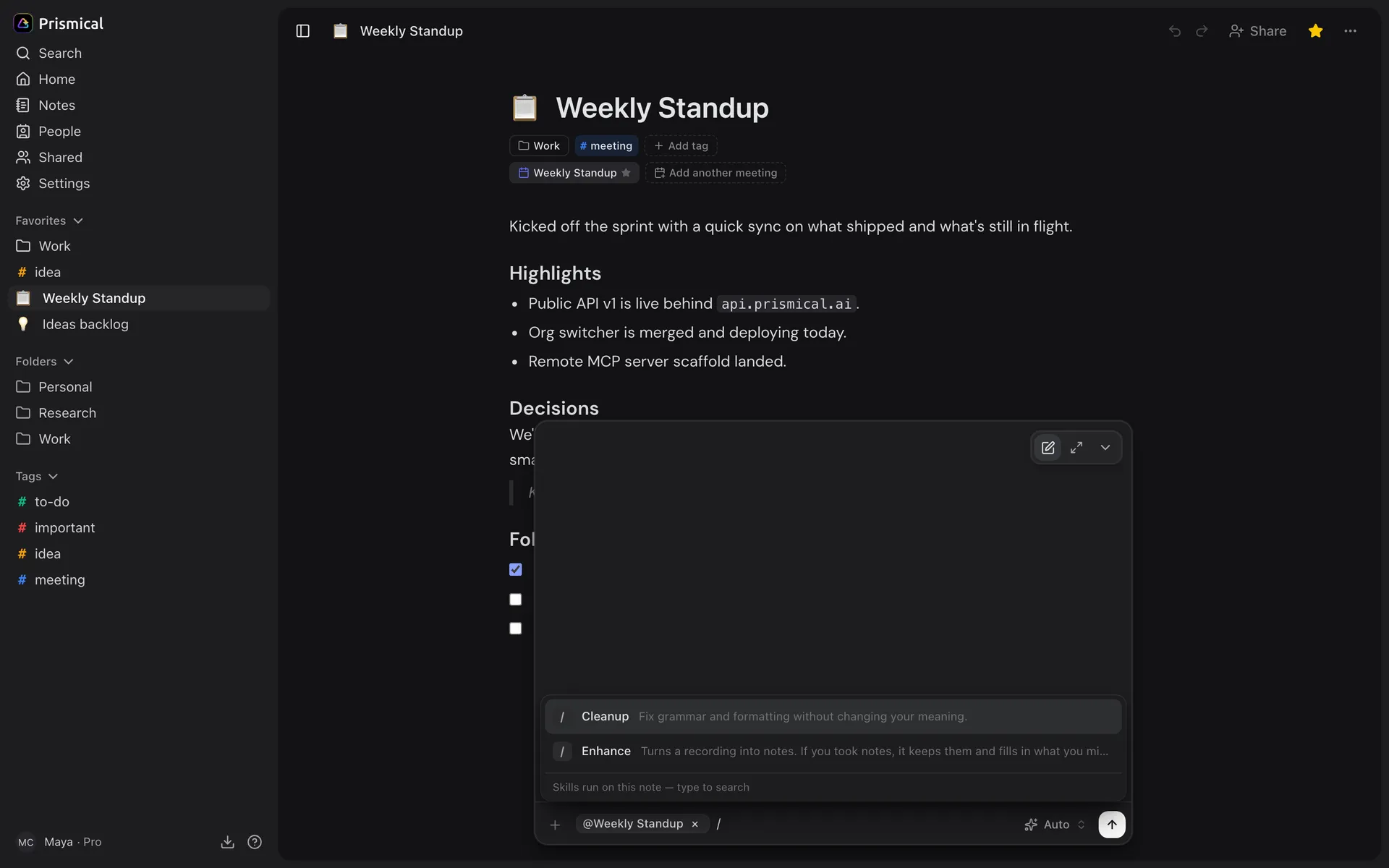
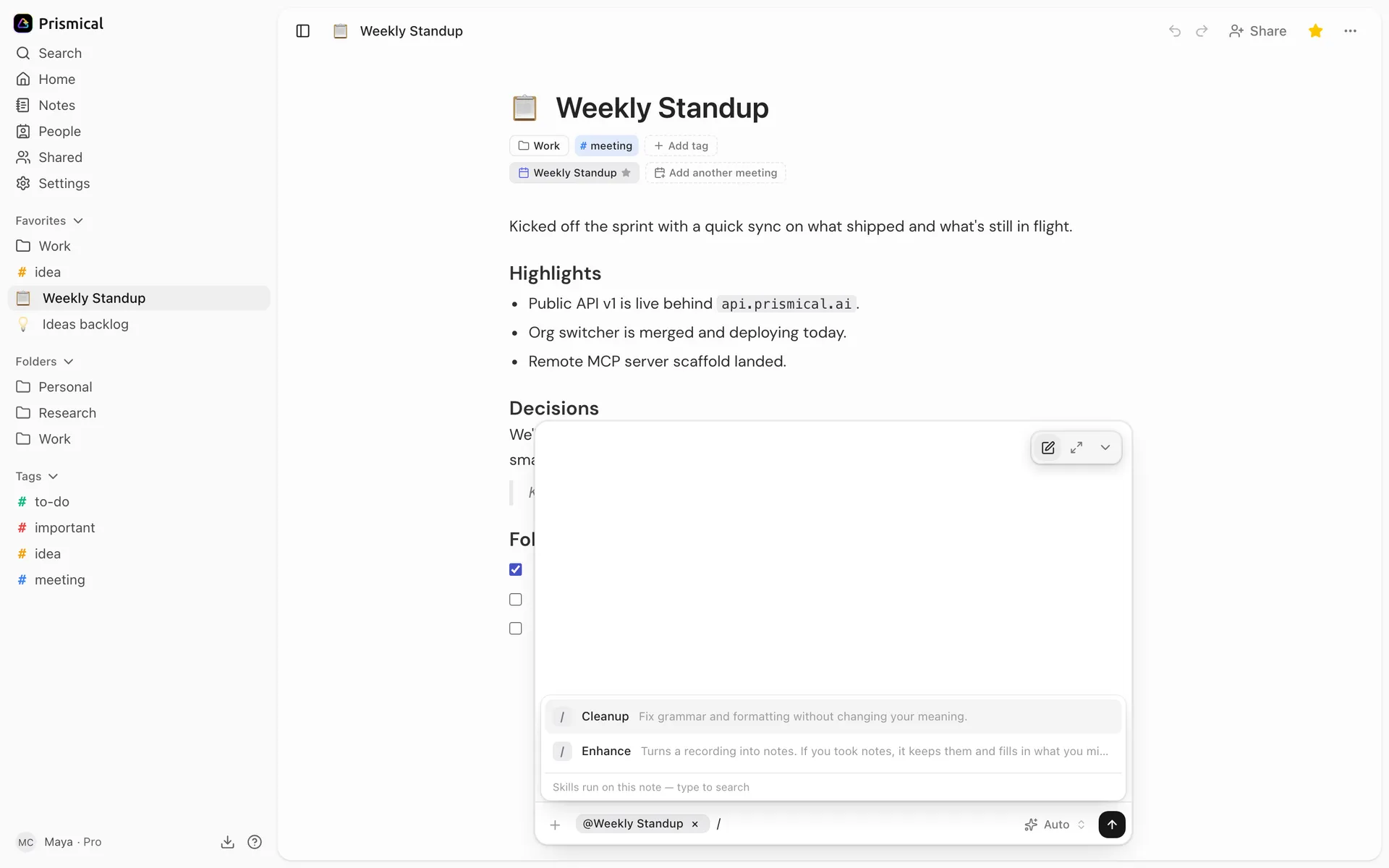
Type / in the Ask bar at the bottom of a note. Prismical lists the skills you can run on that note — Cleanup, Enhance, and any you've written — and you can keep typing to search them.
Highlight text in a note and Cleanup is offered in the popover, rewriting just what you highlighted.
This only works on a selection inside a single block of text.
Prismical's suggested prompts appear as one-tap chips in the Ask panel. Tapping one sends that prompt as your question.
Here the skill is a saved question, not a note transformation — nothing is written back to the note.
Skills also run automatically when you stop a recording, if Auto-enhance after recording is on. See Enhance.
Reviewing the Result
Nothing is written to your note until you say so. When a skill finishes, the result arrives as a draft in the dock at the bottom of the note:
| Apply | Put the change into the note. |
| Discard | Throw it away and leave the note untouched. |
| Describe a change | Type a follow-up in the text box — "shorter", "keep the dates" — and run it again on the same input. |
After applying, Undo is offered for a moment and restores the note to exactly what it was.
Undo covers the most recent apply only, and it restores the whole note body rather than picking out one change.
What a Skill Reads
Every skill reads the note's text. Beyond that:
- The transcript is included only if the skill asks for it. A skill that doesn't opt in can't see the transcript at all, which is what keeps a note-only skill from drifting into summarizing your recording.
- Your selection is what an inline skill rewrites.
- The note title is passed as context, but a note with a title and no body still counts as empty — you'll be told to add some content before running the skill.
Writing Your Own
Go to Settings → Skills and click Create skill.
Name it — this is what you'll see in the dock menu and on the skill card.
Add a Description. One short line, shown on the card.
Write the Prompt. This is the skill. The note — and the transcript, if the skill uses it — arrives as markdown; your prompt says what to do with it and what to send back.
Pick a Mode — whether the skill adds to the note or rewrites it — and turn on Include transcript if the skill needs what was said.
Click Create. It's available immediately.
Modes
The mode decides what happens to the note when you apply the result.
| Mode | Result |
|---|---|
| Add a section | Adds the output to the end of the note, leaving what's there alone. |
| Rewrite entire note | Swaps the whole note body for the output. |
Add a section is the safe choice. Reach for Rewrite entire note when the skill's job is to produce the note rather than add to it.
Other Settings
- Include transcript — give the skill what was said, not just what you wrote.
- Enabled — turn a skill off without deleting it.
Your own skills run the same way as the built-in ones: type / in the Ask bar at the bottom of a note and pick yours.
Sharing Skills
Skills are personal — yours don't appear for your teammates. To pass one along, open it and choose Export as JSON, then have them use Import skill on the Skills screen.
Use JSON for this. Export as Markdown is for reading and editing a prompt outside Prismical — importing a Markdown file brings the prompt back but not the skill's name, description, or settings, so you'd have to set those up again.