
Recording
Record from the dock or import an existing file, review your transcript, and understand recording limits.
Recording lives in the dock at the bottom of a note. Open a note, hit record, talk. Already have an audio or video file? See Importing a Recording for the desktop and web app import flow.
The Dock
Every note has a dock at the bottom of the window. The waveform button at its left end opens the recording panel, where recording starts and the transcript lives. The rest of the dock is for Ask AI and Enhance.
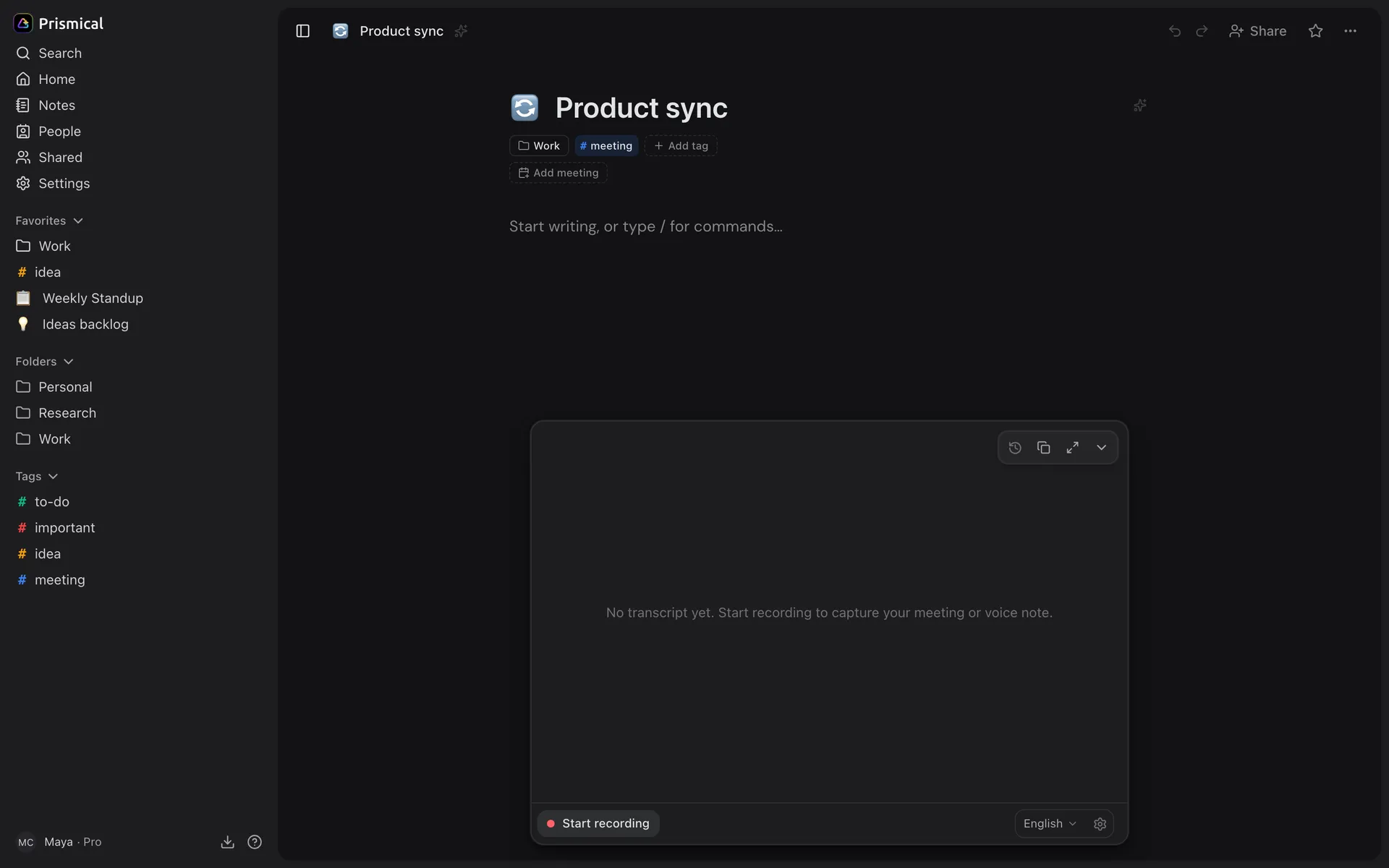
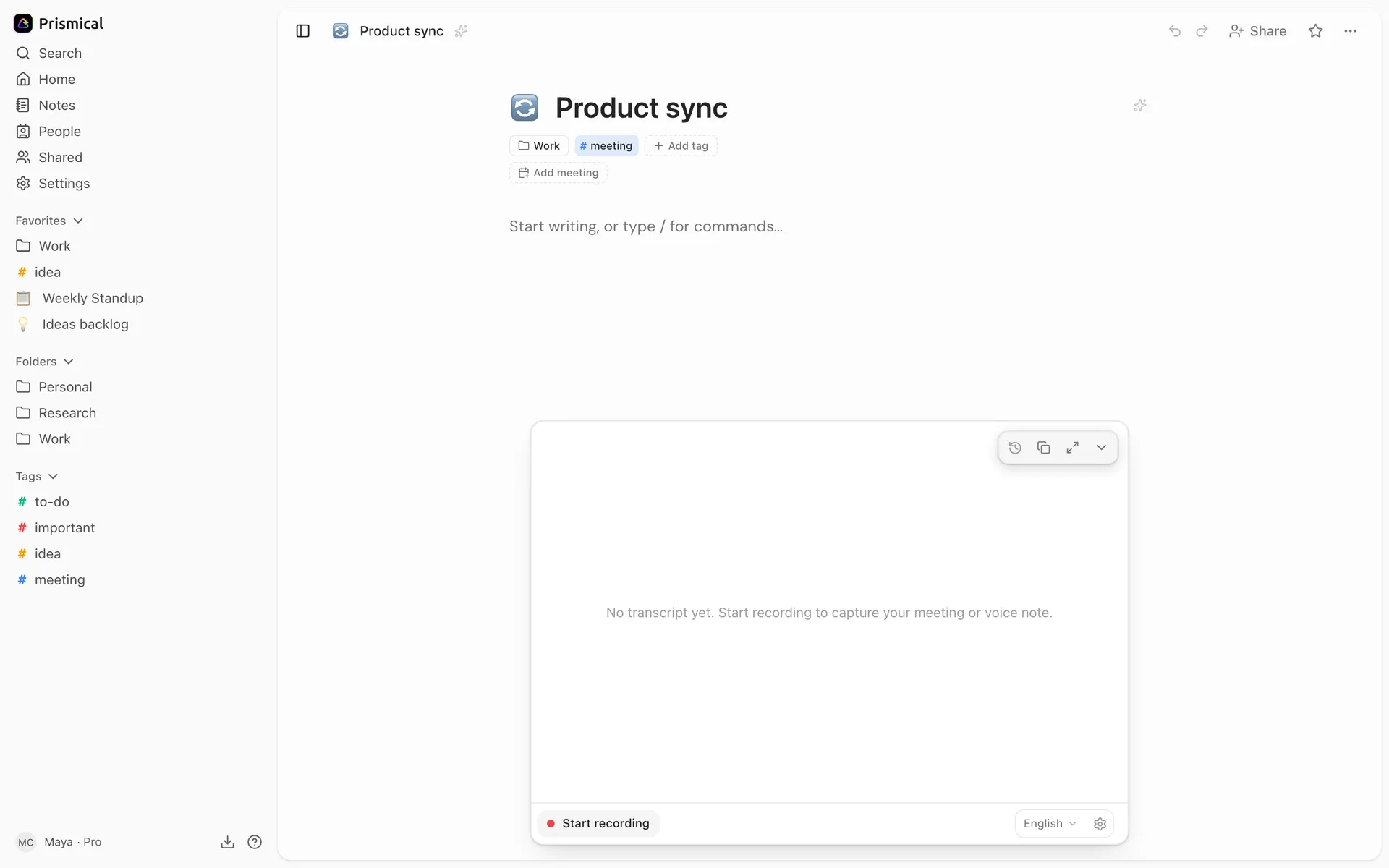
- Start recording begins a recording on this note.
- The language Prismical transcribes in.
- Input & sound: your microphone and audio settings.
The dock only appears on a note. From anywhere else you'll see New note instead — make a note first, then record into it.
Starting and Stopping
Open the panel and click Start recording. The first time on a new device, your operating system or browser asks for microphone access.
While it records, the dock shows pause, a moving waveform with a timer, and stop, so you can tell at a glance that it's live. Prismical writes the transcript into the panel as people talk.
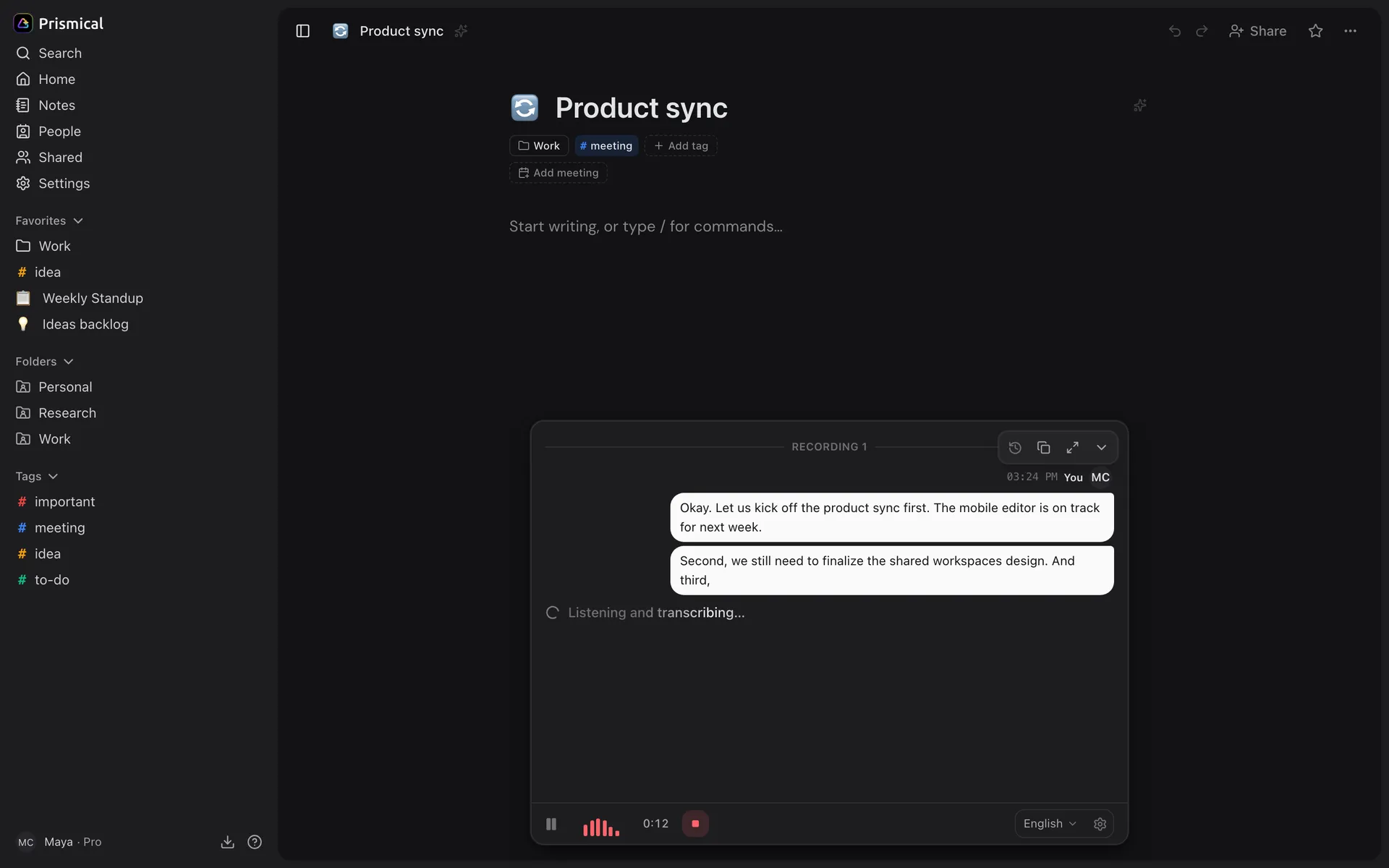
- Pause, then resume when you're back.
- Stop when you're done.
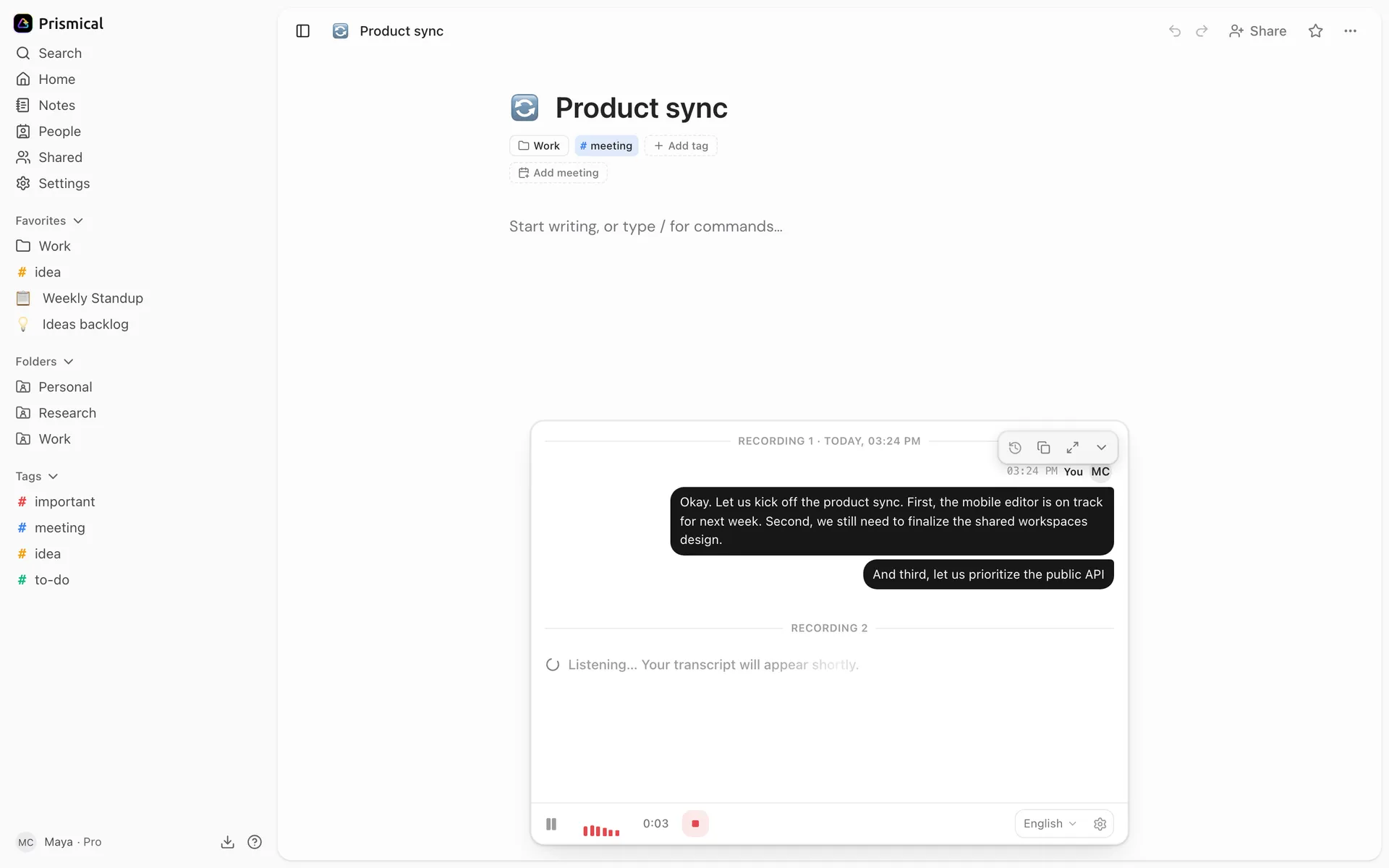
Stopping isn't the end of the note. You can record into the same note again later, as many times as you like, and each recording keeps its own transcript.
If something goes wrong you'll see it above the dock: Microphone access was denied, A recording is already in progress, or Could not start recording. Troubleshooting covers what to do about each.
Several Recordings, One Note
Every click of the record button starts a new recording attached to the current note. That opens up a few useful patterns:
- Record the meeting, then record your own thoughts right after it. Two recordings, one note.
- A recurring sync can be one note that grows week over week.
- Step out of a call and come back — stop, then start again. Nothing is lost.
The transcript panel groups them under Recording 1, Recording 2, and so on, with the time each started. You can fold them into the note one at a time — see Enhance.
Navigating to a different note stops the recording. Prismical records into the note you're on, so leaving ends the session.
What Gets Captured
You don't pick this — Prismical takes the most it can on the platform you're using.
Your microphone and system audio together, on macOS 14.2 or later — so a video call is captured from both ends. See Meeting recording.
On older macOS, recording works but captures your microphone only.
Your microphone and system audio together in the current Windows 10/11 desktop app. System audio uses your default output device and needs no separate permission. See Meeting recording.
Your microphone, through the browser's mic permission.
Your microphone. Recording continues when you leave the app or lock the phone.
Your microphone. Recording continues when you leave the app or lock the phone.
Prismical uses the microphone you pick in Settings → Recording & transcription, or your system default. To record from a different microphone, change your default in your operating system's sound settings before you start.
If Something Interrupts It
On the desktop app, audio is written to a file on your machine as it's captured, before anything is sent anywhere. So a crash, a force-quit, or a dead battery doesn't lose the recording — Prismical picks it up and transcribes it the next time you open the app.
The same applies to your connection. Losing wifi mid-meeting doesn't stop the recording; the audio waits on disk and sends when you're back. If it still can't get rather than being thrown away.
In the browser, a recording only exists in the tab. Closing it, reloading, or a browser crash loses the recording — there's no file on disk to recover from. For anything you can't afford to lose, use the desktop app.
Importing a Recording
Already have a recording? Import it into a note and Prismical transcribes the audio. Your note text stays as it is — you decide when to bring the transcript into it.
Recording imports are available in the desktop and web apps.
Open the note you want the transcript attached to, or create a new one. Click Record and transcribe, the waveform button at the left of the dock.
Open Past recordings at the top of the panel. Click Import recording at the bottom of the history list. It's there even when the note has no recordings.
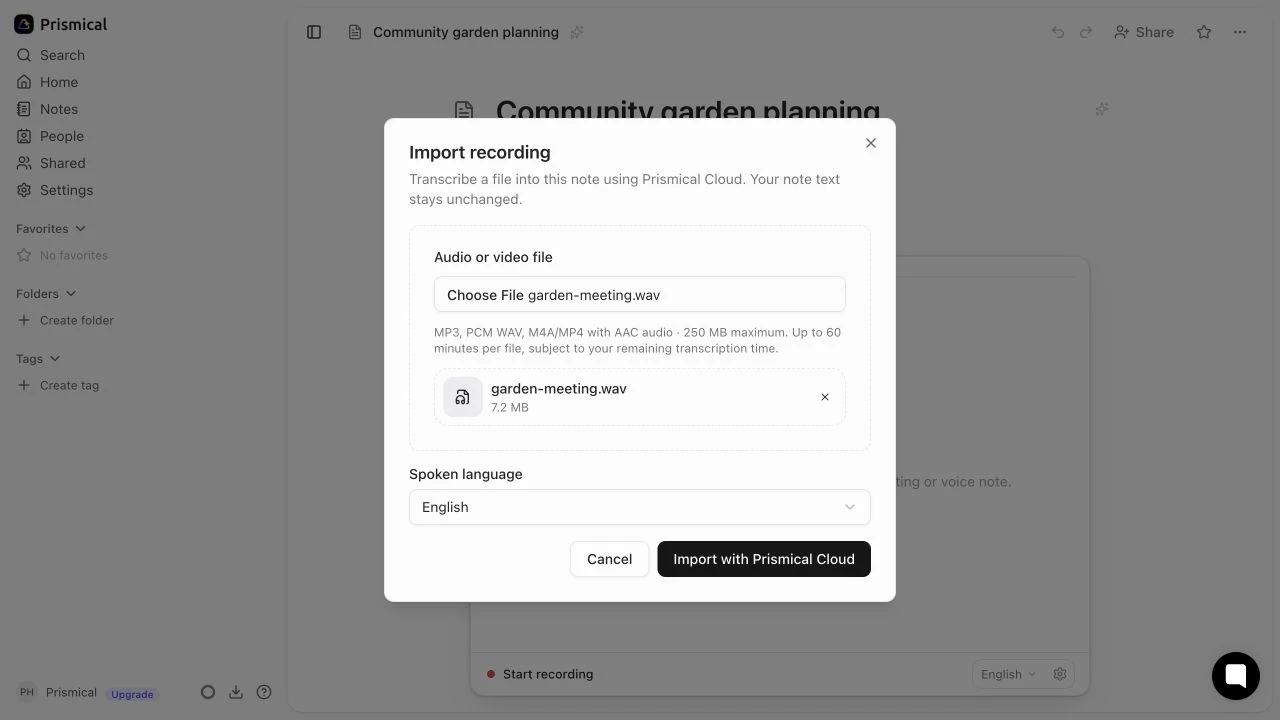
Choose an audio or video file, or drag it into the file area. Check the filename and Spoken language. The language starts with your saved transcription language; change it for this import, or choose Detect language.
Click Import with Prismical Cloud. The dock shows the upload progress, then Checking file and Transcribing audio. Keep the app or browser tab open until the upload finishes.
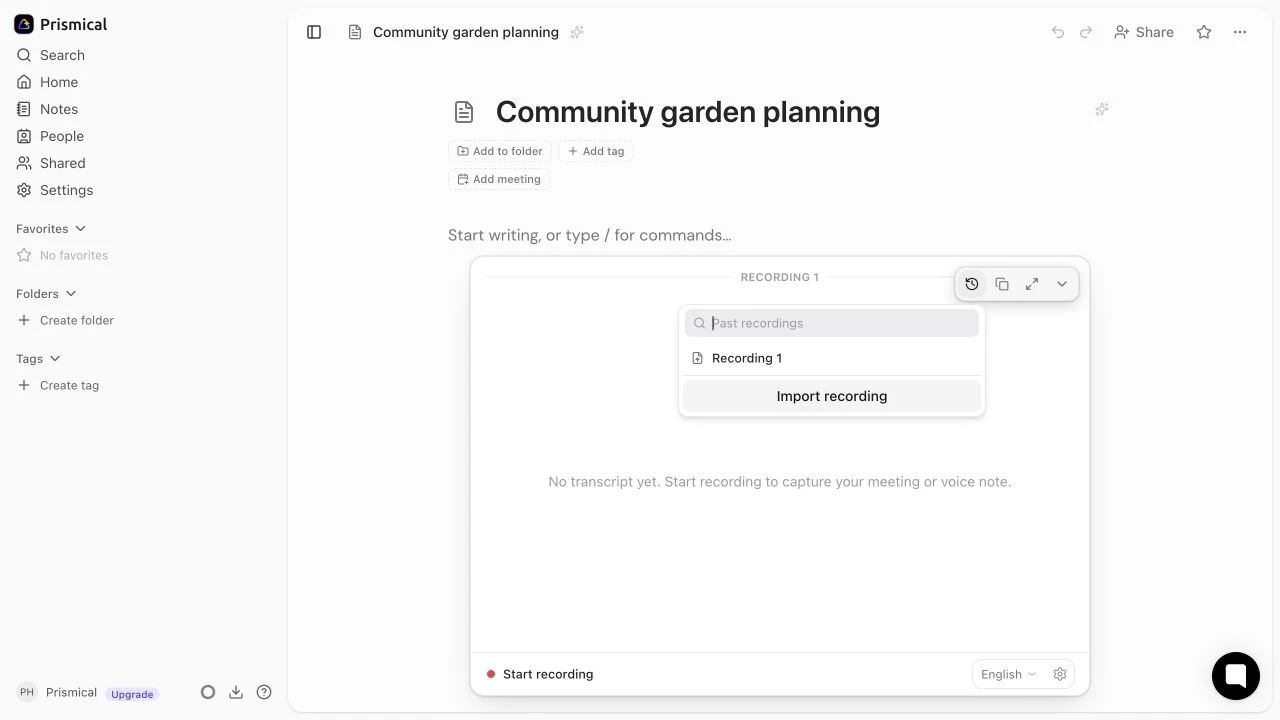
- Open Past recordings at the top right of the recording panel.
- Click Import recording at the bottom of the list.
Files and Limits
| File | Supported audio |
|---|---|
| MP3 | MP3 audio |
| WAV | PCM audio |
| M4A or MP4 | AAC audio |
Each file must contain exactly one audio track and be no larger than 250 MB. For a video file, Prismical transcribes the audio; it doesn't read the pictures. Renaming a file's extension doesn't convert its audio format.
The duration limit follows your plan, up to a maximum of four hours per file. Check the limit shown in the import dialog for your account. A file also has to fit within your remaining cloud transcription time — Prismical won't import just the first part of an over-limit file.
Imports use Prismical Cloud and count toward your cloud transcription allowance. Choosing an on-device model or using your own provider key for live recording doesn't change how this import button works. Check Cloud transcription in the sidebar to see what's left; Plans explains the allowance.
Opening the Transcript
When the import finishes, a notification shows a checkmark and the filename. It stays until you dismiss it or click Open transcript, which opens the destination note and expands its recording panel.
The imported recording also appears in Past recordings on that note. You can close the panel, work on another note, and return to it later.
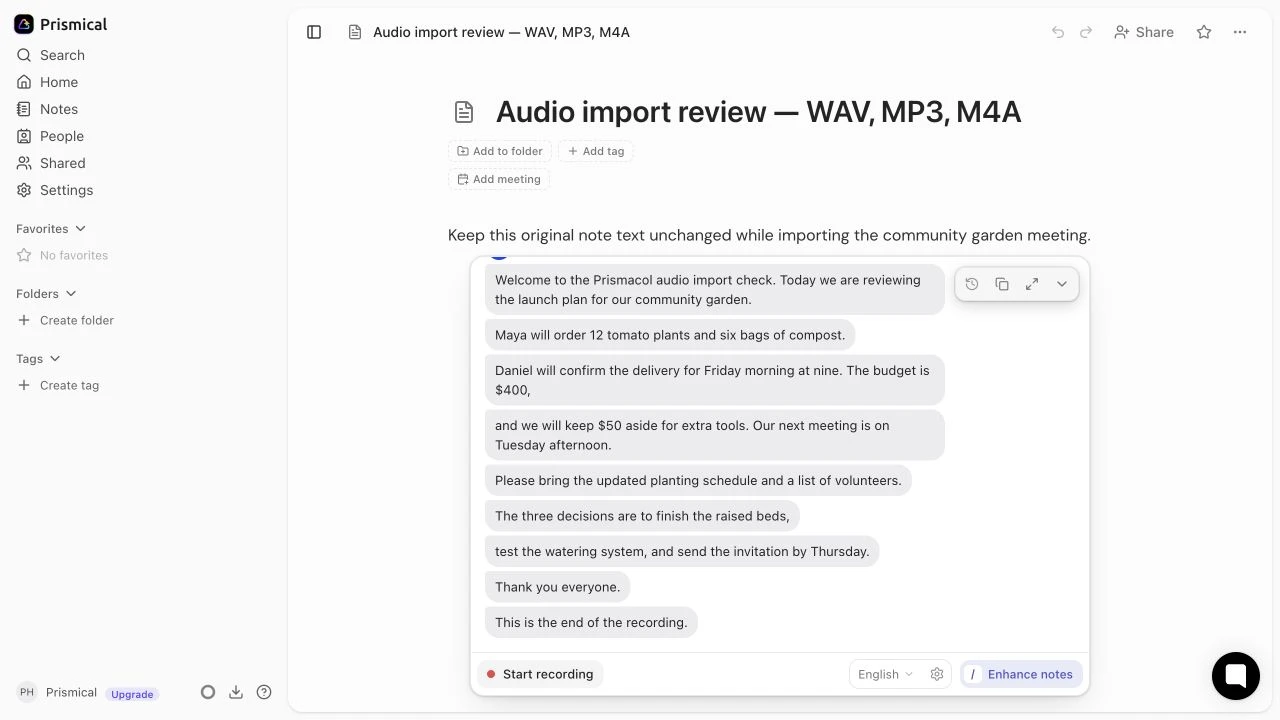
Read or copy the transcript, adjust the speaker names, or click Generate notes on an empty note (Enhance notes if you've already written something). Importing doesn't write over your note; Enhance is the next step when you want to turn the transcript into notes.
If an Import Doesn't Finish
Read the message above the dock and use the action it offers. A temporary transcription problem may be retried automatically before an error appears.
| What you see | What to do |
|---|---|
| The file can't be read, or its format isn't supported | Export it as MP3, PCM WAV, or M4A/MP4 with AAC audio, then choose that file. Make sure it contains one audio track. |
| The file exceeds your duration limit | Split or shorten it before importing. Check the limit in the dialog. |
| Not enough cloud transcription time | Use a shorter file, wait for your allowance to reset, or change your plan. |
| Upload connection was interrupted | Reconnect, choose Cancel upload, then start the import again. |
| Retry processing | The file may already have uploaded. Use this to continue without uploading it again. |
| Transcription failed | Choose Retry transcription to try again. If asked, use Choose file again to restart the upload. |
If you closed or reloaded the tab during an upload, return to the note and check its recording panel. An unfinished upload may need the file selected again. Once the upload has finished, checking and transcription can continue while you work elsewhere. Wait for the current import to finish or cancel it before starting another.