Prismical meeting notes for Microsoft Teams
Turn a busy Teams discussion into a clear project record. Capture the conversation, then separate decisions, conditional dates, and unresolved risks.
This guide uses Teams alongside Prismical desktop on macOS 14.2 or later. It does not install a Teams app, join your tenant, or bypass organizational recording controls. Check your organization’s rules before using a separate capture tool.
From joining the call to checking the note.
The audio test is part of the workflow. Check your exact setup before a meeting you cannot afford to miss.
Confirm the workflow is permitted
Check with the appropriate owner if your organization restricts recording or third-party note-taking. Tell participants what you intend to capture and how the note will be used. Do this before a sensitive client or internal discussion.
Prepare a decision-oriented note
Create a Prismical note with the project outcome and decisions the meeting needs to resolve. Use the stakeholder update format when the important output is a forecast, risk, or approval request.
Open the related resource ↗Verify the Teams audio route
Use the Teams desktop app or browser setup you intend to keep for the call. Grant Prismical the requested Mac audio permissions and run a short two-speaker test. Start and stop recording in Prismical’s note dock; a Teams recording indicator is a separate state.
Review and distribute deliberately
Check conditional milestones and named decision-makers before sharing the summary. Share only with the intended audience. A Prismical share link does not automatically inherit your Teams channel or tenant permissions.
Open the related resource ↗The workspace behind the workflow.
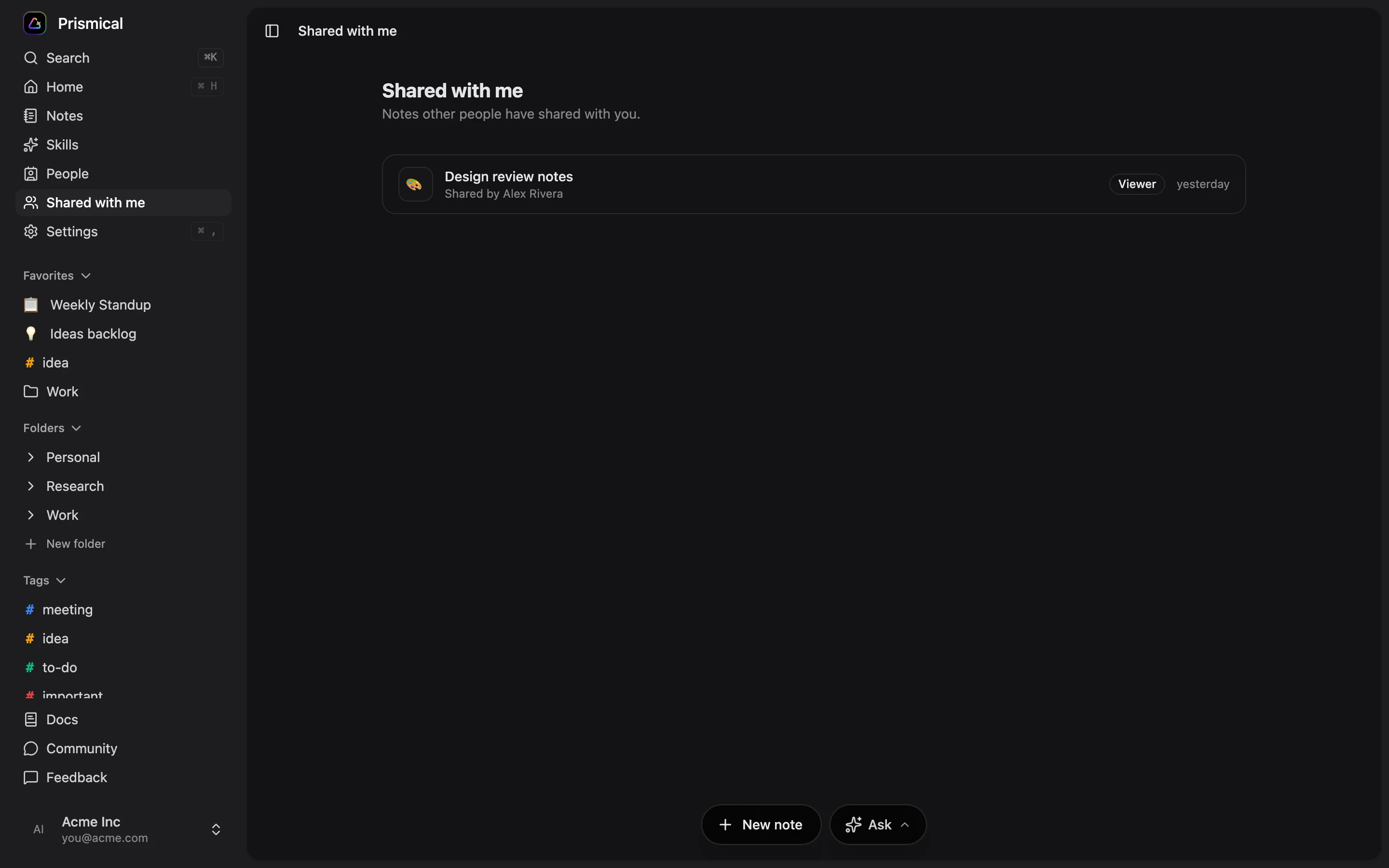
Your notes and meeting context belong close together. Product screenshot with demonstration content; interface details can vary by version.
Check the details
that matter.
- This is a Mac desktop capture walkthrough, not evidence that every managed Windows or Teams environment supports the same setup.
- Organization policy and participant consent still apply when no bot joins the meeting.
- Meeting text may contain confidential business information. Choose note access deliberately and review the product’s current data-handling documentation.
- No native Teams chat posting, SharePoint sync, or tenant-wide installation is included in this workflow.
A few useful answers.
Practical details before you use this resource.
Does this bypass Teams recording restrictions?
No. This page does not authorize or provide a way around organizational policy. Confirm that the workflow is permitted and follow the applicable consent and information-handling requirements.
Are notes automatically posted to my Teams channel?
No. Review the note and distribute it through your approved process. This workflow does not include a native Teams chat or channel-posting integration.
Will a share link inherit Teams permissions?
Do not assume that. Review the access settings in Prismical separately before sharing a note. Teams membership and Prismical note access are distinct permission systems.
Setup references.
Documentation reviewed August 30, 2026. Follow your installed app’s permissions and verify the workflow on your device.
Keep the work moving.
Useful next steps for the conversation you are preparing for.
Stakeholder update meeting notes template
Write stakeholder updates with evidence of progress, changes to the forecast, risks, and clear decision requests. Free template and reusable Prismical Skill.
Explore resource TemplatesProject kickoff meeting notes template
Align a project around outcomes, scope, decision owners, dependencies, and first actions. Free kickoff notes template, worked example, and Prismical Skill.
Explore resource Free toolsFree meeting minutes generator
Turn pasted meeting text into a reviewable minutes draft with discussion excerpts, decision candidates, and actions. Free browser-only tool; no account needed.
Explore resource Meeting guidesPrismical meeting notes for Zoom
A practical Zoom note-taking workflow with Prismical on macOS 14.2+, an audio test, a sample client recap, and a reusable meeting template.
Explore resourceBring your next conversation
into Prismical.
Capture the conversation, keep the transcript beside your notes, and reuse a Skill for the output you need. Review the result before you share it.