
Ask AI
Ask questions across your notes, scope the answer to specific notes or folders, and follow the sources it cites.
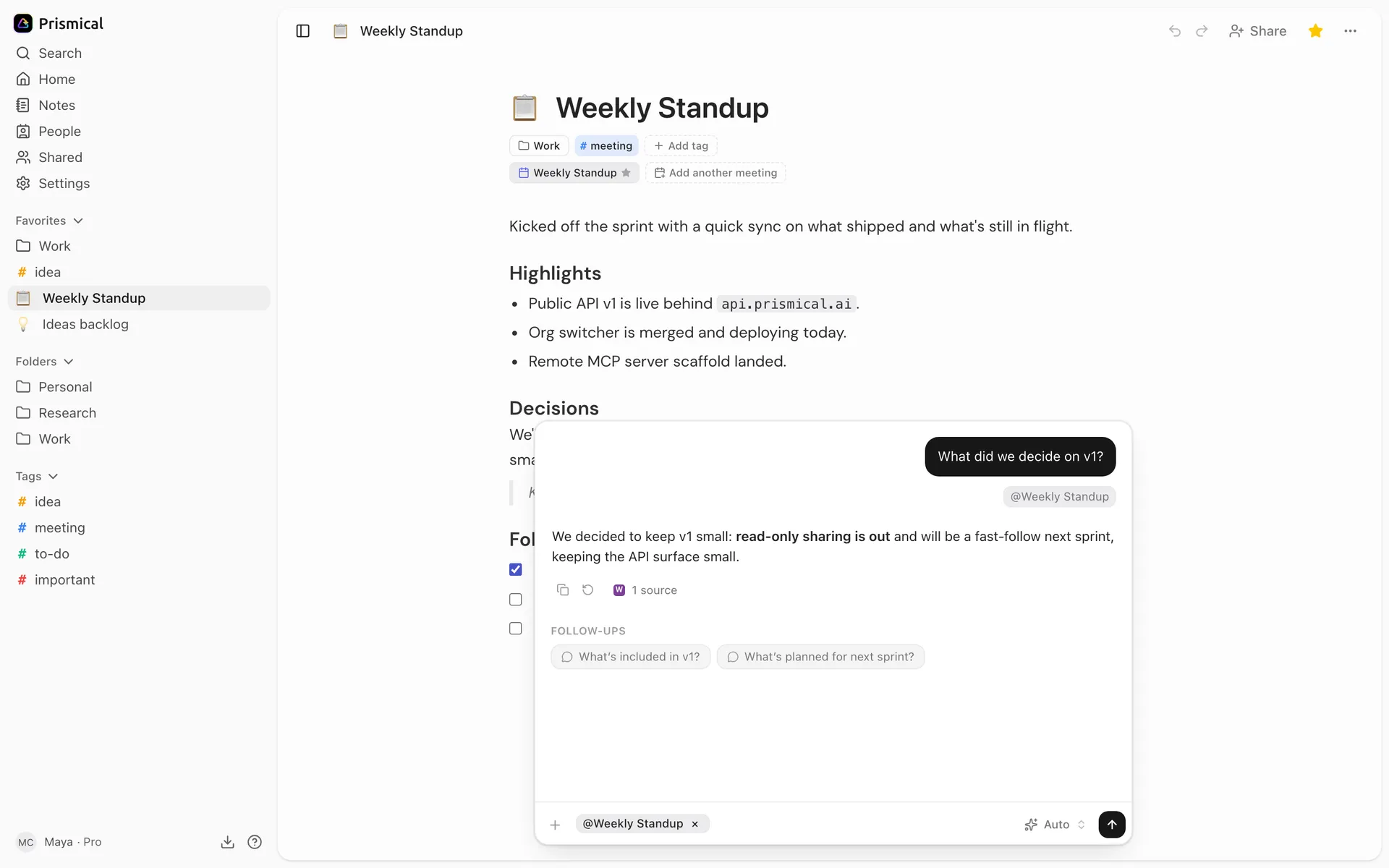
Ask AI answers questions using your notes as the source material. Ask it what you decided in a meeting, what your open action items are, or what someone said about a project three weeks ago — it searches your notes, reads the relevant ones, and answers with links back to what it used.
Premium
Ask AI is a Premium feature. Free accounts currently get unlimited use of it for a limited period.
See what each plan includes.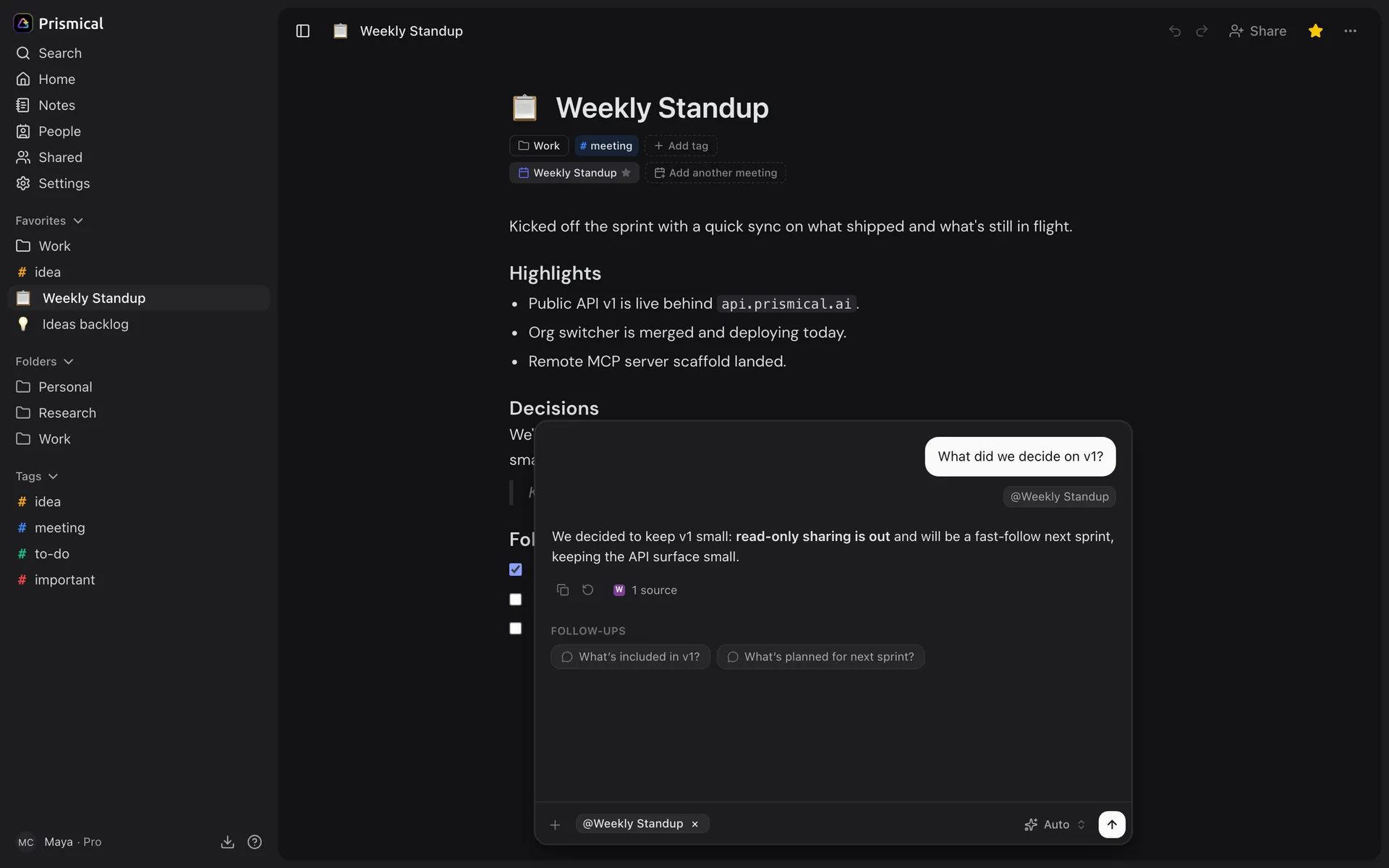
Opening Ask AI
Click Ask in the dock at the bottom of the window. It's there on every page, whether or not you have a note open. Click it again to close the panel.
The Ask panel and the transcript panel share the same space, so opening Ask collapses an open transcript, and vice versa.
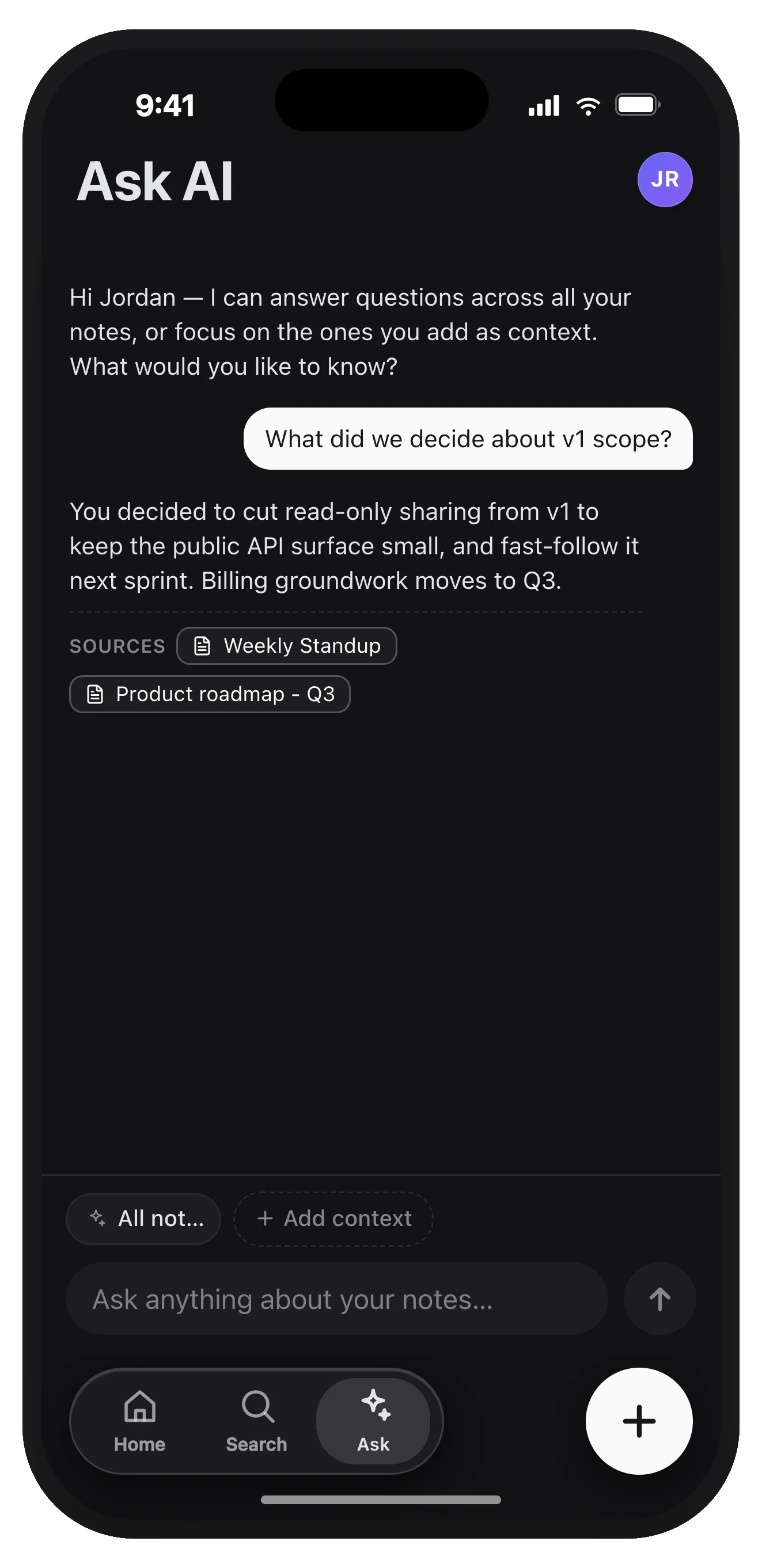
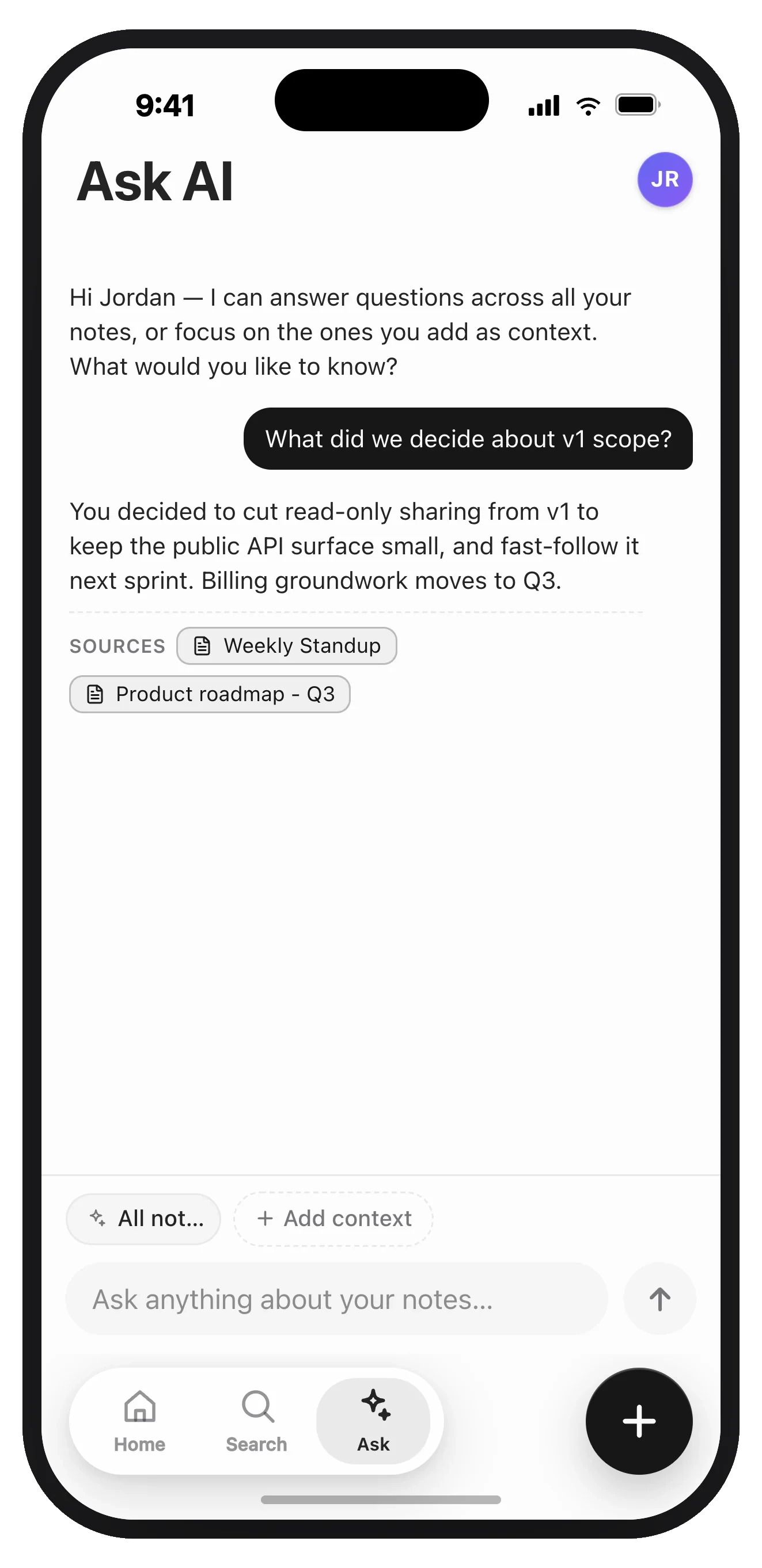
On mobile, Ask is one of the tabs along the bottom of the screen.
What It Searches
By default, Ask AI searches every note you can open — your own notes and any note shared with you. It never reaches notes you don't already have access to.
It searches your notes for the question and reads the matches that look relevant, opening a note in full when a snippet isn't enough to answer. So you don't need to tell it where to look.
The note you currently have open is a special case: it's added to the panel automatically as a context chip, which nudges the answer toward that note. Remove the chip if you want a question answered across everything instead.
Narrowing the Question
When you want an answer from a specific corner of your notes, add context.
Click @ Add context at the top of the Ask panel — or just type @ in the
question box.
Pick notes, folders, or tags. The picker searches all three together.
Ask your question. The chips stay for the rest of the conversation until you remove them.
Notes and folders/tags narrow things differently, which is worth knowing when an answer surprises you:
| Context type | Effect |
|---|---|
| Note | Puts that note's text directly in front of the model. A nudge, not a wall — it can still search your other notes. |
| Folder | Restricts the search to notes in that folder. |
| Tag | Restricts the search to notes with that tag. |
With no chips at all, the panel shows All notes.
Where Answers Come From
Every answer ends with the notes it drew on. On desktop and the web, click the count under the answer (1 source, 3 sources) to list them; on your phone they sit in a Sources row. Click one to open the note and read the full context.
Sources reflect what the model reports it used. They're a reliable trail to follow, not an audit log. For anything that matters, open the note and read it.
Suggested Prompts
The empty Ask panel shows one-tap suggestions drawn from your own skills — the ones set to appear on the Ask AI surface. Prismical doesn't invent prompts for you.
Three come ready to use:
| Suggestion | What it asks |
|---|---|
| Summarize my notes | Key themes, decisions, and takeaways from your recent notes. |
| Find action items | Pulls out the to-dos across your notes, grouped by owner. |
| What did I decide? | Recent decisions and the reasoning behind each. |
To add your own, create a skill with the Ask AI (suggested prompt) surface turned on. Each skill also picks an Ask AI scope: suggest it only when a note is open, or everywhere. See Skills.
Choosing a Model
The model picker sits at the bottom of the question box. Out of the box it has one option — Auto, Prismical Cloud's managed model. Auto needs no setup and no key of your own.
Connect your own provider under Settings → AI Models and its models appear here as a second group, so you can pick per question. See AI models & providers.
Your Ask AI model choice is remembered per device, not per account — picking a model on your laptop won't change it on your phone.
One Conversation at a Time
Ask AI shows one conversation — your most recent. It's saved to your account and comes back when you reload, restart the app, or switch devices, but there's no history list.
New chat starts a fresh conversation, and there's no way back to the previous one. If an answer is worth keeping, copy it into a note before starting a new chat.
Switching organizations also resets the panel.
Asking Across Your Integrations
If you've connected integrations, Ask AI can pull from them too — your calendar, your docs, whatever you've connected — in the same answer as your notes.
Anything that could change something asks first. Ask pauses, names the tool it wants to use, and waits for Approve or Deny. Tick Auto-approve this tool for this conversation and it stops asking for that particular tool — though it starts asking again if a single conversation racks up an unusual number of unattended calls.
Tools that only read run without asking. Looking up a calendar event to answer your question doesn't prompt; creating one does.