
Transcripts
Review speaker-labeled transcript segments, work with multiple recordings on one note, and add transcript text into your note.
Prismical keeps a transcript of everything it heard, alongside your note rather than in it — you write the note, Prismical keeps the transcript, and Enhance is what brings them together.
Have an audio or video file already? Organizations with recording imports enabled can import a recording in the web app and read its transcript here too.
Opening the Panel
Every note has a dock at the bottom of the window. Click the waveform button at its left end, labeled Record and transcribe, and the recording panel opens over the bottom of the note with the transcript inside. Opening it doesn't start a recording.
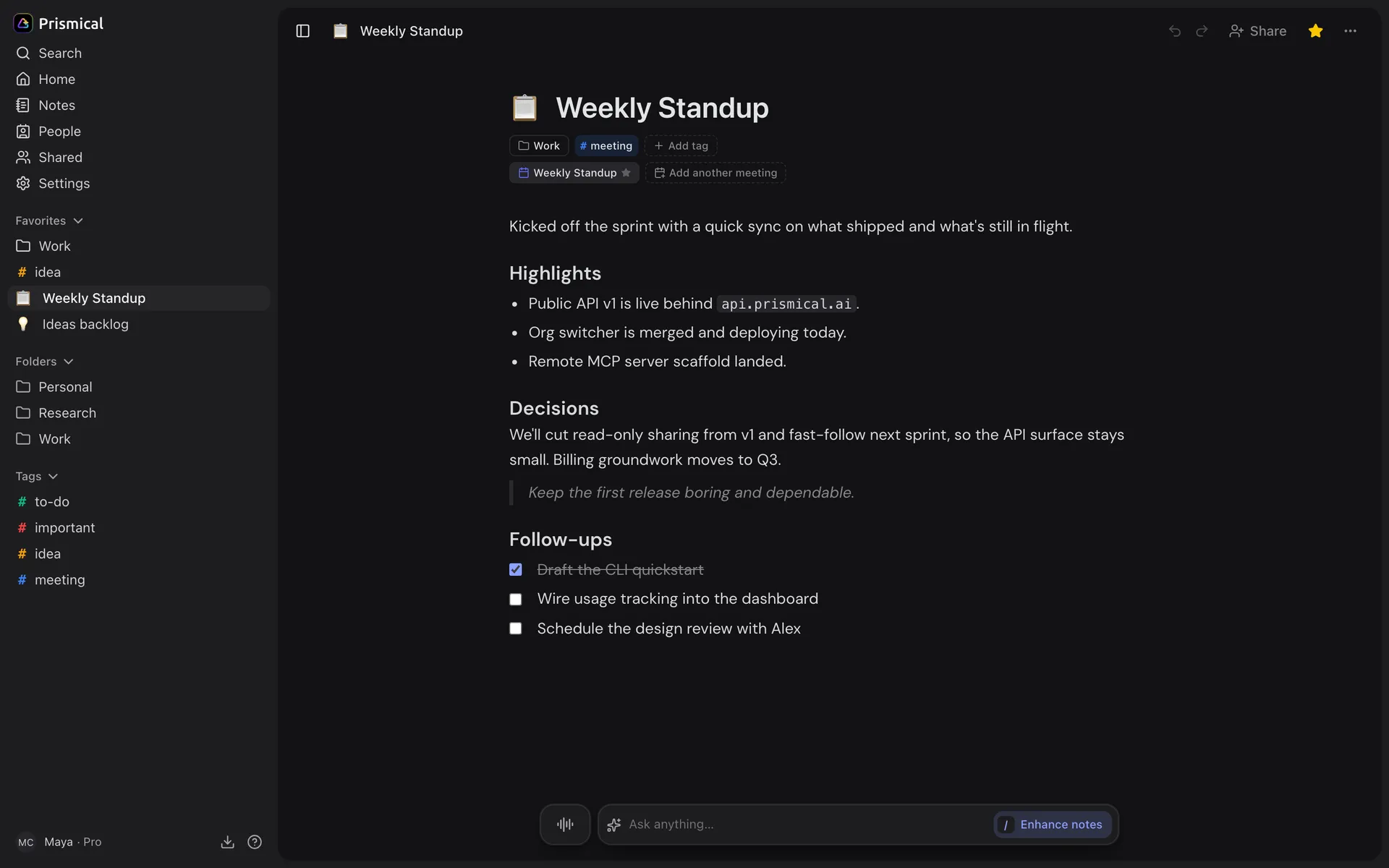
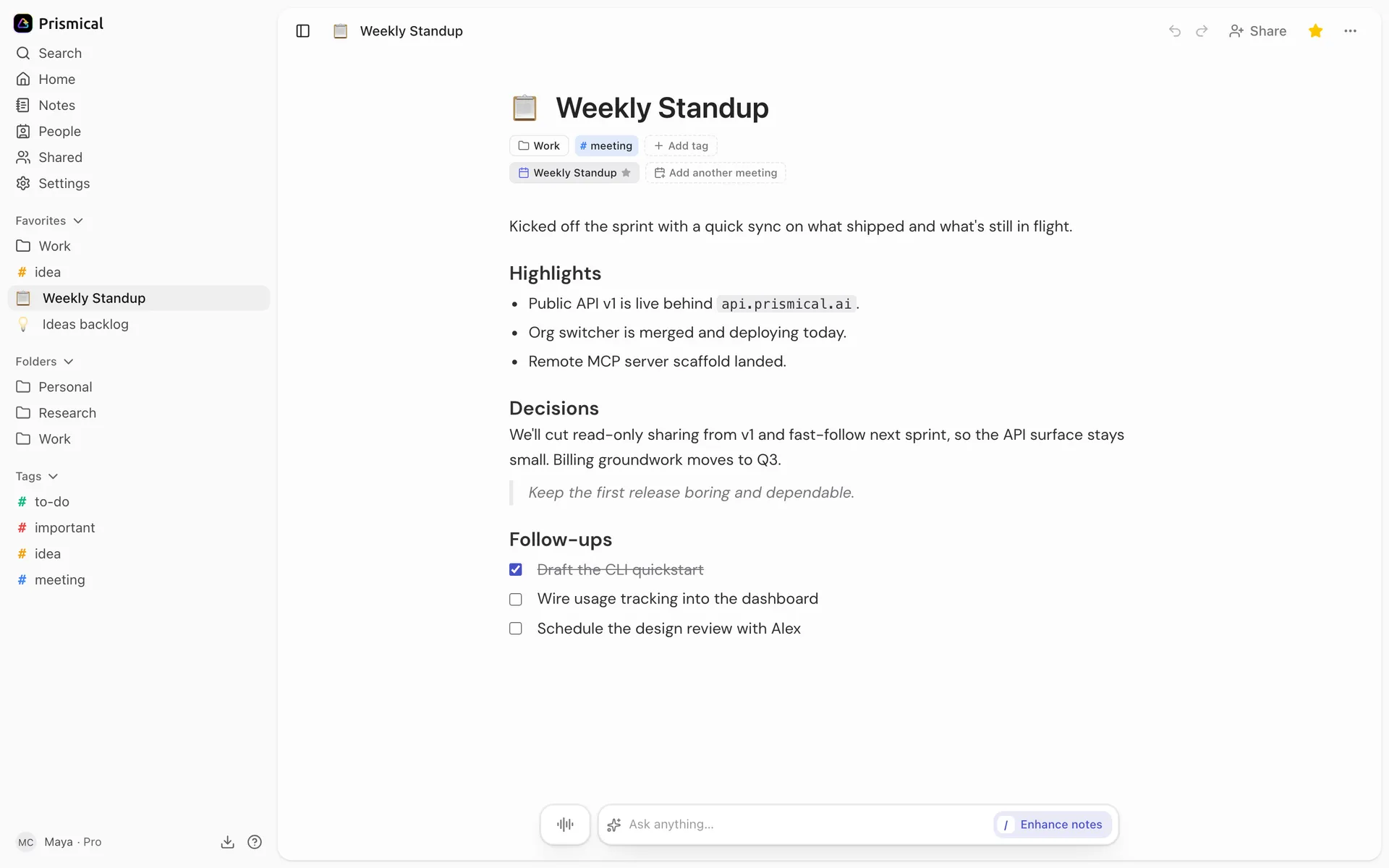
- The waveform button opens the transcript.
It shares space with the Ask AI panel, so opening one closes the other. Expand it for a longer view, or close it entirely — the transcript is safe either way.
Reading It
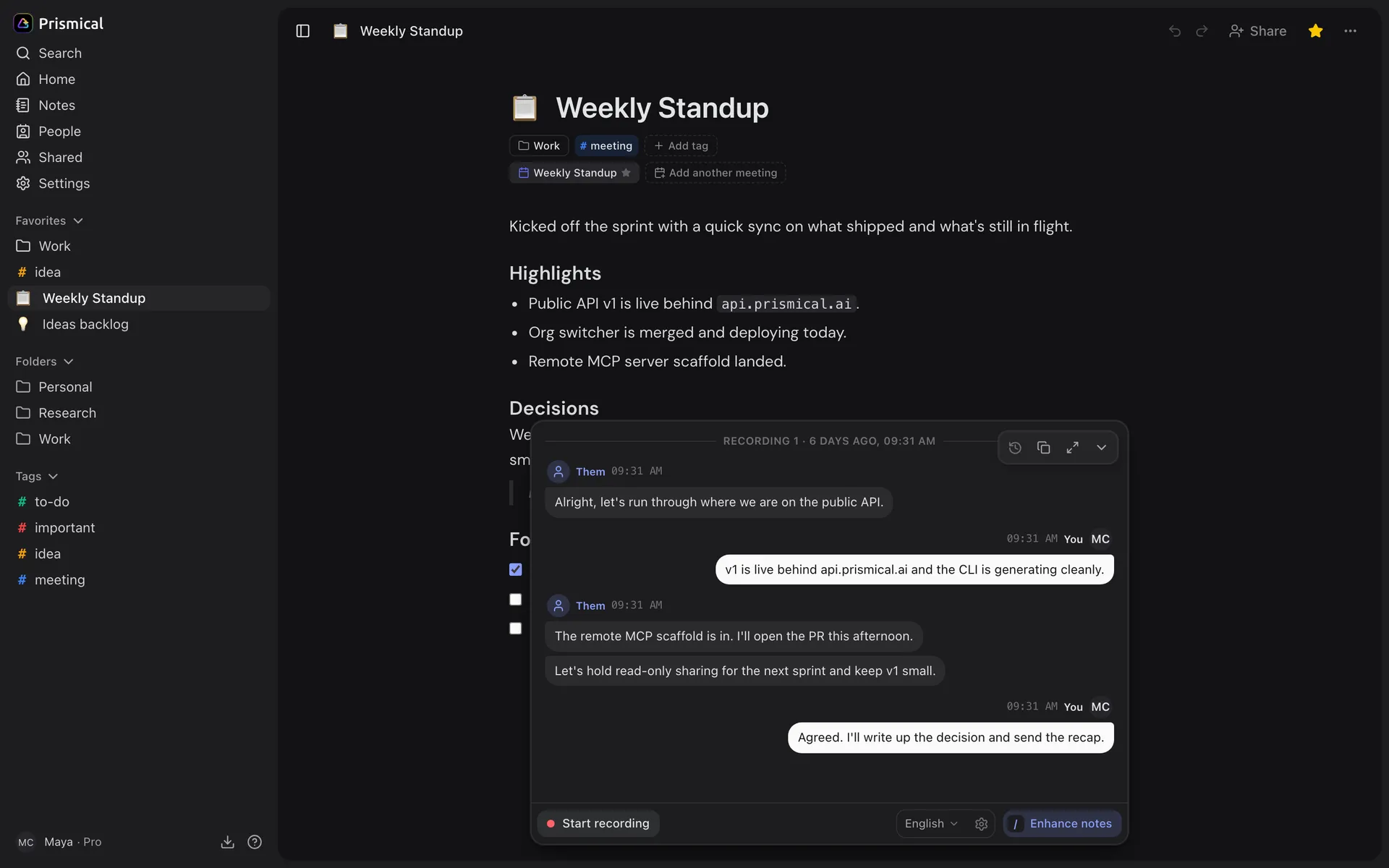
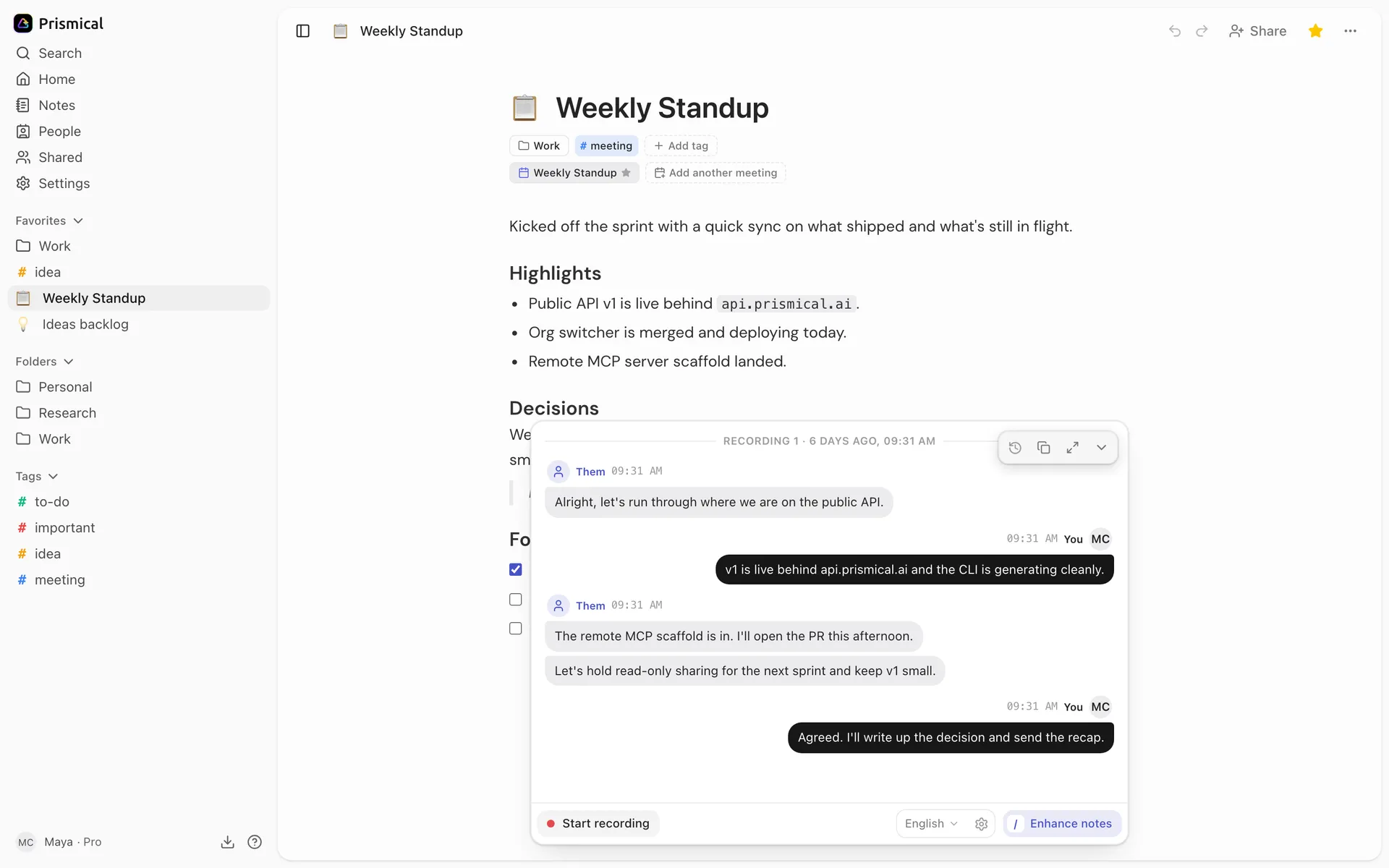
- Each recording starts with a divider showing when it began.
- Past recordings, Copy transcript, expand, and hide.
- Who said it: You and Them on a call, Speaker 1, Speaker 2 in person.
- Start recording adds another recording to the same note.
- Enhance notes writes the transcript into your note.
Each line has a timestamp, a speaker label, and the text. Timestamps are times of day rather than offsets, so a line reading 9:41 AM tells you roughly when in the meeting it happened — useful for matching a transcript against a calendar. Treat them as close rather than exact.
While you're recording, lines appear as people talk and the footer reads Listening and transcribing…. When you stop, they settle into a grouped log.
If a note has several recordings, each is grouped under its own divider — Recording 1, Recording 2 — with the time it started.
Empty note? The panel says "No transcript yet. Start recording to capture your meeting or voice note."
Who Said What
When you stop recording, Prismical separates the voices and labels each line. What you see depends on how it heard them:
| Situation | What you get |
|---|---|
| A video call on desktop with system audio | Prismical hears your side and their side separately, so it labels them You and Them. |
| An in-person meeting, on desktop or your phone | Everyone comes through one microphone. Prismical splits the voices apart and numbers them — Speaker 1, Speaker 2. |
| A recording made in a browser tab | The same, though the split between voices is less reliable than on the desktop and mobile apps. |
Numbered speakers are a starting point, not the finished labels. Open a speaker's name to mark which one is you, link a voice to someone in People, or rename it — see Speaker identification.
See Meeting recording for why two sources make the difference.
What You Can Do With It
| Control | Where | What it does |
|---|---|---|
| Past recordings | Top right of the panel | Jumps to any recording on the note, with a search box for notes that have many. |
| Copy transcript | Top right of the panel | Copies the transcript to your clipboard as Speaker: text lines, ready to paste anywhere. |
| Generate notes / Enhance notes | Bottom right of the panel | Runs Enhance and folds the transcript into your note. It reads Generate notes on an empty note and Enhance notes once you've written something yourself. |
Speaker names are editable; the words aren't. The transcript is a record of what was heard, and your note is the thing you shape. If a name comes out wrong mid-sentence, fix it in the note — that's the version anyone will read.