
Calendar
Connect a calendar to see upcoming meetings, join calls, and attach notes to the right event.
Connect your calendar and Prismical knows what your day looks like. Your meetings show up on Home, notes attach to the events they belong to, and Enhance learns who was in the room — which is how action items end up with the right names on them.
Connecting
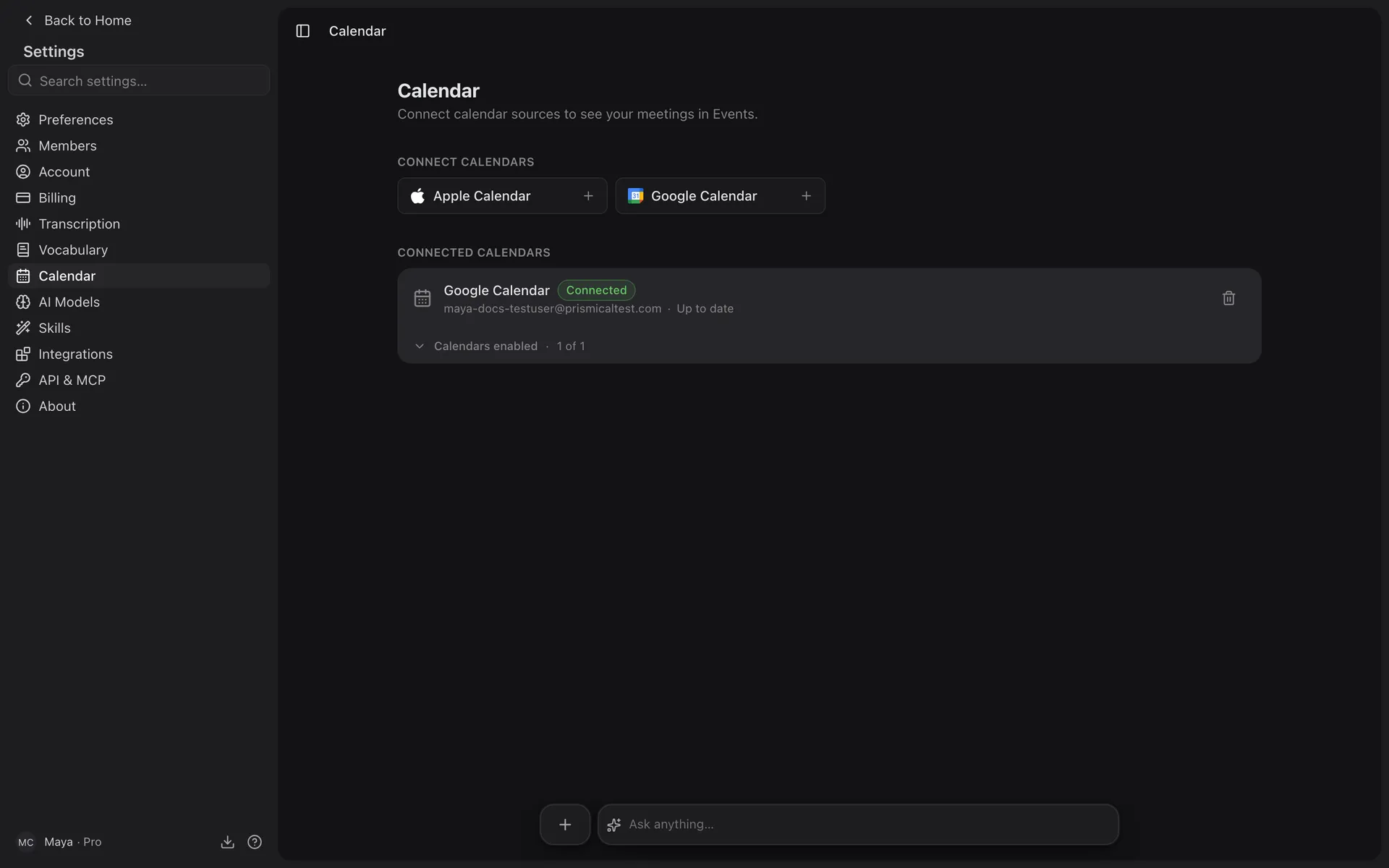
Go to Settings → Calendar and click Connect Google Calendar. Google asks what you're granting; approve it and Prismical pulls in your upcoming meetings.
Prismical asks for read-only access. It can see your events; it can't create, move, or cancel anything. Nothing Prismical does will ever show up on your calendar or anyone else's.
Prismical syncs a window around today — roughly last week through the next month — want it immediately.
Your Meetings on Home
Upcoming meetings sits on Home, showing each meeting's time, title, and — for a video call — a Join button.
Next to each is Notes, which is the useful one.
One Meeting, One Note
Click Notes on a meeting and Prismical opens the note for it, making one the first time. Click it again next week and you get that same note back, not a new one.
The note is titled after the event, so you're not naming it yourself.
Linking is something you do, not something that happens to you. Prismical won't create notes for meetings you never opened — your notes list stays yours.
What Linking Buys You
A linked note knows which event it belongs to, and that event knows who was invited. When Enhance writes up your recording, it has the meeting title and the attendees — so "Sarah to send the contract" comes out as Sarah's name rather than "someone".
It's also what fills in People, the directory of everyone you've met that builds itself from your calendar.
Managing the Connection
Settings → Calendar shows the state: Connected, when it last synced, and a Disconnect option.
If Google's permission lapses — you changed your password, or revoked access — the badge turns to Reconnect needed. Click Reconnect and your meetings come back.
Reconnecting pulls your calendar in fresh, so notes you'd linked to earlier meetings keep their content but may no longer show as attached to those events. The notes themselves are never affected.
Disconnecting stops the sync and removes upcoming meetings. Your notes stay exactly where they are.