
Desktop quick start
Install Prismical on Mac or Windows, record a call with both sides of the conversation, and turn it into a note.
The desktop app is the one that can hear both halves of a call. This gets you from download to a finished note in about five minutes. If you'd rather watch than read, start here:
Prismical doesn't join meetings as a visible bot, so the other people on a call won't be told you're recording. Following your local recording laws, your workplace policy, and basic courtesy is on you.
1. Install
Apple Silicon
For Macs with an M-series chip. This is most Macs sold since 2020.
Intel
For older Intel-based Macs.
Open the DMG and drag Prismical to your Applications folder.
Not sure which chip you have? Click the Apple menu, choose About This Mac, and look at Chip — anything starting with "Apple" is Apple Silicon.
Run the installer. Prismical opens when it's done.
Or use the downloads page, which picks the right build for you.
2. Sign In
Prismical opens to a sign-in screen. Click Sign in and it hands off to your browser, where you can use Google, Apple, a magic link, or an email and password.
Finish signing in there and come back to the app — it picks up the session on its own. An account is required; it's what makes your notes sync.
3. Record Something
Make a note
Click New note in the dock at the bottom of the window.
Start recording
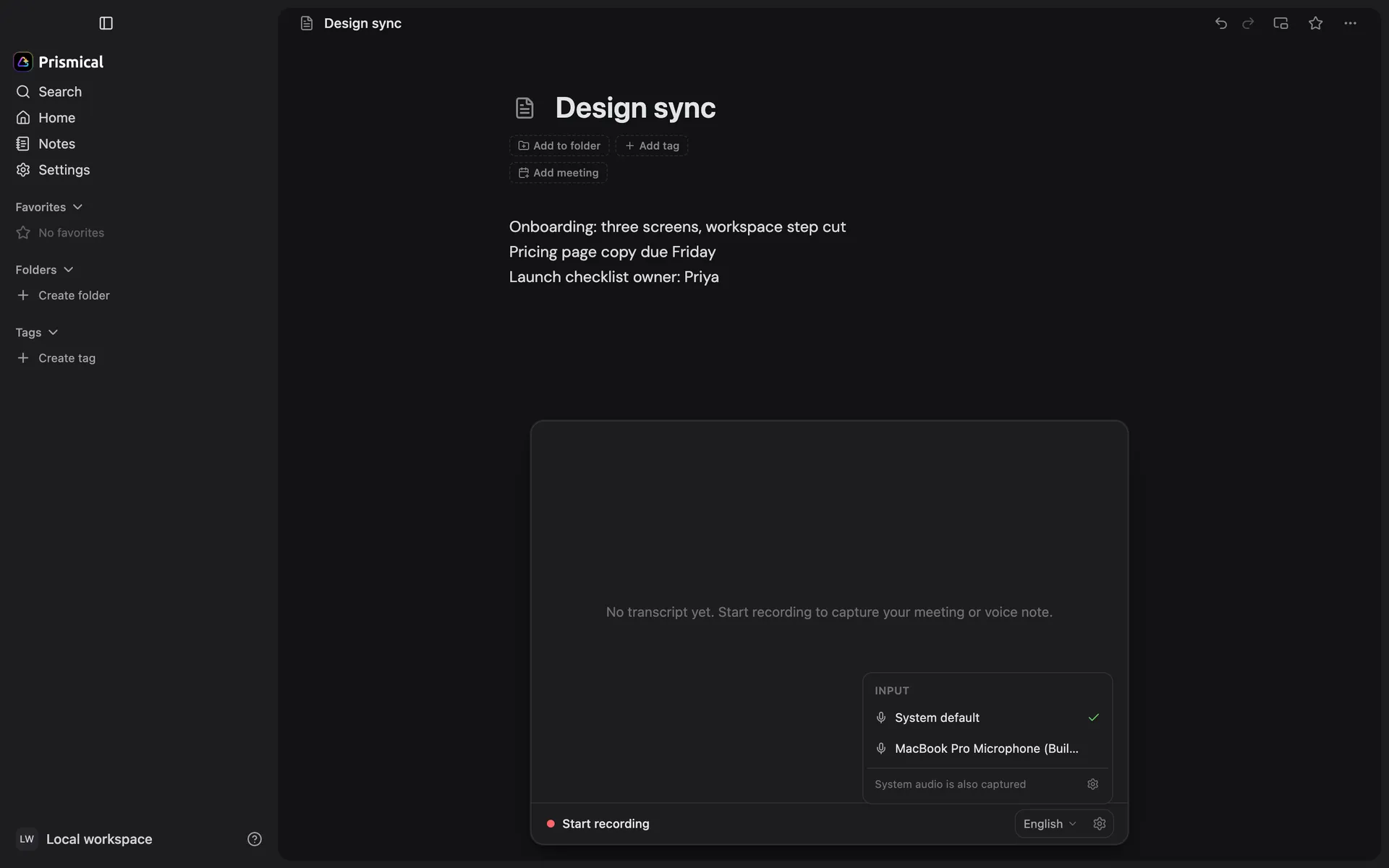
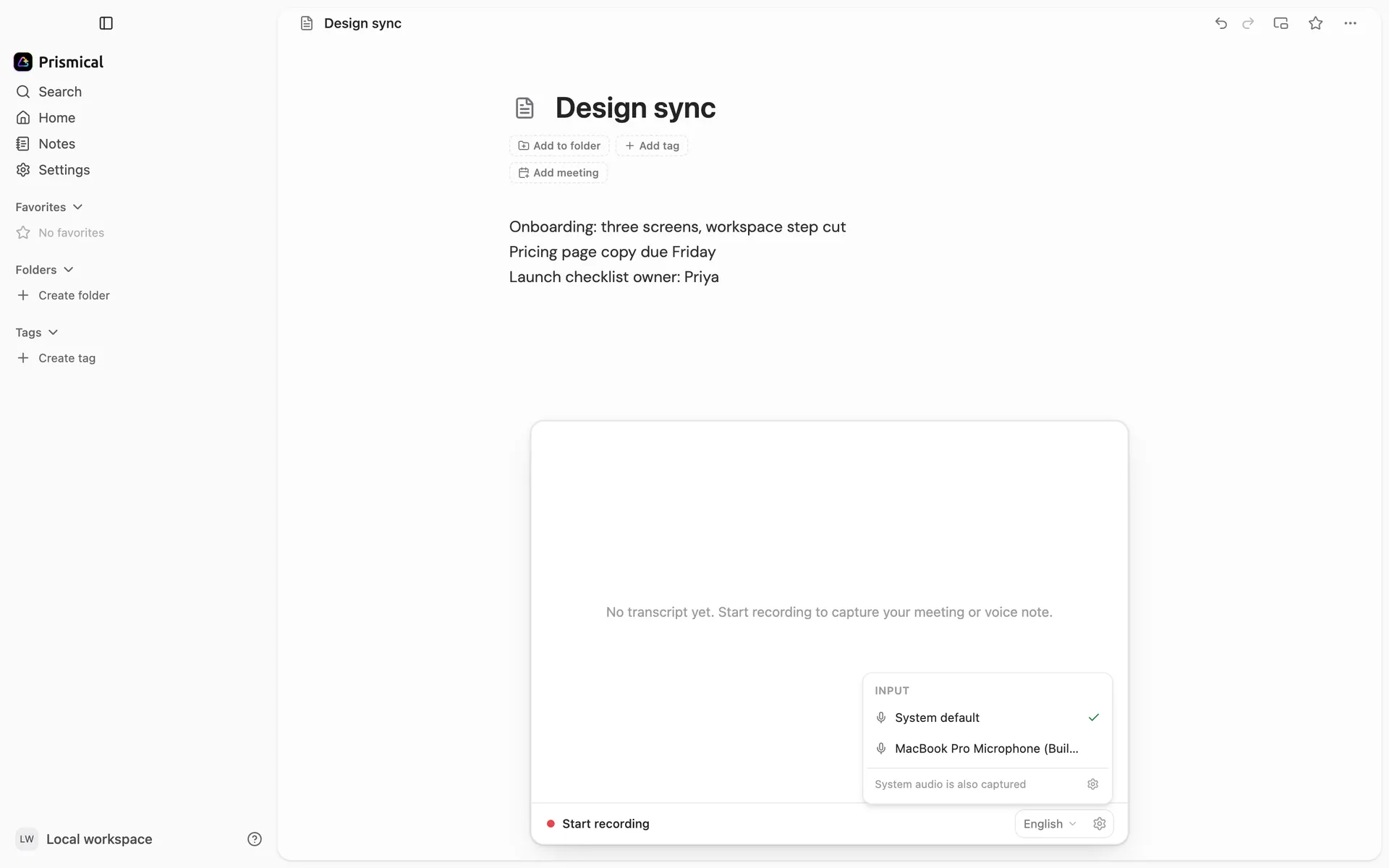
Click the waveform button in the dock at the bottom of the note, then Start recording in the panel that opens.
The first time, macOS or Windows asks for microphone access — Prismical only asks when you actually record, not at install. Say yes.
Type while it runs
Write whatever you'd normally write: names, decisions, a link someone pasted, a half-formed thought. Don't try to keep up with the conversation — that's the transcript's job. These notes are what makes the finished note yours rather than generic minutes.
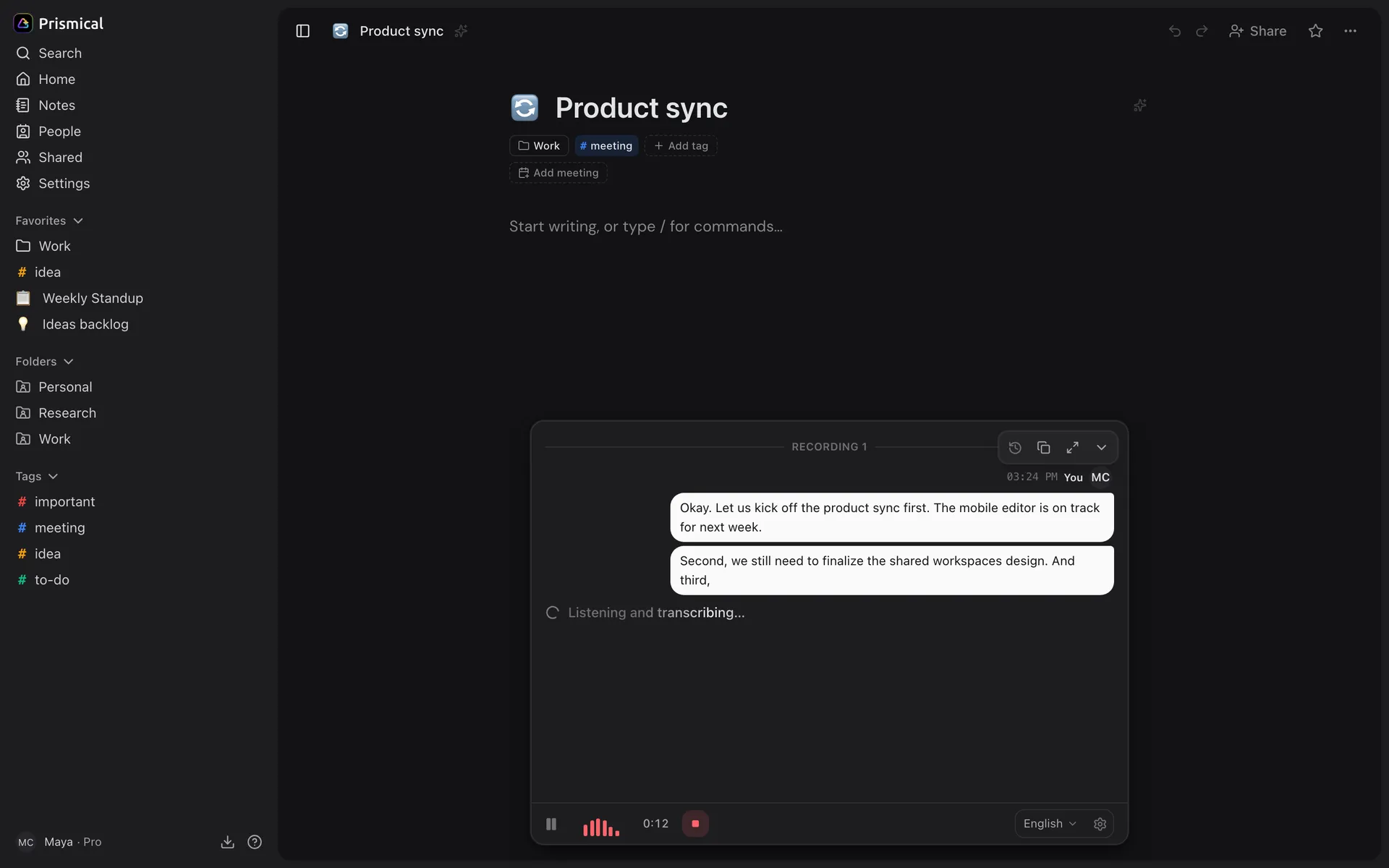
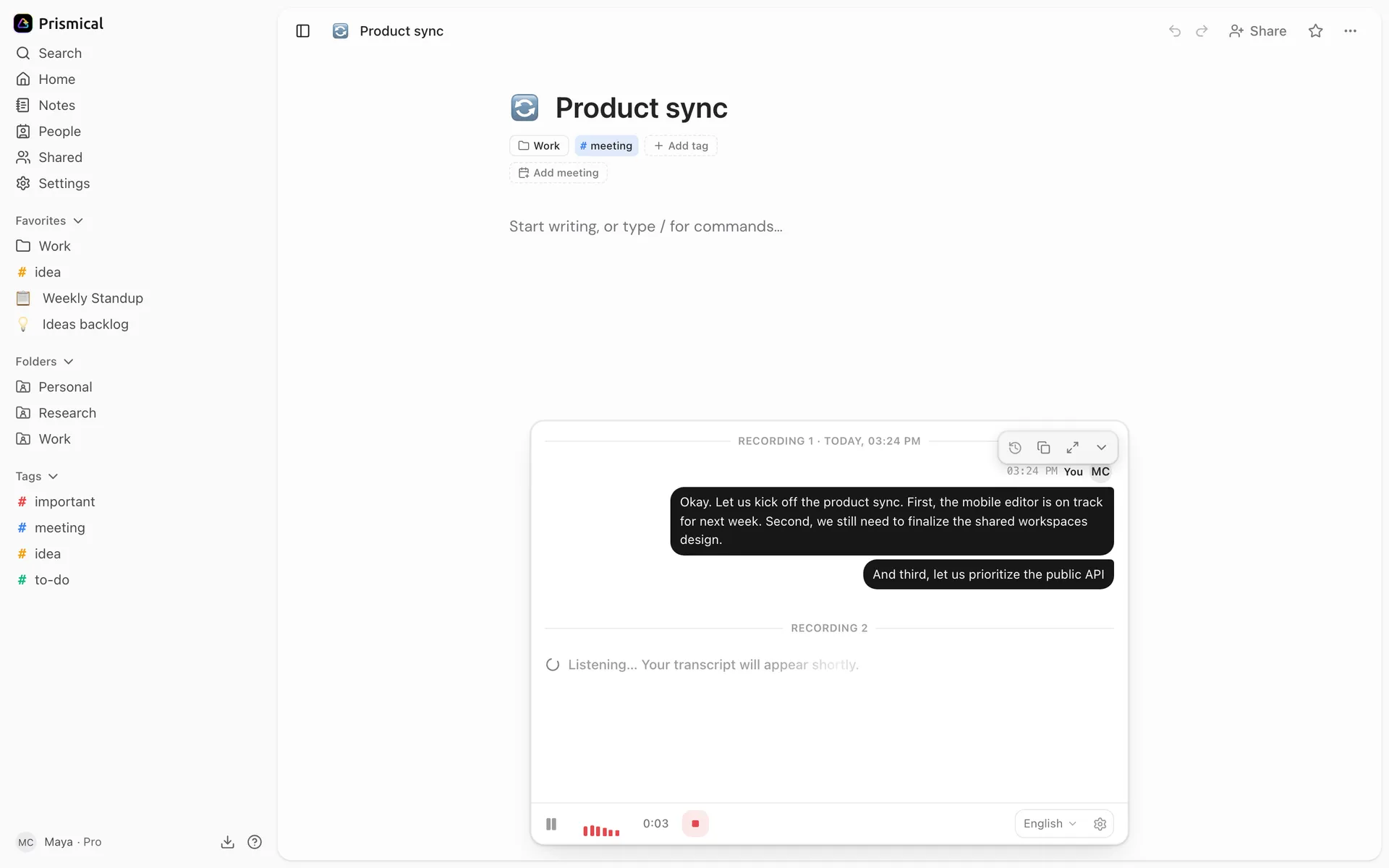
Watch the transcript
The transcript fills in inside the panel as people talk. Hide the panel with the arrow at its top right; the waveform in the dock brings it back.
Stop
Click the red stop button in the dock when the conversation ends.
4. Let Enhance Write It Up
When you stop, Prismical enhances the note on its own. If you didn't type anything, the notes appear straight away; if you did, Prismical shows you a draft first — read it, then click Apply.
That's the whole loop. What you get back depends on what it heard — a meeting turns into a summary, action items, and decisions; a solo ramble turns into organized key points. See Enhance.
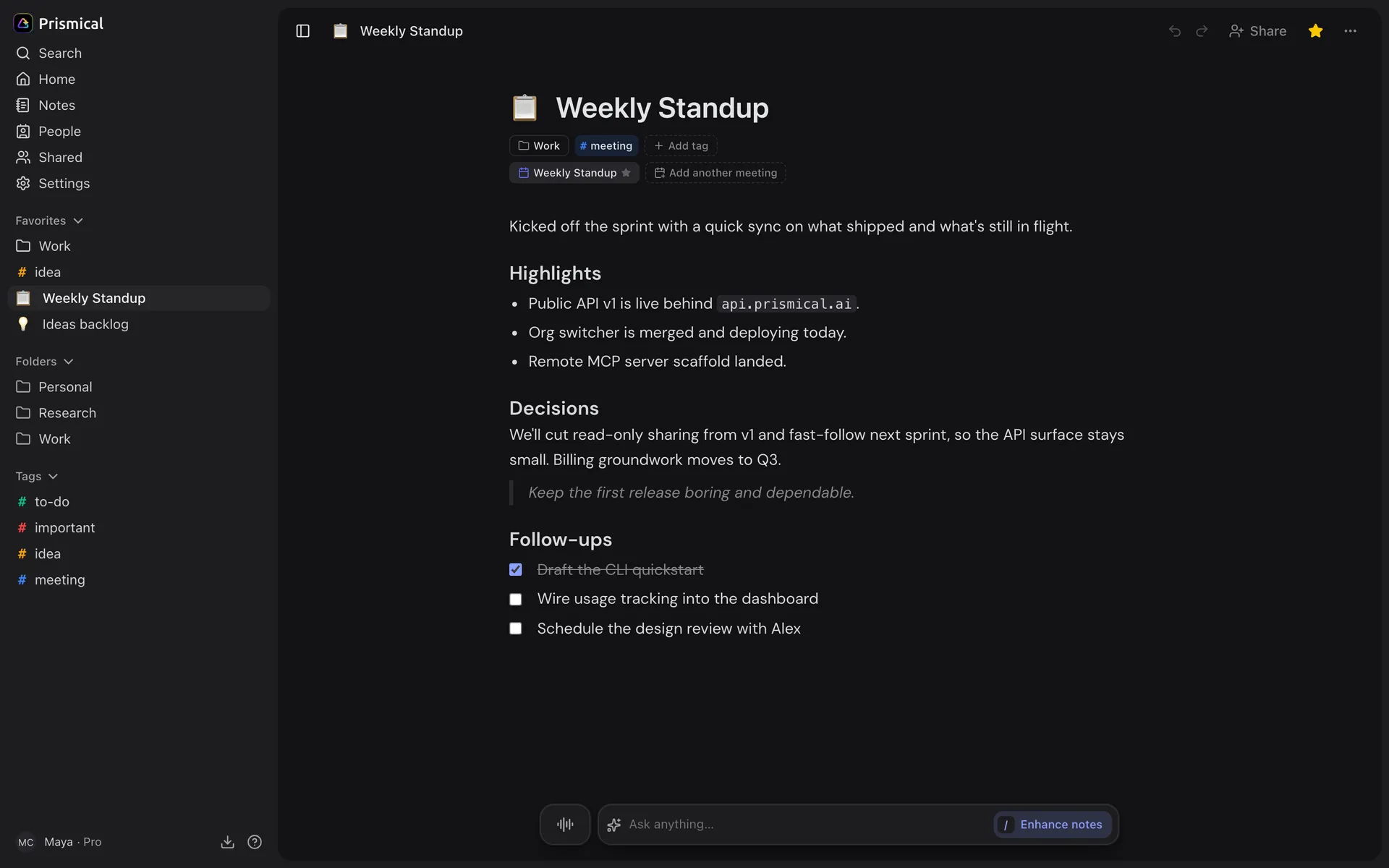
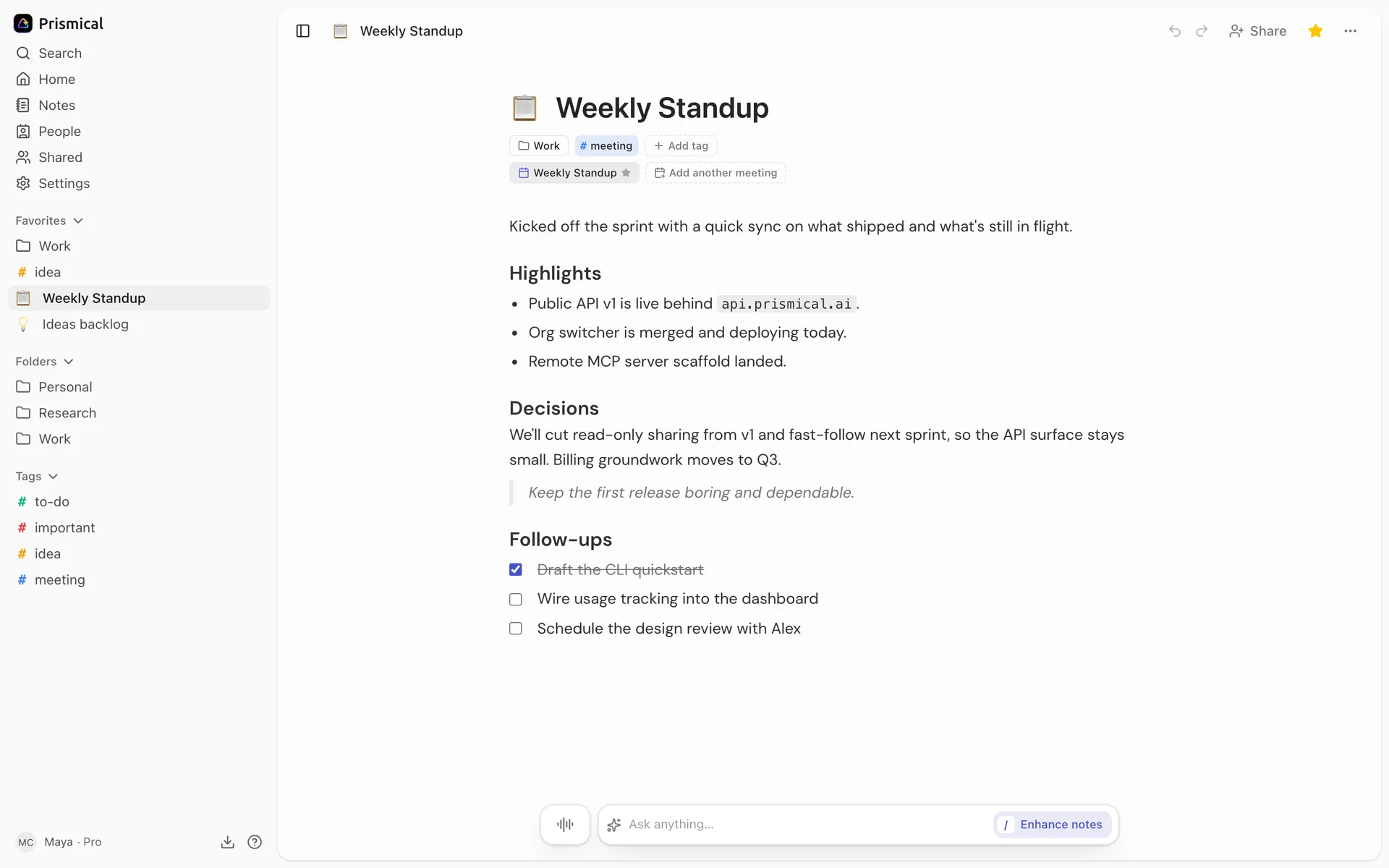
The first Enhance on a note replaces the note body rather than appending to it. It carries your writing through, but read the draft before applying. Every Enhance after that appends a section instead.
If you'd rather do this yourself, turn off Auto-enhance after recording in Settings → Preferences.
Capturing Both Sides of a Call
Recording includes your microphone. To capture the people on the other end of a video call, you need system audio — the thing that makes the desktop app worth installing.
On macOS 14.2 or later, Prismical can record what your computer plays alongside your microphone, so the transcript has both halves. macOS asks permission the first time. On Windows 10/11, the current desktop app also captures system audio from your default output device, with no separate system-audio permission prompt.
See Meeting recording for the full picture, and What's different per platform for how the platforms compare.
The Meeting Widget
Prismical watches for meeting apps and shows a Meeting detected card when one starts. Click Take Notes and it starts recording immediately — useful when a call begins before you've opened Prismical.


While you record, a small floating widget shows pause, the running time, and stop; the rest of the time it sits out of the way as a thin sliver until you hover it. Control whether it appears at all in Settings → Preferences.
See Meeting detection.