
Meeting notes
Record a call, review the transcript, and turn the conversation into a structured set of notes and action items.
This is the thing Prismical is for. A call happens, and afterwards you have notes you'd actually send someone.
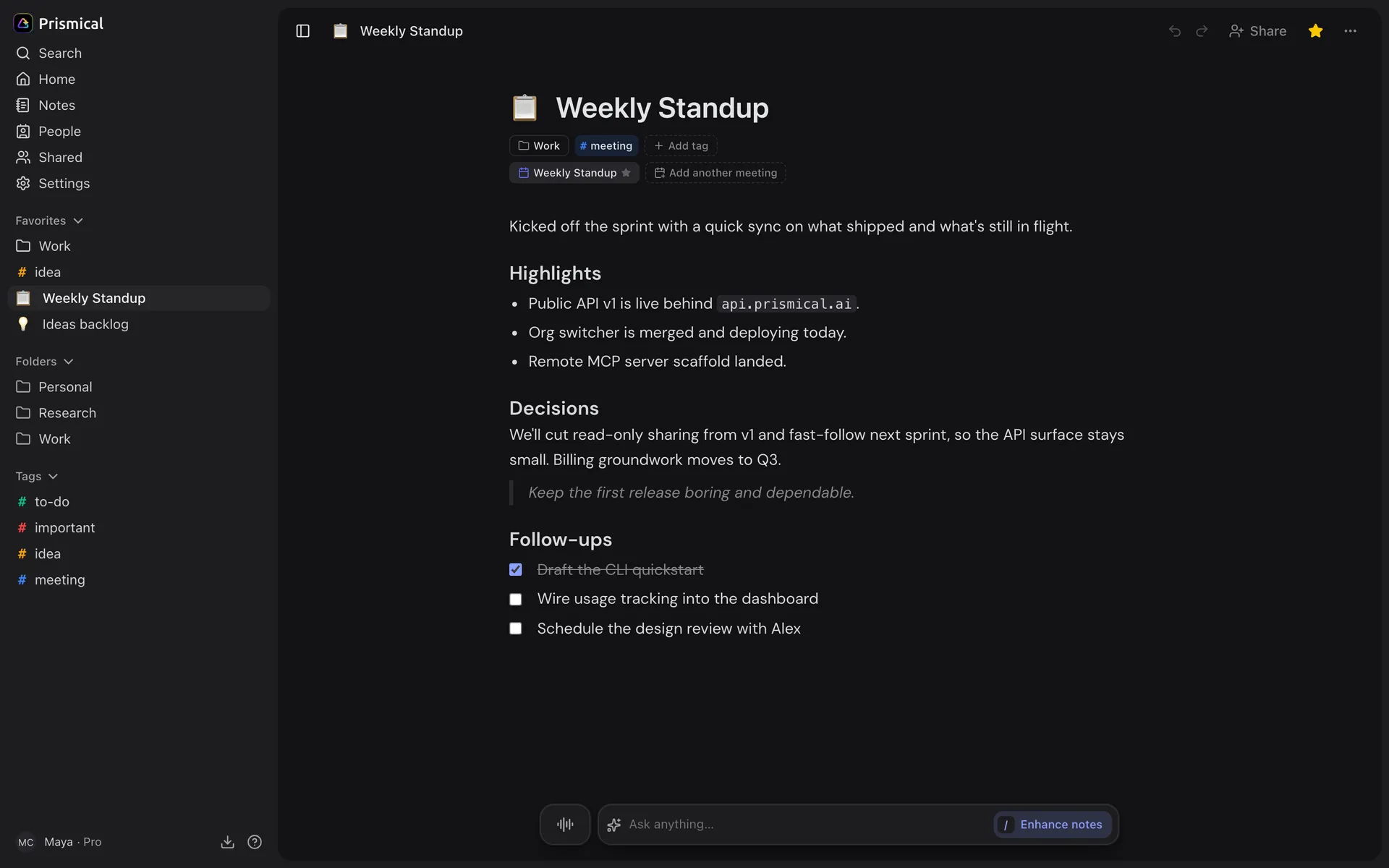
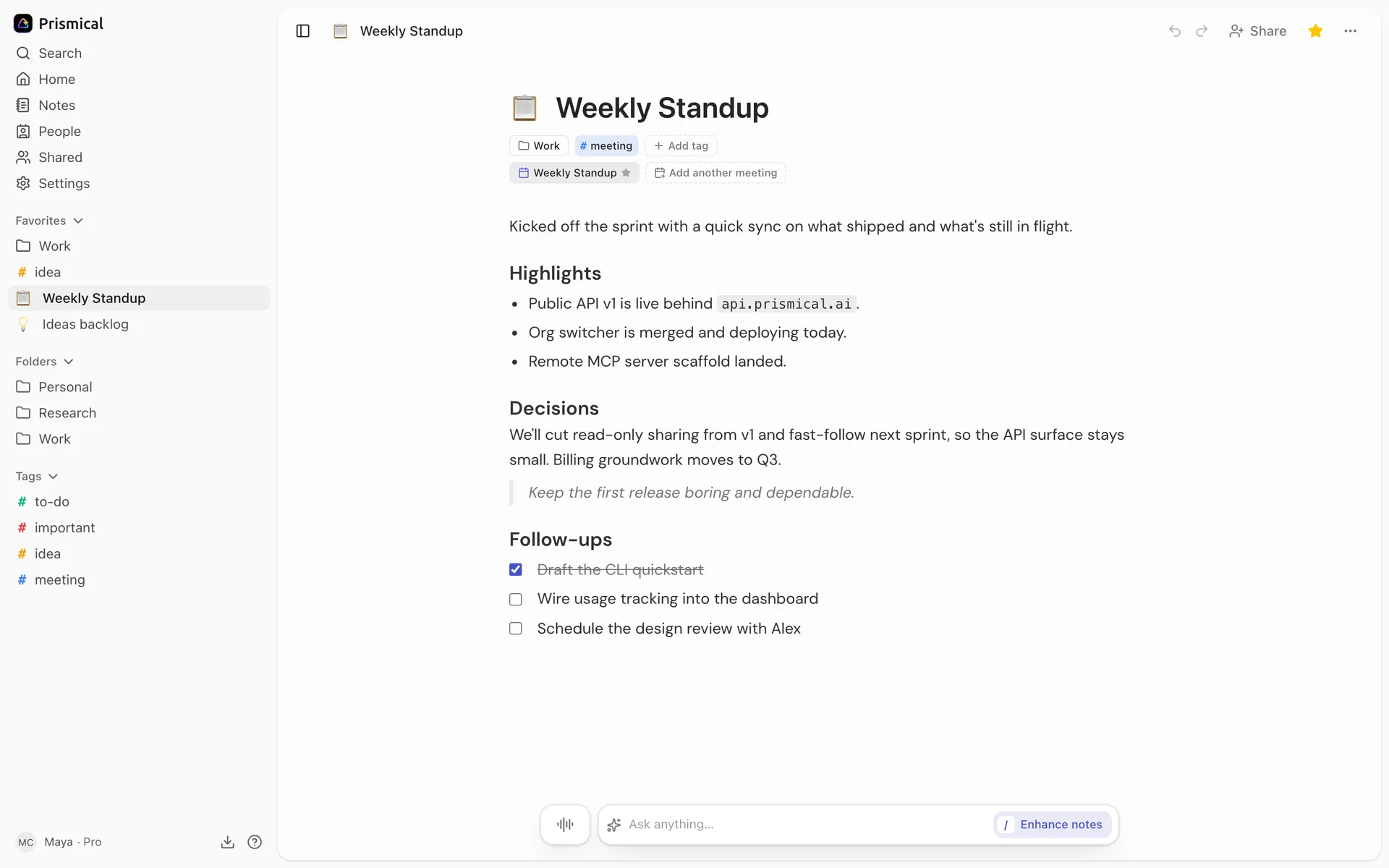
Before the Call
If it's a video call and you want both sides of the conversation, use the desktop app on Mac or Windows. That's the only setup that hears the other people — everywhere else captures your microphone, which on a video call means only you. See Meeting recording.
If everyone's in the room, any device is fine. One microphone hears the whole table.
Nobody is told you're recording — no bot joins, nothing appears in the attendee list. Whether to say so is on you, and in many places it's the law. Say so.
During
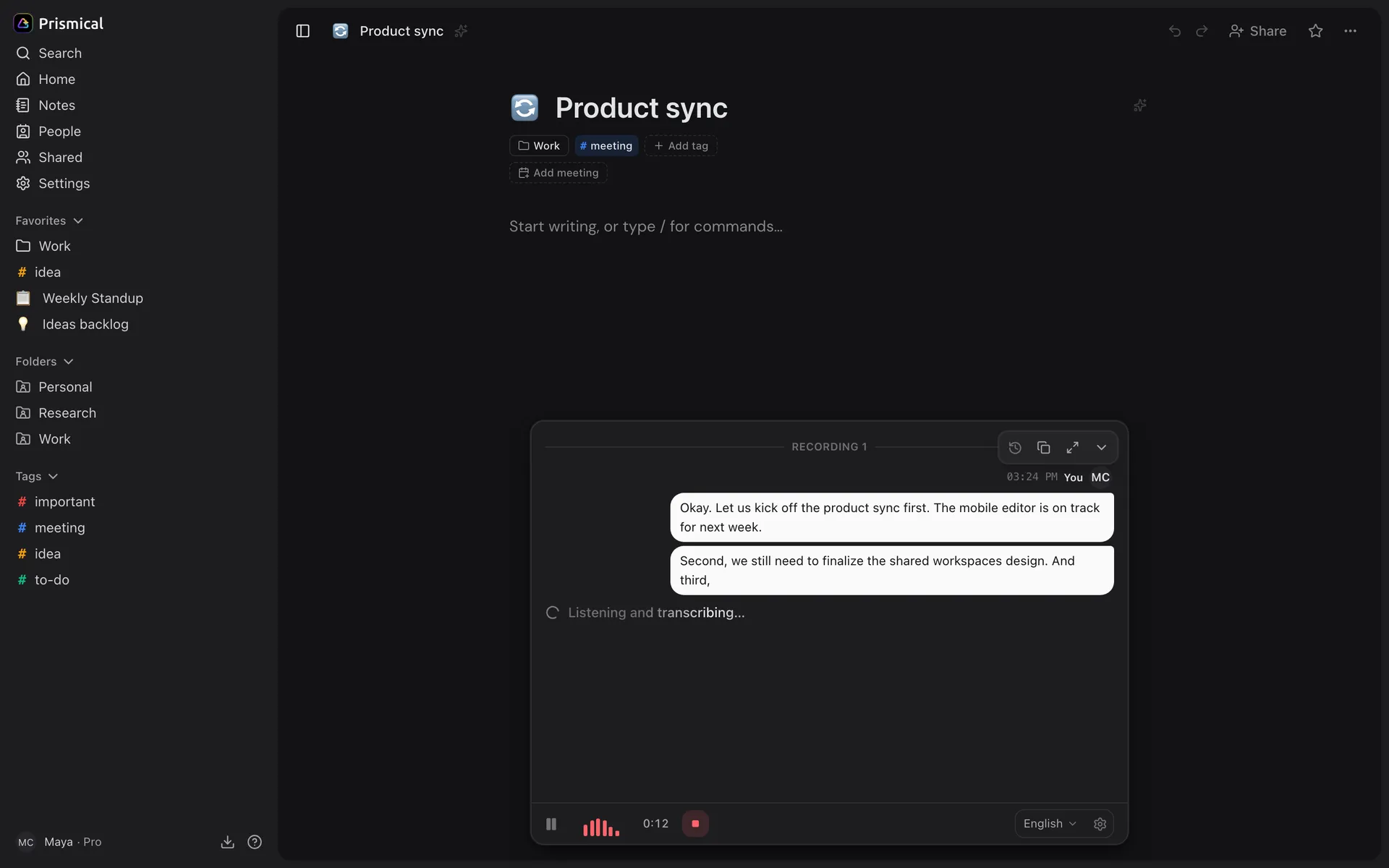
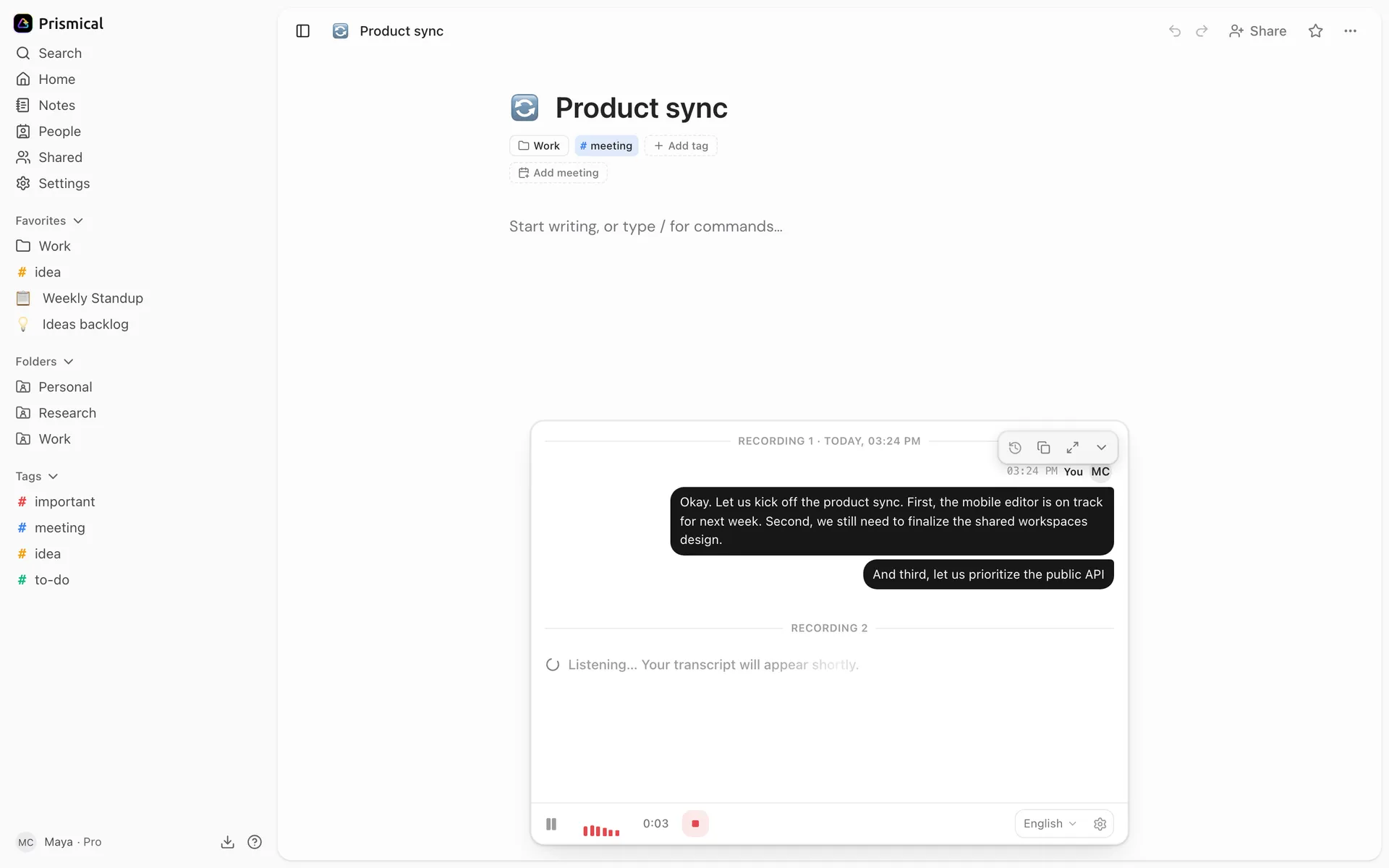
Start recording
Click New note, then the waveform button in the dock and Start recording. Or wait for the widget to say Meeting detected and click Take Notes. See Meeting detection.
Type the things a transcript won't catch
This is the part that matters, and it's the part people skip.
The transcript will have every word. What it won't have is what you thought: that the number sounded made up, that Sarah went quiet, that this is the third time they've raised the deadline.
Write those. Half-sentences. Nobody sees this.
Stop when it ends
That's it.
After
Stop recording and Prismical writes it up on its own — a summary, the action items with names attached, and the decisions if any were actually made.
If you typed notes during the call, it shows you a draft first. Read it, then Apply.
The first Enhance replaces the note body, folding your typing and the transcript into one document. Your notes are carried through, but read the draft before you apply it. See Enhance.
Want it shaped differently? The text box takes an instruction — "group by person", "shorter", "keep the numbers" — and runs it again.
Getting the Names Right
Connect your calendar and click Notes on the meeting rather than making a note from scratch. The note is linked to the event, so Enhance knows the title and who was invited — and action items come out with real names instead of "the person from marketing".
Same meeting every week? Clicking Notes on it returns the same note, so a recurring sync becomes one note that builds up over time.
Sending It On
Share the note with the people who were there — they get the write-up and can correct what you got wrong, live. See Sharing.
Sharing a note with someone also gives them its transcript — every word said, not just your summary. If the call had a candid stretch in it, use a public link instead: those carry the note's text only.
Later
Weeks on, the useful question isn't "what's in this note" — it's "what did we promise Acme?" That's Ask AI, which reads across every meeting you've recorded and answers with links back.
Tag the meetings you'll want to find as a group — sales, 1:1, follow-up — and
you can point a question at just those. See Tags.
A Routine That Works
Connect your calendar once, and open notes from the meeting rather than making them.
Record every call. It costs you nothing to have it.
Type only the things you're thinking, not the things being said.
Apply the enhance, fix the one thing it got wrong, send it before you've left the call.