
Enhance notes
Turn a raw transcript into a structured note, automatically after each recording or on demand.
Enhance turns a recording and whatever you typed during it into a clean, structured note. It's the step between "I have a transcript" and "I have notes I'd actually reread."
By default it runs on its own the moment you stop recording.
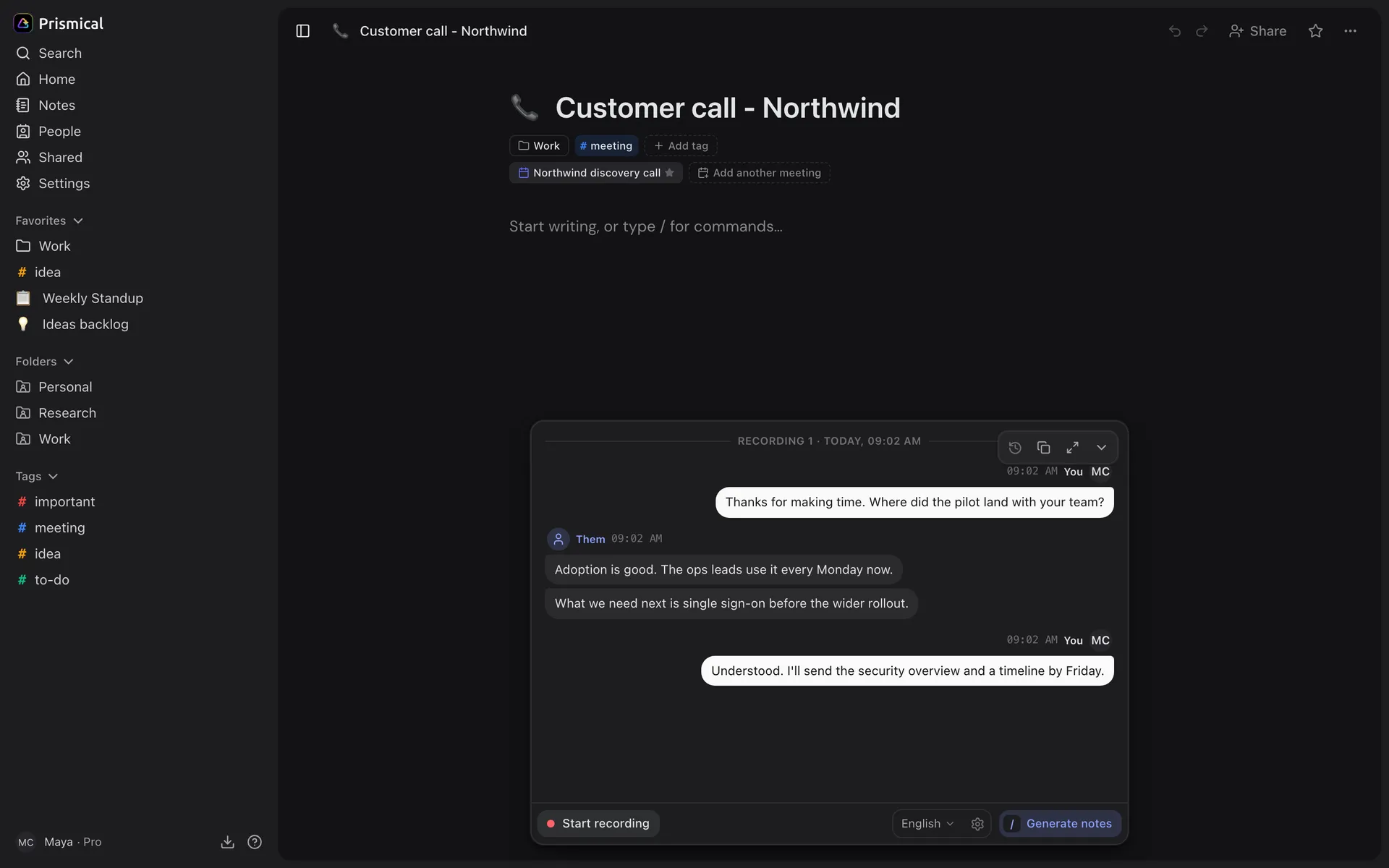
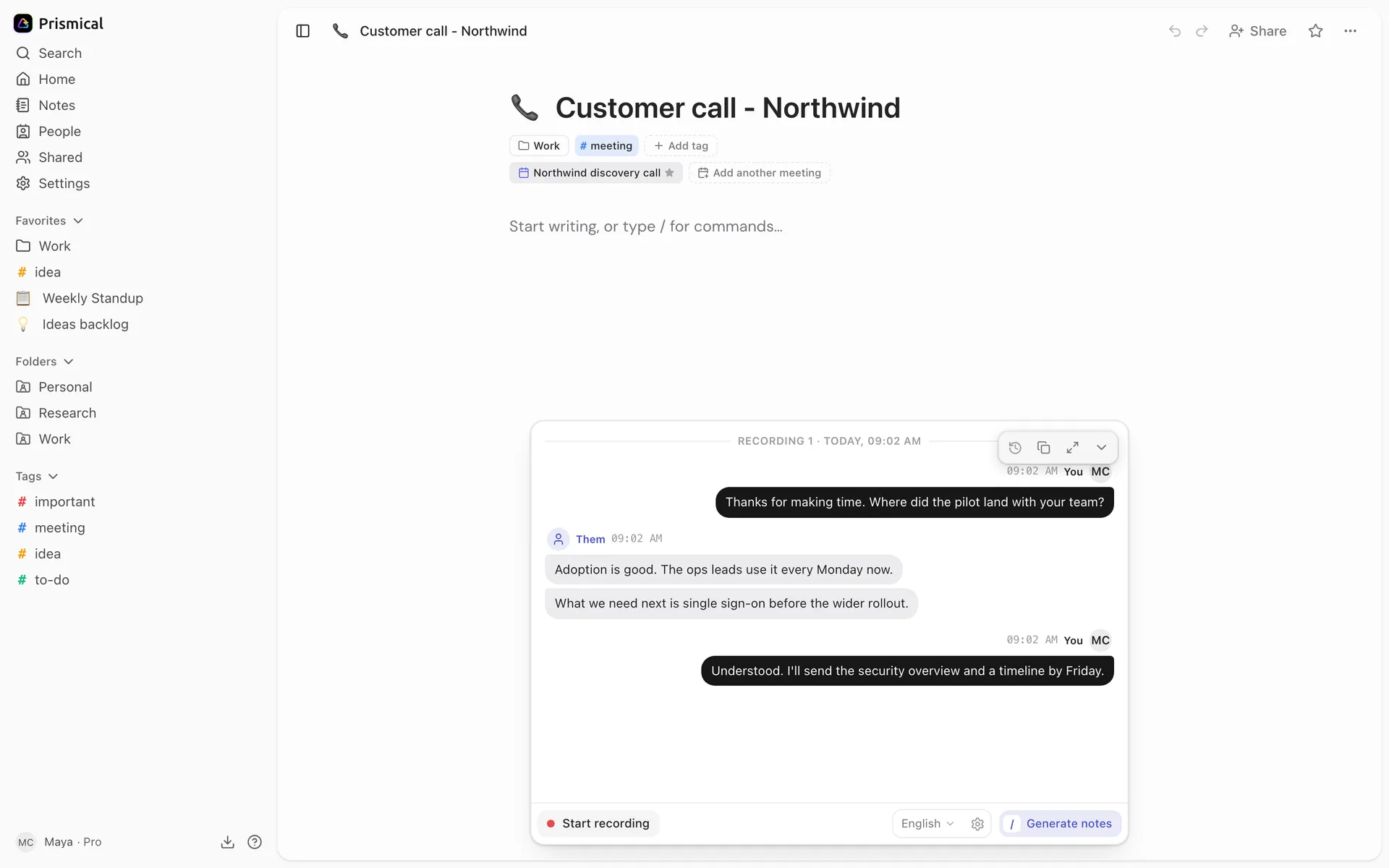
- Generate notes writes the recording up as your note. It reads Enhance notes once you've written something yourself.
Two Ways It Runs
This distinction explains most of Enhance's behavior, so it's worth two minutes.
| What it reads | What it does to the note | |
|---|---|---|
| On a recording — automatically when you stop, or via the per-recording button | That one recording's transcript, plus your notes | Replaces the note the first time, then appends after that |
| On the whole note — type / in the Ask bar and pick Enhance | The note and everything attached to it | Always appends a section |
The first row is the normal path and the one this page is mostly about. The second is there for when you want to re-run Enhance over a note by hand.
What You Get
Enhance reads the transcript and decides what kind of recording it was, then shapes the output to match.
Several people talking, back-and-forth, decisions being made:
- Summary — what happened
- Action items — with owners named, where the transcript makes them clear
- Decisions — when the recording contains real ones
One person thinking out loud — a brainstorm, a dictated draft, a running list:
- Key points — grouped by theme rather than in the order you said them
- Action items or Open questions — only when there genuinely are some
Here it organizes your thinking and keeps your voice. It won't turn a brainstorm into meeting minutes.
It works this out from the conversation itself, and leaves out sections that would be empty rather than padding them.
Auto-Enhance
Auto-enhance after recording is on by default. Stop a recording and Enhance runs on it right away, showing you the changes to review.
To change it, go to Settings → Preferences and toggle Auto-enhance after recording.
This setting lives on the device, not your account, so each computer gets its own answer. On your phone, tap Enhance on the note when you've finished recording.
If the recording captured no speech, nothing runs and Prismical says so.
Running It Yourself
On one recording. Click the button at the right of the dock, or at the bottom right of the recording panel. It works on the newest recording you haven't folded in yet. It reads Generate notes when the note is still empty and Enhance notes once you've written something yourself — the same run either way, the label just tells you whether there's anything of yours to build on. This is the same path auto-enhance takes — use it when a note has several recordings and you only want to fold in the latest, or when auto-enhance is off. A recording already folded in reads Latest recording enhanced.
A recording that hasn't been transcribed yet can't be enhanced — you'll get "This recording has no transcript to enhance. Check the transcript or make a new recording.", or "The final transcript is still being prepared. Try Enhance again shortly." if it's mid-flight. Wait and try again.
On the whole note. Type / in the Ask bar at the bottom of the note, pick Enhance, and send. Prismical reads the note and everything attached to it and writes a draft section onto the end, which you Apply or Discard. See Skills for the other skills in the same list.
The First Enhance Replaces the Note
When Enhance runs on a recording — the automatic path, and the per-recording button — what it does depends on whether the note has been enhanced before.
| What it does | |
|---|---|
| First time on a note | Compiles your notes and the recording into one clean document, replacing the note body. |
| Every time after | Adds a new section for that recording, leaving earlier ones alone. |
That's deliberate: the first pass turns scratch into a note, and later passes add to it without regenerating what's already there.
The first Enhance rewrites the whole note, not just the transcript part. It's instructed to carry your own writing through and keep every meaningful point you made — but it is a rewrite, not a merge. Read the draft before applying.
Reviewing and Undoing
When a note already has your writing in it, Enhance never changes it on its own. The result arrives as a draft in the dock at the bottom of the note, with three ways forward:
- Apply — put it into the note
- Discard — throw it away and leave the note untouched
- Describe a change in the text box — "shorter", "keep the dates" — and run it again
After applying you get a moment to Undo, which puts the note back exactly as it was.
A draft waiting on you blocks a new recording — you'll be asked to apply or discard it first, so an unreviewed suggestion can't be quietly buried under the next one.
Undo goes back one step, and it isn't available on very large notes. If you're about to replace a note you care about, the safest move is reading the draft first, not relying on Undo afterwards.