
Tags
Label notes with colored tags so they can be filtered and revisited across folders.
Tags are how a note ends up in more than one place. A note lives in exactly one
folder, but it can carry as many tags as you want — so the client
call in Acme can also be follow-up and pricing.
Tagging a Note
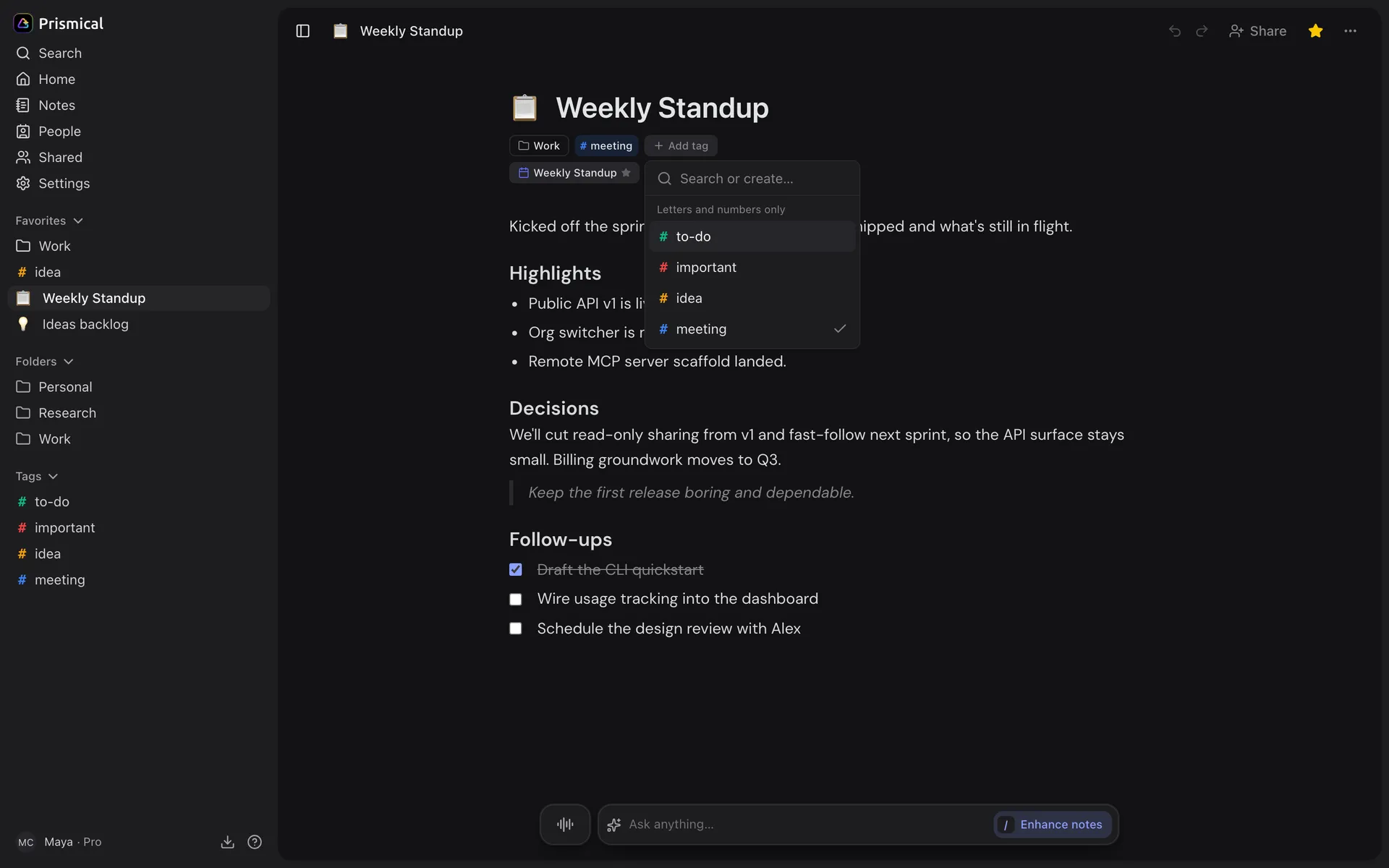
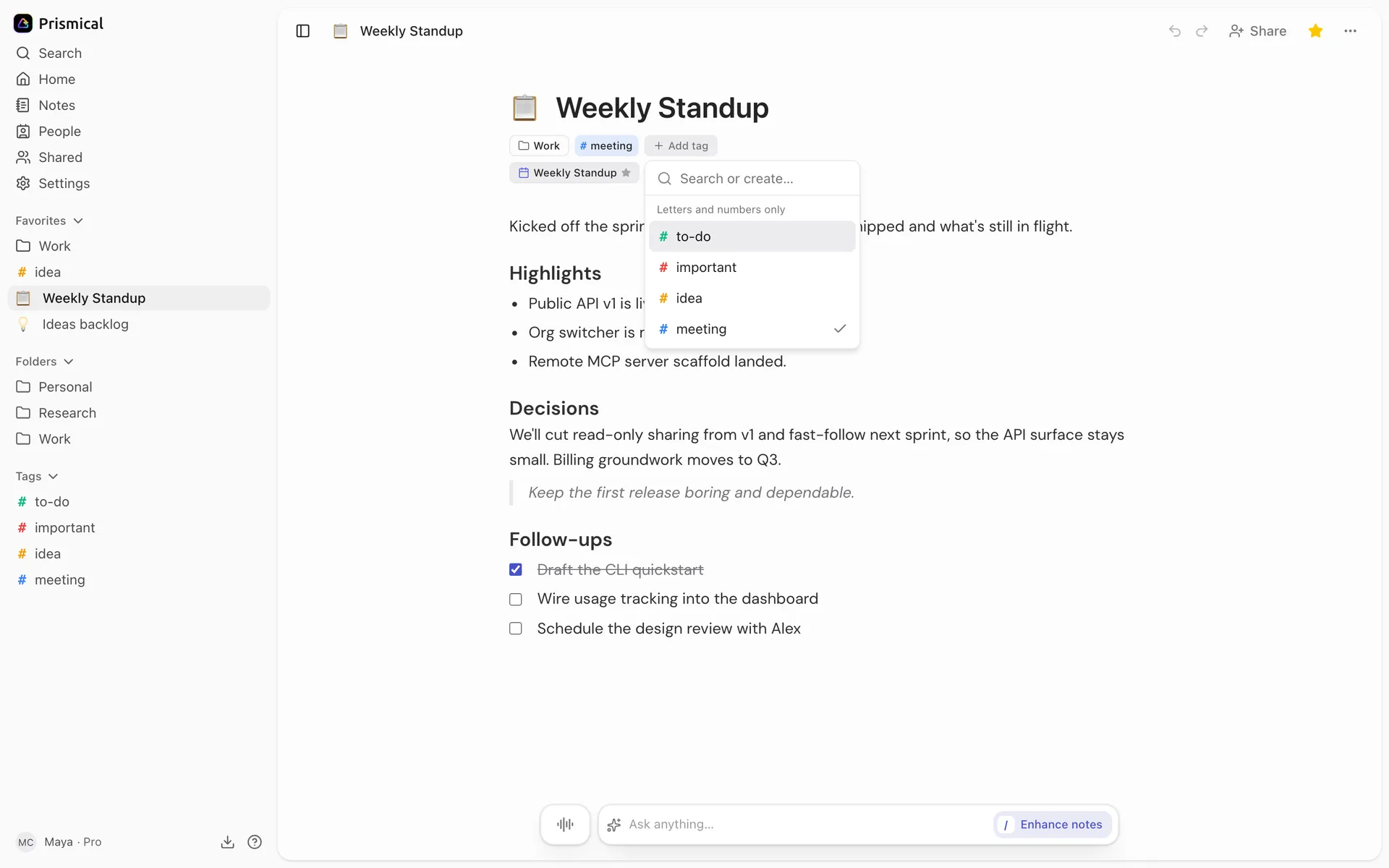
Open a note and add a tag from the tag picker. Type a name that doesn't exist yet and you'll create it on the spot — Prismical picks a color for you, spreading them across the palette so tags stay distinguishable at a glance.
Tags work on every platform, so a note tagged on your phone is filtered by that tag on your laptop.
Filtering
Click a tag in the sidebar to see its notes.
Pick more than one and you get notes carrying all of them, not any of them. So
follow-up + pricing is "the pricing conversations I still owe someone a reply
on", not "everything about either".
The sidebar shows your five newest tags. ⌘K reaches any of them by name, however
many you have.
Managing Tags
The ⋯ menu on a sidebar tag lets you rename it, change its color, favorite it, or delete it. Renaming is safe — a tag is one thing with one name, so it updates everywhere at once.
Deleting a tag takes it off every note that had it. The notes themselves are untouched.
A Scheme That Survives
Tags work best when they describe what you'll want later, not what a note is about. The note is already about its contents; search can find that.
What search can't find is intent:
follow-up— I owe someone somethingdecision— we settled something here1:1,interview,standup— the kind of conversation it was
Those are the ones worth having, because they answer questions you'll actually ask. See Ask AI for the other half of that — asking across notes in plain language.