
Notes
Create and edit notes: the editor, markdown shortcuts, titles, and how recordings attach to a note.
Your notes are where your writing lives. Recordings attach to a note, Enhance writes into it, and Ask AI reads from it — but the note itself is just a document you type in.
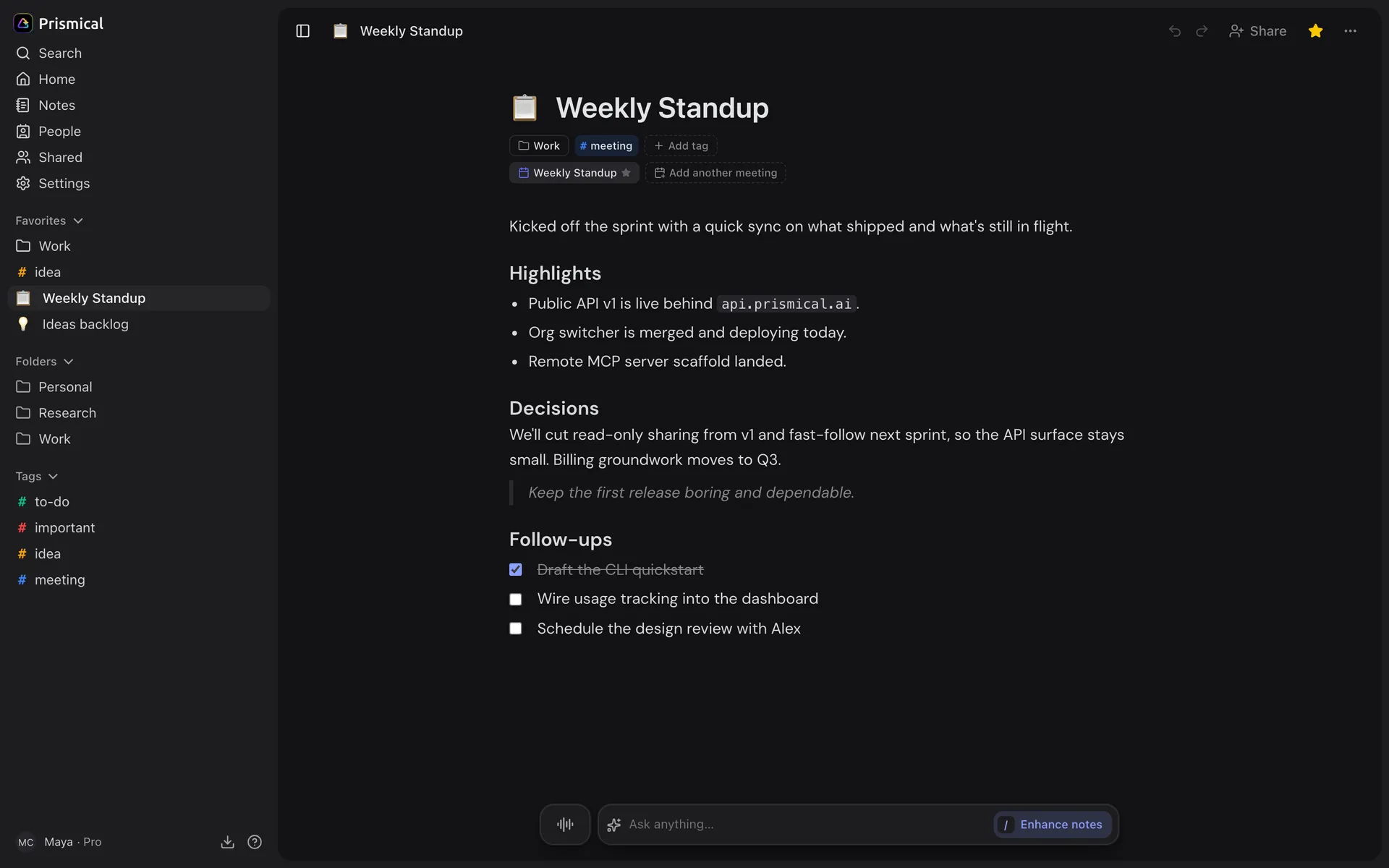
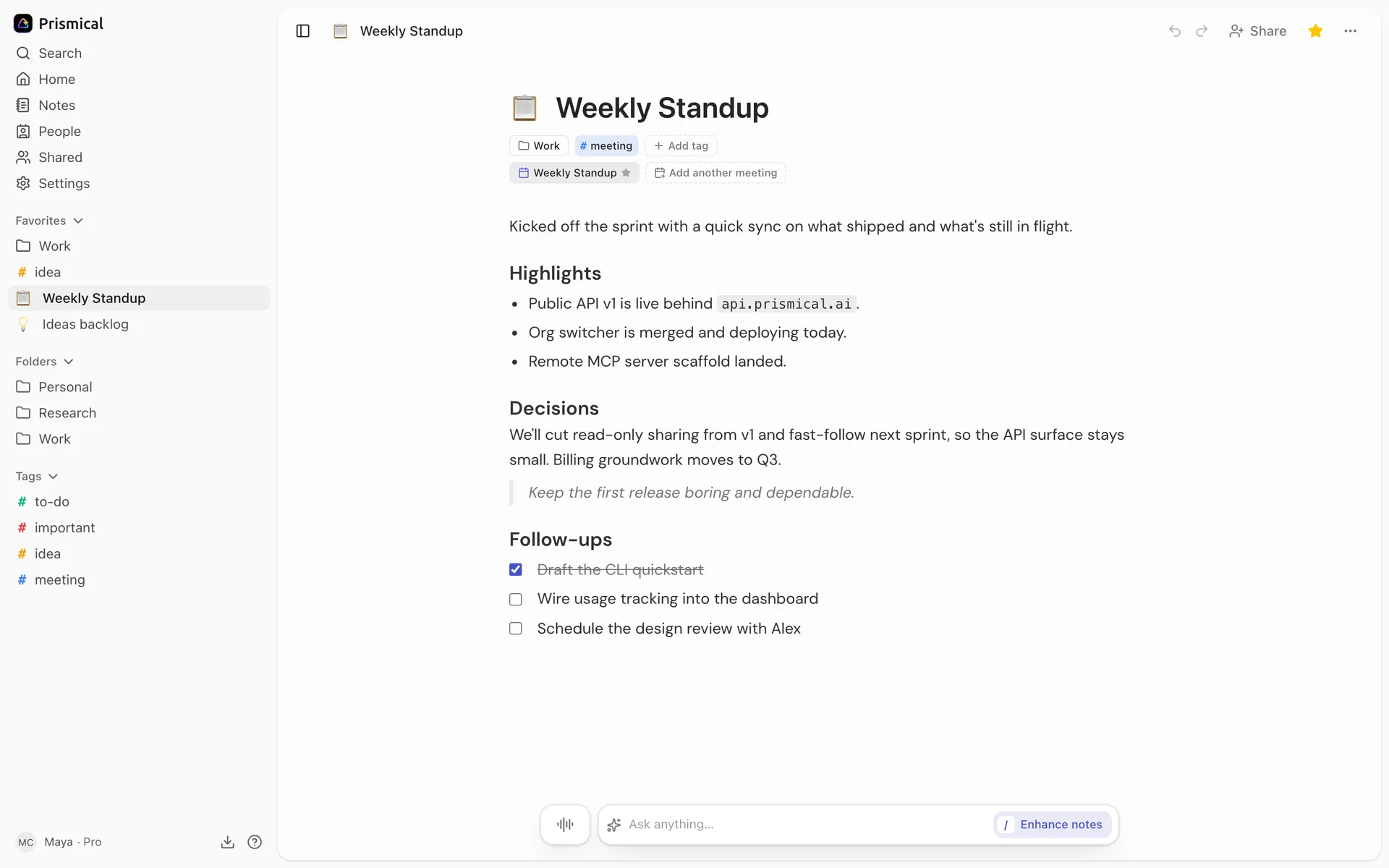
Making a Note
Click New note in the dock at the bottom of the window, or press ⌘K / Ctrl+K
and choose New note.
New notes are titled by date — Note - 17 Jul — so you always have something to scan by. Click the title and type over it whenever you like; it saves when you click away.
A note made from a calendar meeting is titled after the event instead. See Calendar.
Writing
The editor takes markdown as you type. You don't need to learn a toolbar:
| Type this | Get |
|---|---|
# , ## , ### | Headings |
- or * | A bullet list |
1. | A numbered list |
> | A quote |
`code` | Inline code |
**bold**, *italic* | Bold, italic |
--- | A divider |
Task lists, tables, and code blocks are all supported, and task lists nest.
Select any text and a popover offers your inline skills — a fast way to rewrite a paragraph without leaving the note.
Two People, One Note
Notes are collaborative. Open a shared note at the same time as someone else and you'll see each other's edits as they type — no save button, no merge conflicts, no "someone else is editing this" warning.
If your connection drops mid-sentence, keep typing. The editor shows Reconnecting…, holds your edits, and merges them when it's back.
If someone shared a note with you as a viewer, the editor is read-only and says so.
Finding Your Way Around
⌘K (or Ctrl+K) opens the command palette. It's the fastest route to anything:
start typing to search your notes, or jump to a folder, a tag, or a settings page.
With an empty query it lists your most recent notes.
For the full set of keyboard shortcuts, and how to add your own, see Shortcuts.
The Notes List
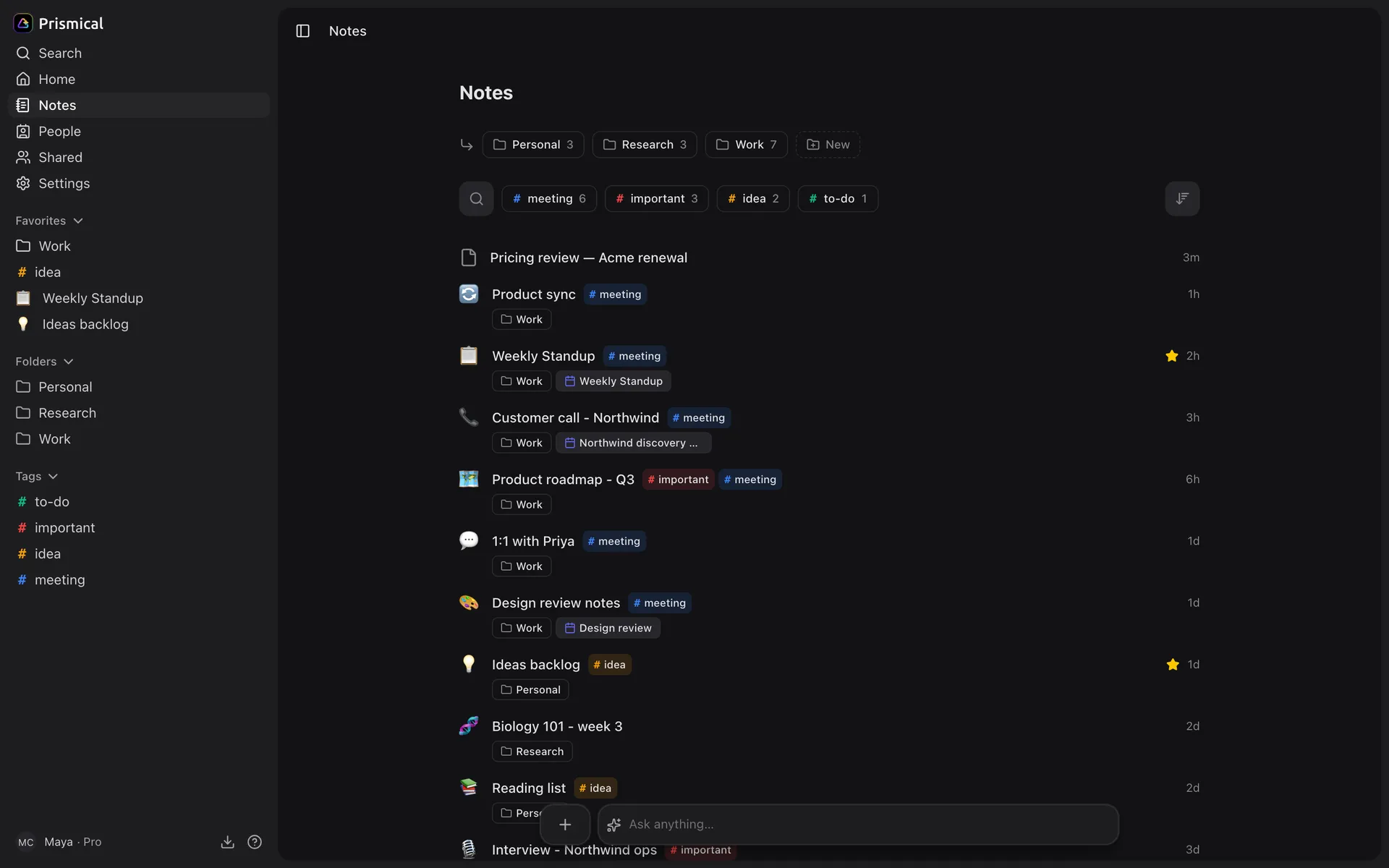
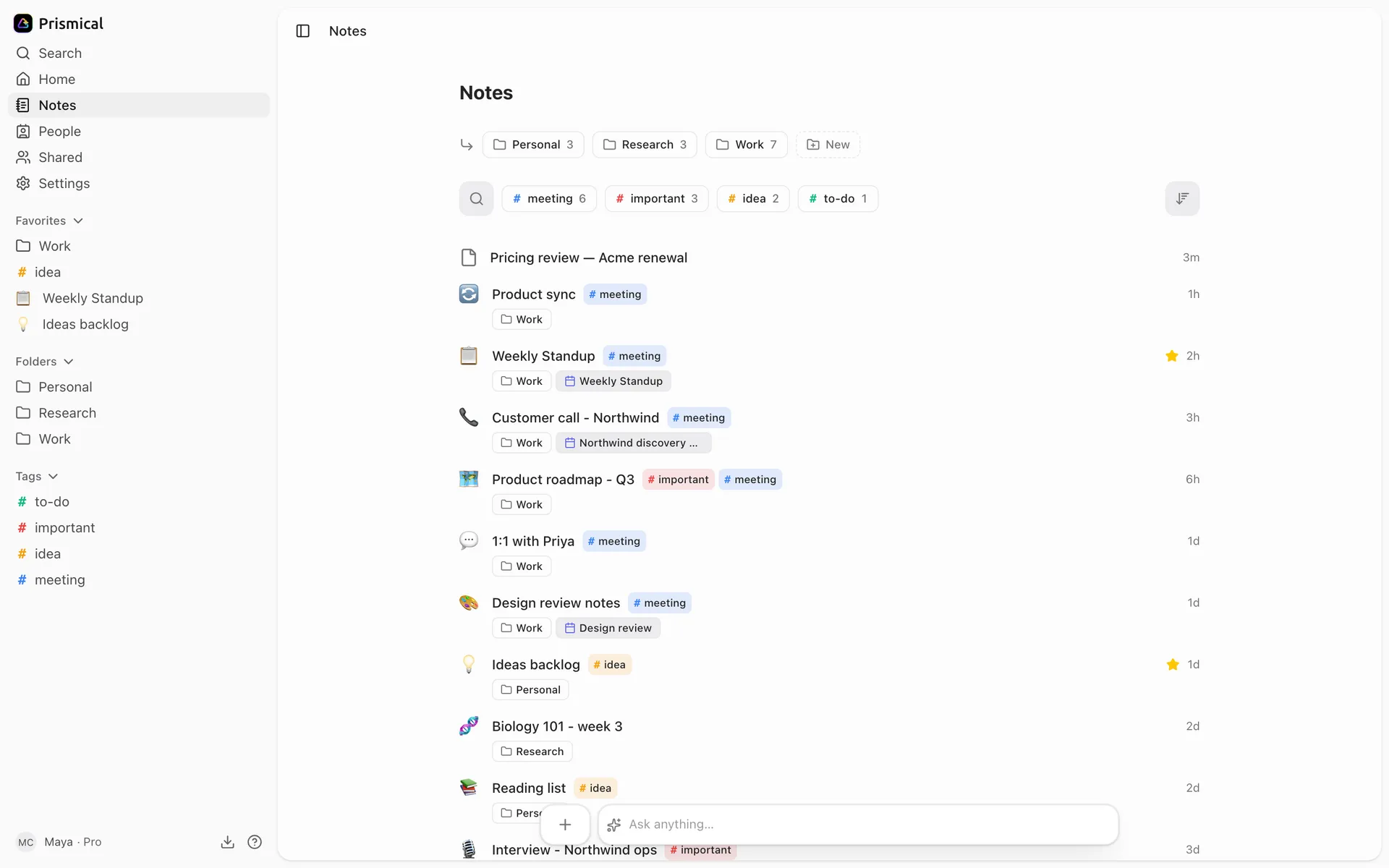
Notes are listed newest-updated first, each showing its title, a preview, and its tags.
Narrow the list with the folder and tag filters. Picking several tags shows notes carrying all of them, not any — so it gets more specific as you add more.
Deleting
Delete a note from the row menu in the sidebar.
Deleting a note is immediate, and you can't undo it. There's no trash to restore from — the note disappears from every device at once. If you're not sure, remove it from its folder or untag it instead.
Deleting a folder doesn't delete the notes in it — they just stop being in a folder. See Folders.