
Speaker identification
How Prismical separates the voices in a recording, and how to tell it who each one is.
Prismical can pick out multiple speakers in a recording and separate them into individual voices. You can then tell Prismical who each one is — and that name follows the transcript everywhere it goes: into your notes, into answers, into anything you copy out.
Premium
Prismical Sorts the Voices When You Stop
While you're recording, the panel reads Live transcript - speakers are identified after recording stops. Lines appear as people talk, but Prismical hasn't separated them yet.
Stop the recording and it goes to work, showing Identifying speakers… for a few seconds. It then labels each voice Speaker 1, Speaker 2, and so on.
Speaker identification is most accurate on the desktop and mobile apps. It still works in a browser, just less reliably.
Speaker identification needs a Prismical Cloud transcription model. If you've connected your own transcription key, the transcript still saves — it just arrives without speaker labels, and Prismical tells you so. See AI models.
Saying Who Is Who
Open any speaker's name in the transcript panel:
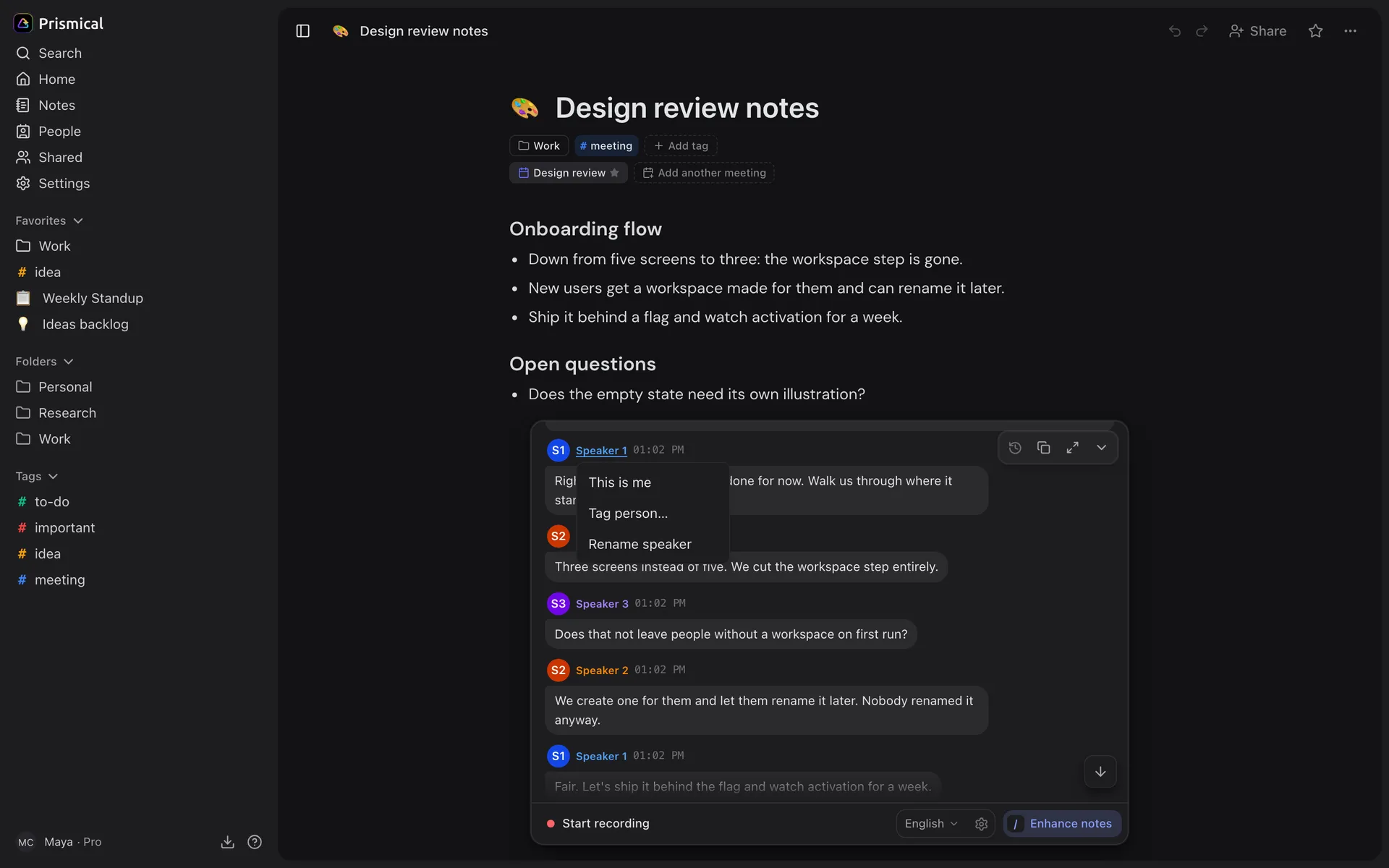
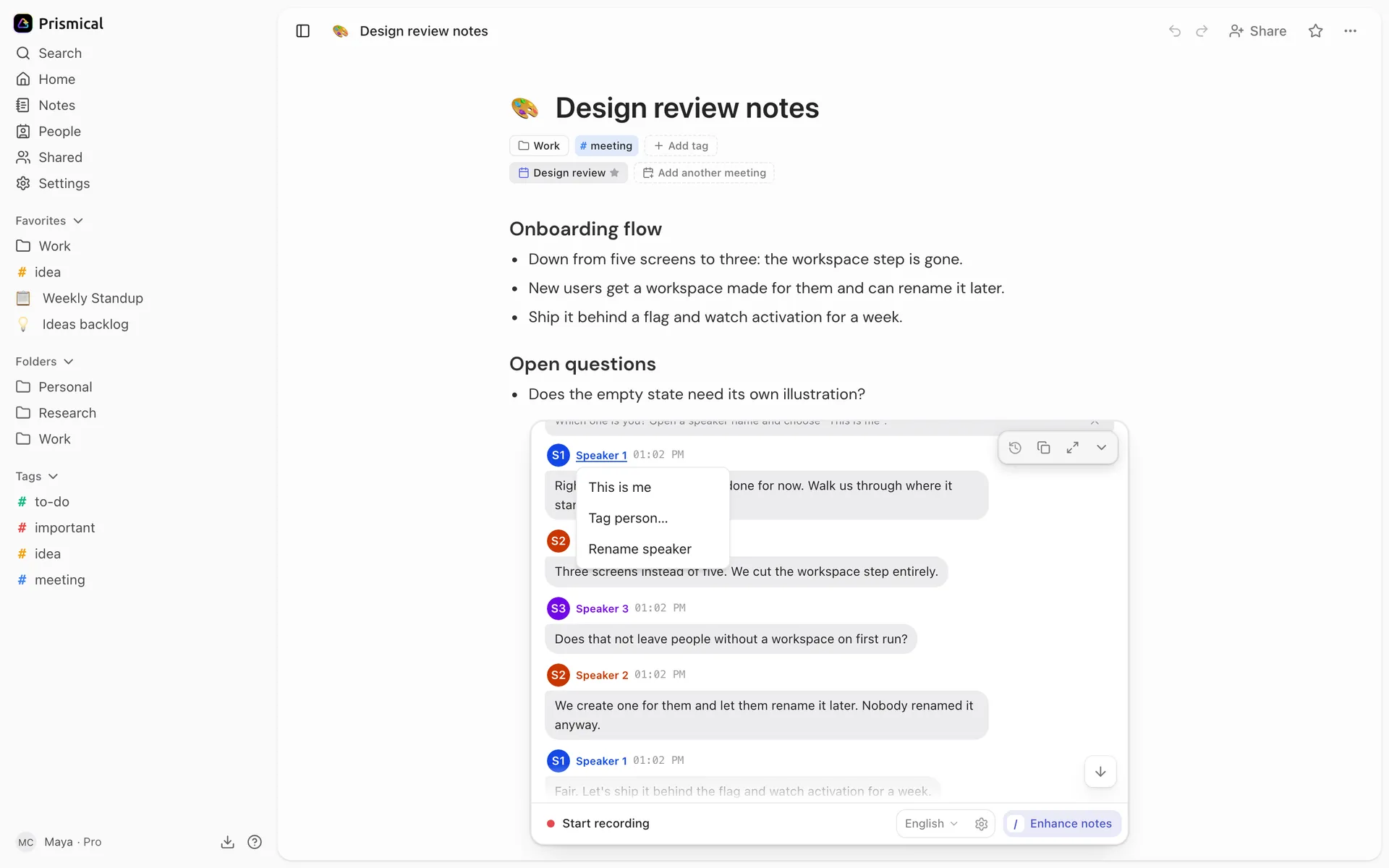
| Option | What it does |
|---|---|
| This is me | Marks that voice as yours. On the speaker already marked as you it reads Not me instead. |
| Tag person… | Links the voice to someone in People, so it carries their real name. |
| Rename speaker | A plain text label, for anyone not in your People directory. |
Once a speaker carries a name, the same menu offers Clear to put it back to the numbered label.
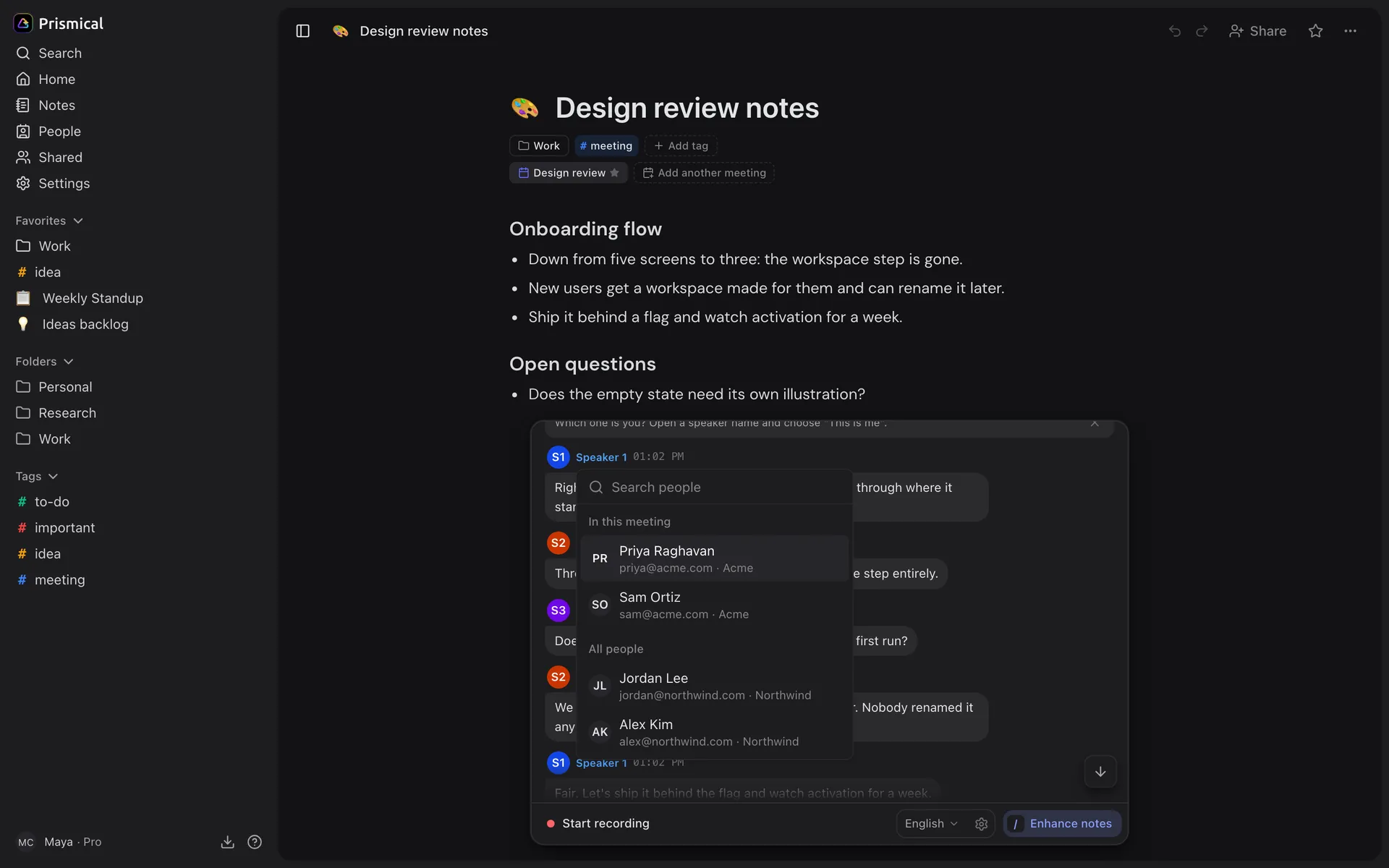
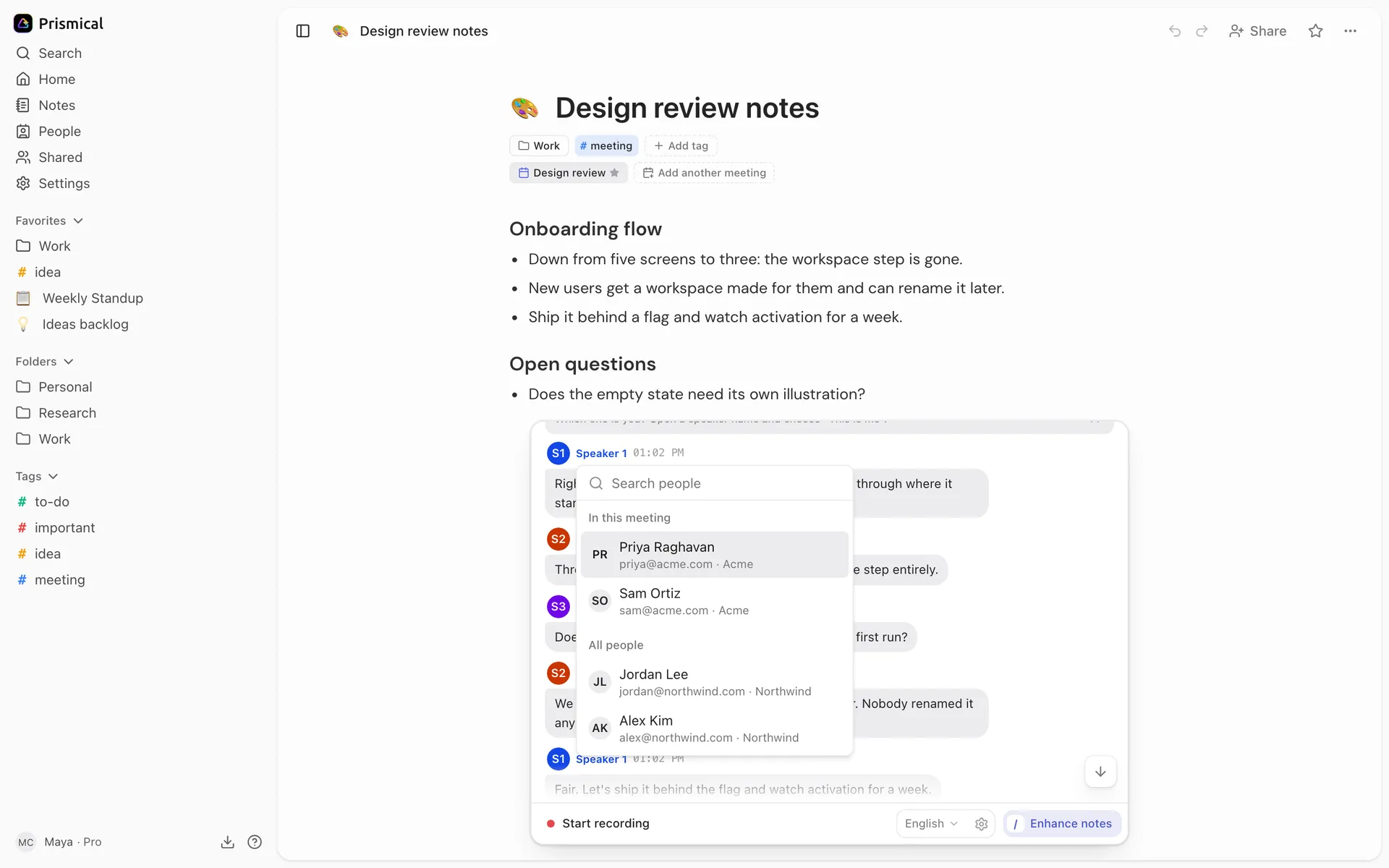
When the note is linked to a calendar event, the picker puts In this meeting at the top — the attendees, organizer first — followed by everyone else under All people. For a guest who isn't in People, use Rename.
Only one speaker can be you — mark someone else and it moves across.
If you haven't marked anyone as yourself yet, Prismical asks under the recording header — Which one is you? Open a speaker name and choose "This is me." That's the usual starting point after an in-person meeting.
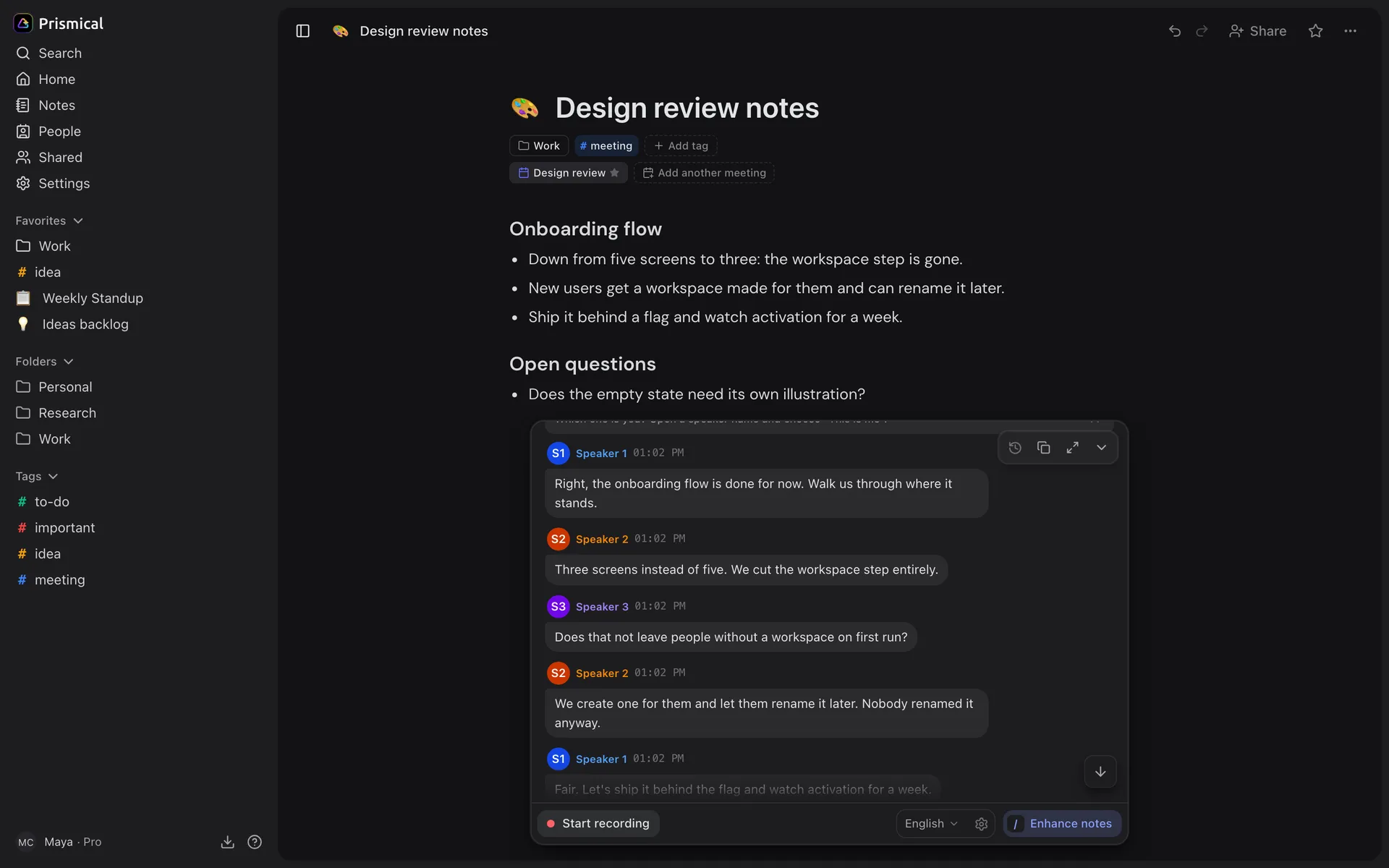
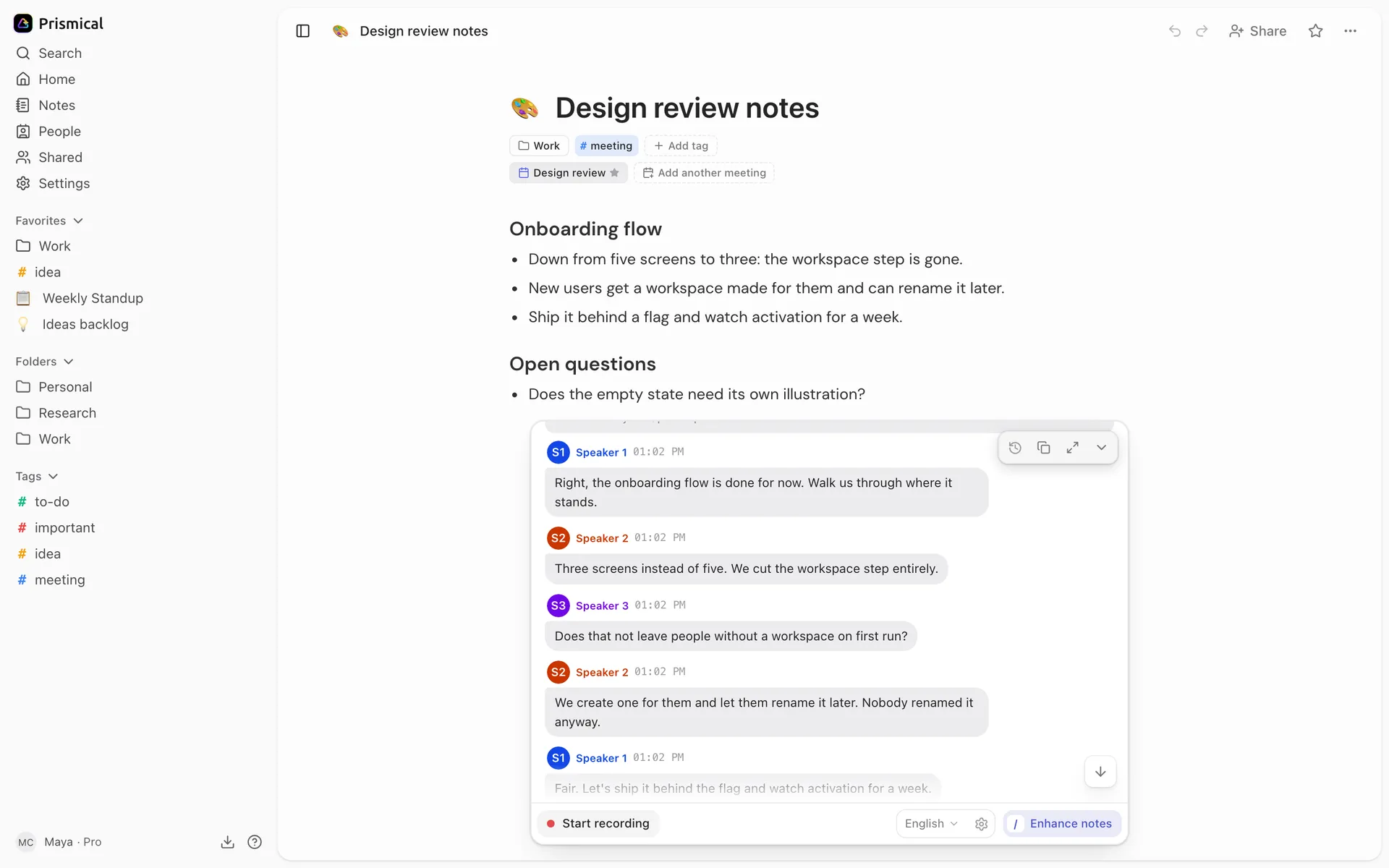
You get the menu on any note you can edit. This is me is only offered to whoever made the recording — a collaborator can rename or clear a speaker, but can't claim one as themselves. On a note shared read-only, the names are visible but not editable.
Where the Names Show Up
Tag a speaker once and Prismical uses that name everywhere: in the transcript panel (you
on the right, everyone else on the left), in Enhance and
Ask AI so action items land against real names, in Copy transcript as
Name: text, and over the API.
Your own turns read You to you, and your name to anyone else on the note.