
Meeting recording
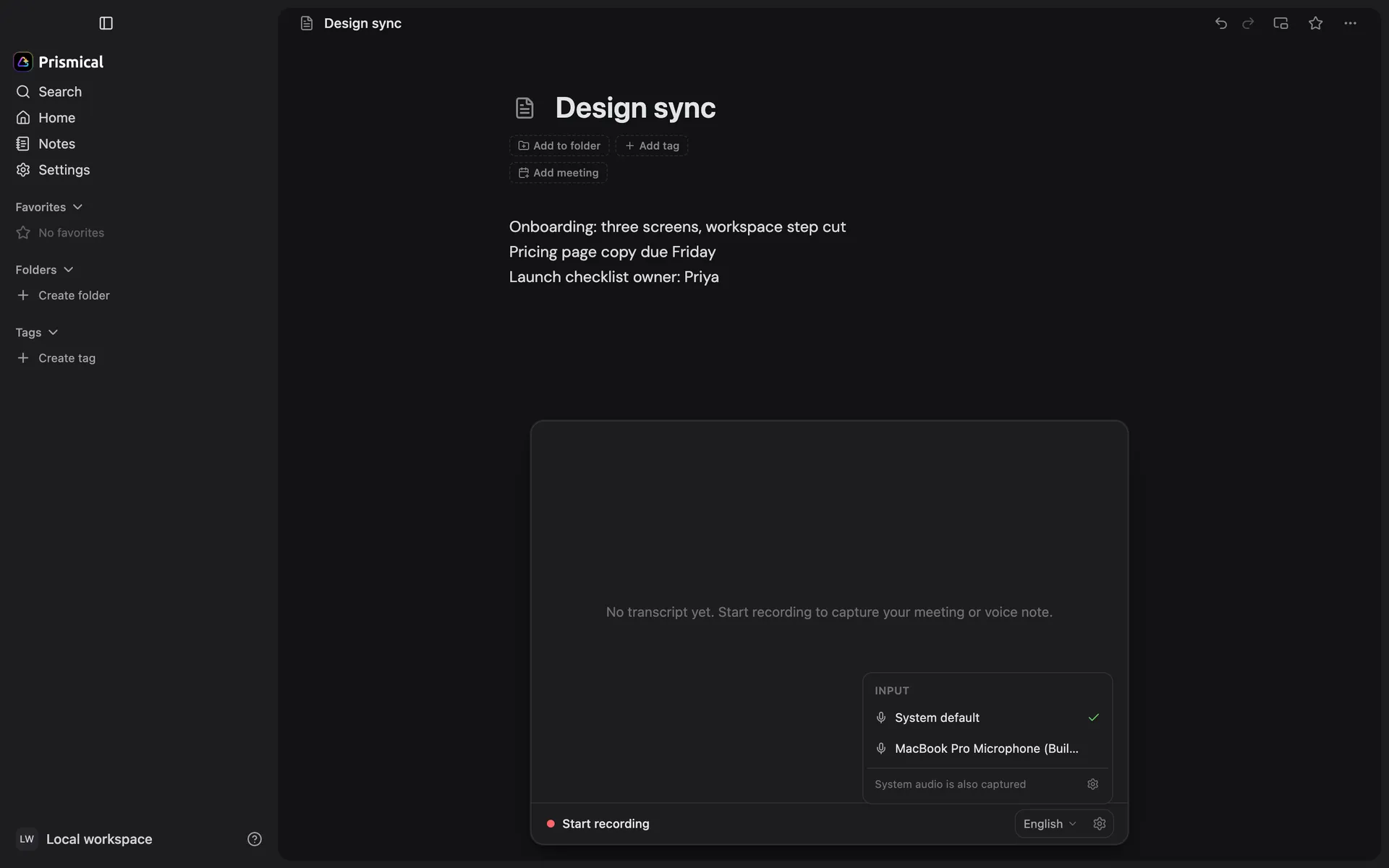
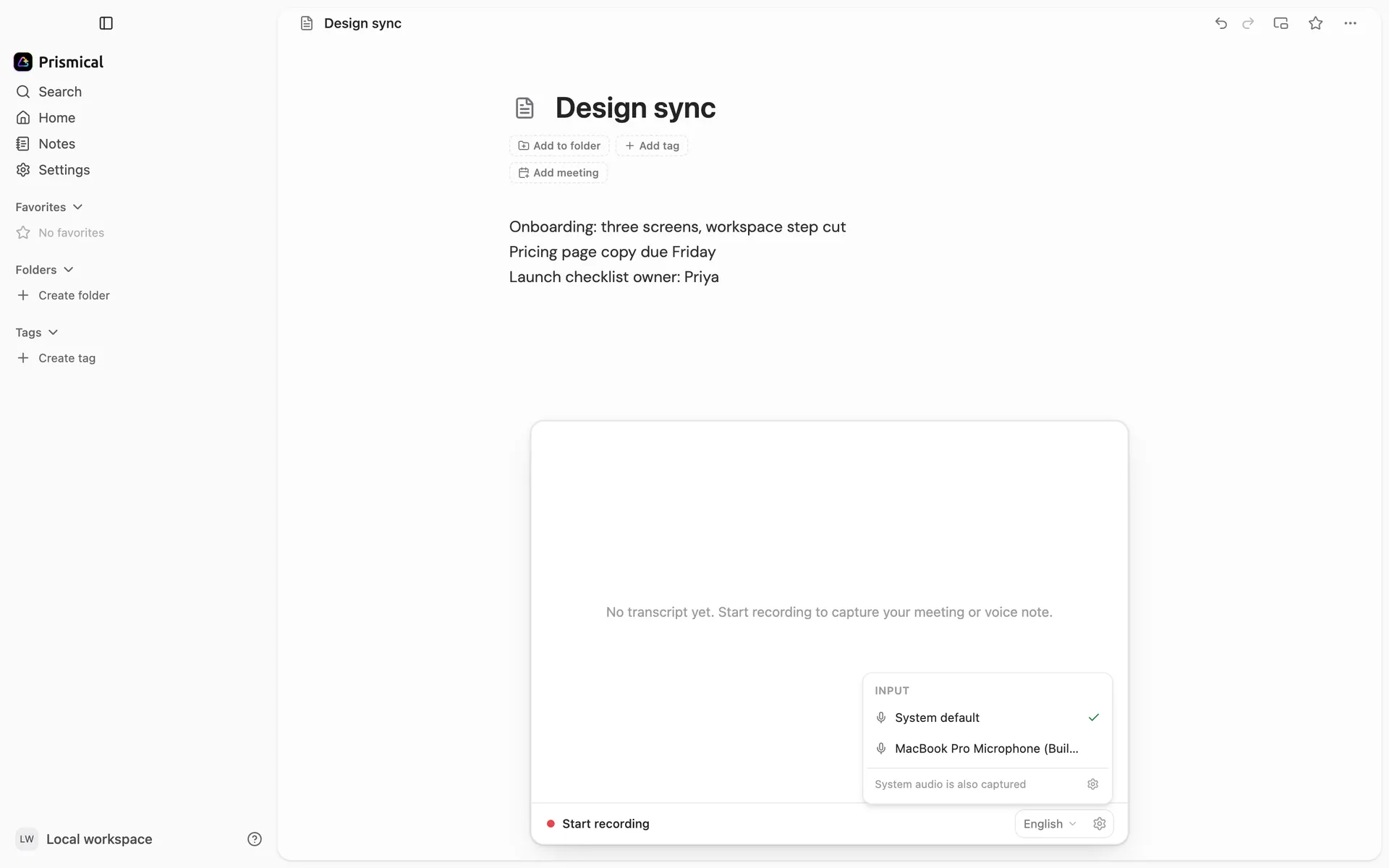
Capture both sides of a call by recording your microphone and your computer's audio — with no bot in the meeting.
Your microphone only hears your half of a video call. The other people come out of your speakers, and a microphone pointed at you doesn't reliably catch them.
System audio capture solves that by recording what your computer is playing alongside what your microphone hears. The transcript ends up with both sides — and nobody had to admit a bot to the meeting.
What You Need
Use the current Prismical desktop app on macOS 14.2 (Sonoma) or later, or on Windows 10 or 11. Recording captures your microphone and system audio together.
On macOS, grant system-audio permission when prompted. You can check the permission under Settings → Preferences → Permissions. Older macOS versions record your microphone only.
On Windows, system audio is captured from the system's default output device. There is no separate system-audio permission prompt. Microphone access still needs to be allowed in Windows privacy settings.
Which Apps It Works With
Prismical captures system audio rather than connecting to a particular meeting app, so you can use it with Zoom, Meet, Teams, or a browser call. On Windows, use the system's default output device for the call. Check a short test recording if you're using a different audio route; not every device or app configuration is guaranteed. If audio is missing, email help@prismical.ai — we're happy to help.
Because the capture is system-wide, it takes in anything else playing at the time — a video in another tab, a notification chime, music. Worth a thought before recording something you'll rely on.
You and Them
Recording two sources is what makes the You and Them labels possible. Your microphone carries your side of the call; system audio carries theirs.
Three people around one laptop all come through the microphone together. Prismical still separates those voices once you stop, and numbers them Speaker 1, Speaker 2 — you can then say who each one is. See Speaker identification.
Wear Headphones
Recording your speakers and your microphone at once creates an obvious problem: your microphone also hears your speakers, so the other person's voice arrives twice — once cleanly from system audio, and once as an echo bleeding into your track.
Headphones solve this completely, and they're the single easiest thing you can do for transcript quality on a call. System audio is captured from your computer's output before it ever reaches your headphones, so the other side is recorded just as cleanly — you simply stop your microphone hearing it too.
On speakers, expect some of the other person's words to bleed into your side of the transcript.
Platform Support
Web, iOS, Android, and older macOS versions record your microphone only.
| What recording captures | |
|---|---|
| macOS 14.2+ | Microphone and system audio |
| macOS 13–14.1 | Microphone |
| Windows 10/11 desktop | Microphone and system audio |
| Web | Microphone |
| iOS, Android | Microphone |
For an in-person conversation this is exactly right — one microphone in the room is the whole story, and your phone is a perfectly good recorder. It's video calls where system audio earns its keep.
On a Mac running macOS 13 or earlier, recording a video call succeeds but captures only your side. There's no error — it just quietly records less than you'd expect. If you're on an older Mac, check what you're getting before you rely on it.
See Platform support for the full comparison.